Sign in

Elumvia

iPhone

Elumvia, one tap away

Add it to your Home Screen. It opens full screen, like an app. No download.

See all videos

What you’ll learn · 9 steps

  • Add Elumvia from Safari in about a minute.
  • Give it a clean name and icon.
  • Open it like an app, with no browser bars.
STEP 1

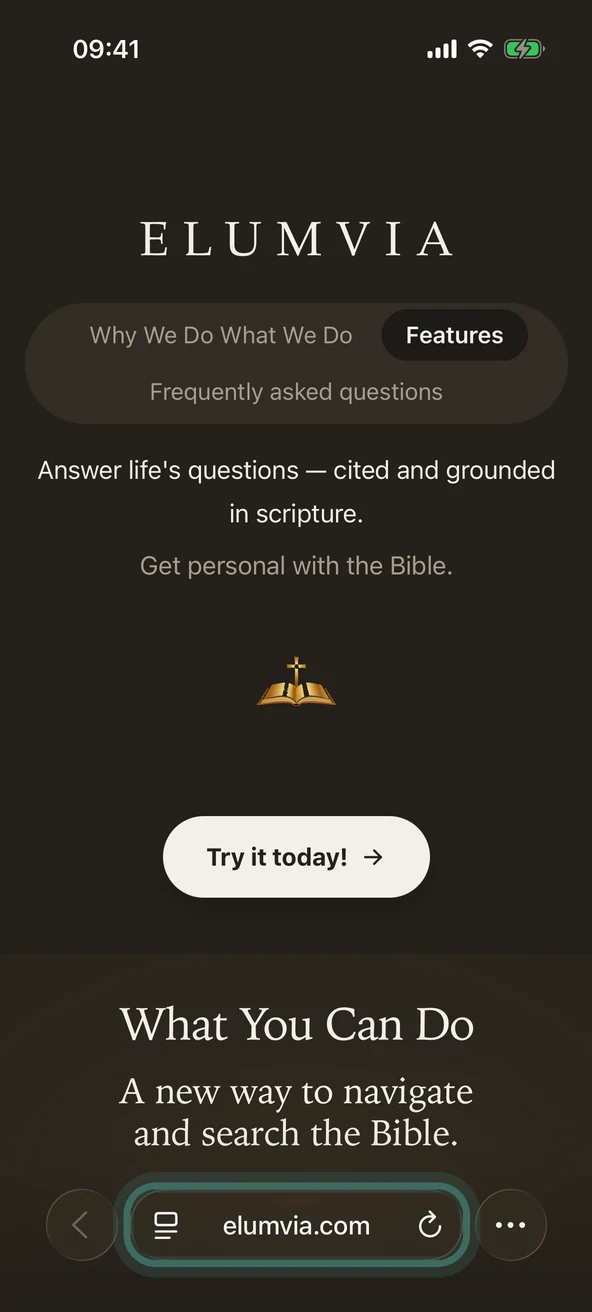
Open Safari

Go to elumvia.com.

Add to Home Screen
Add to Home Screen

Duration: 0:52

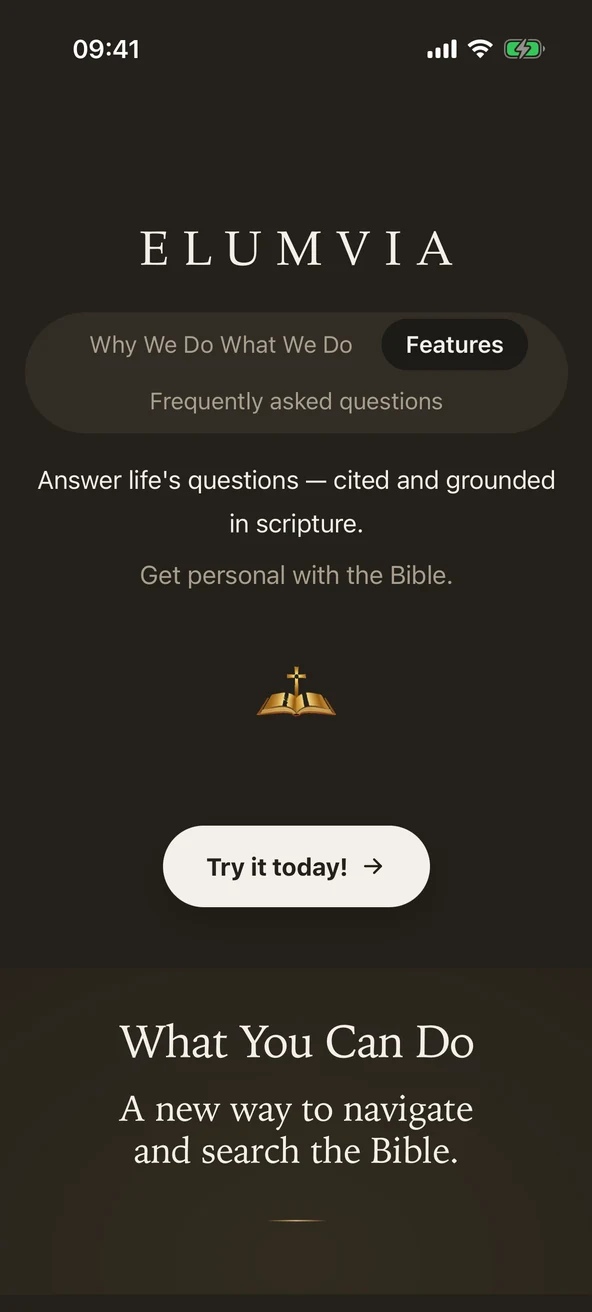
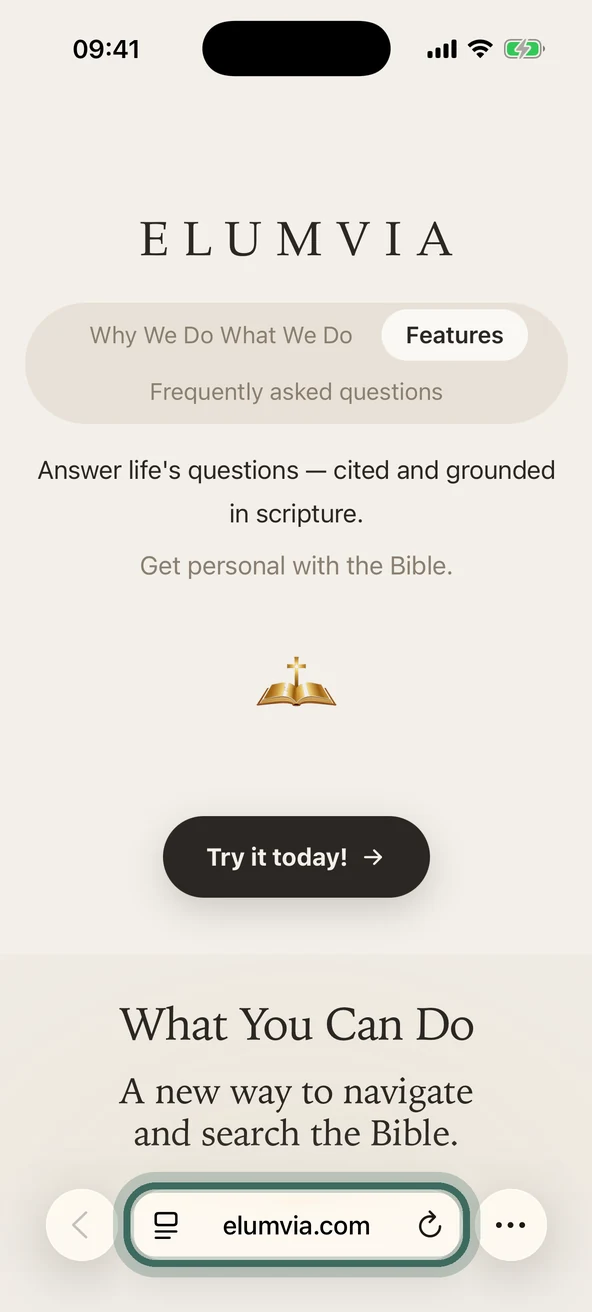
Safari open at elumvia.com, with the address bar outlined. Safari open at elumvia.com, with the address bar outlined.
STEP 2

Select •••

At the bottom right of Safari. If you don’t see •••, select the Share button at the bottom instead and skip to step 4.
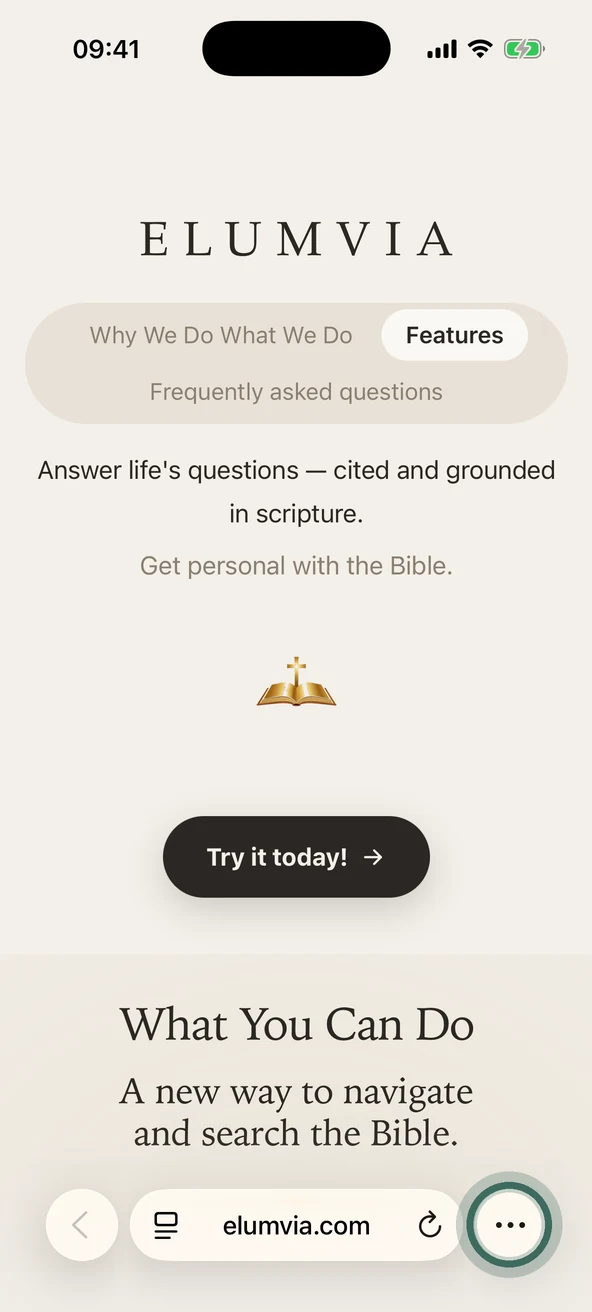
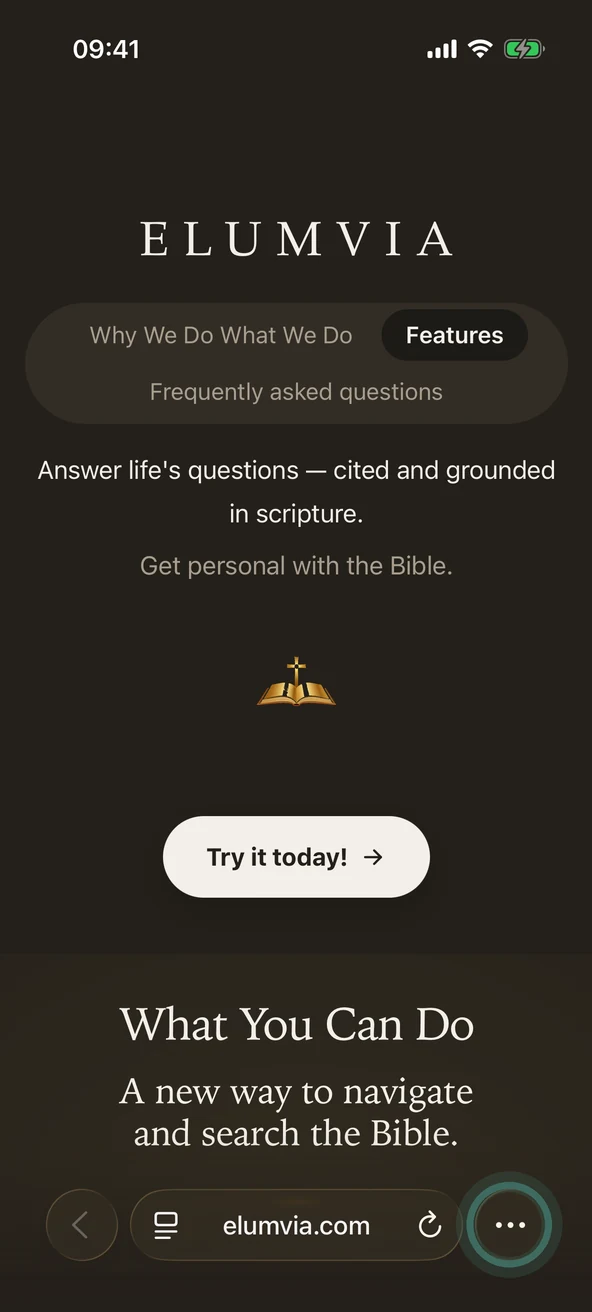
Safari toolbar with the ••• button at the bottom right outlined. Safari toolbar with the ••• button at the bottom right outlined.
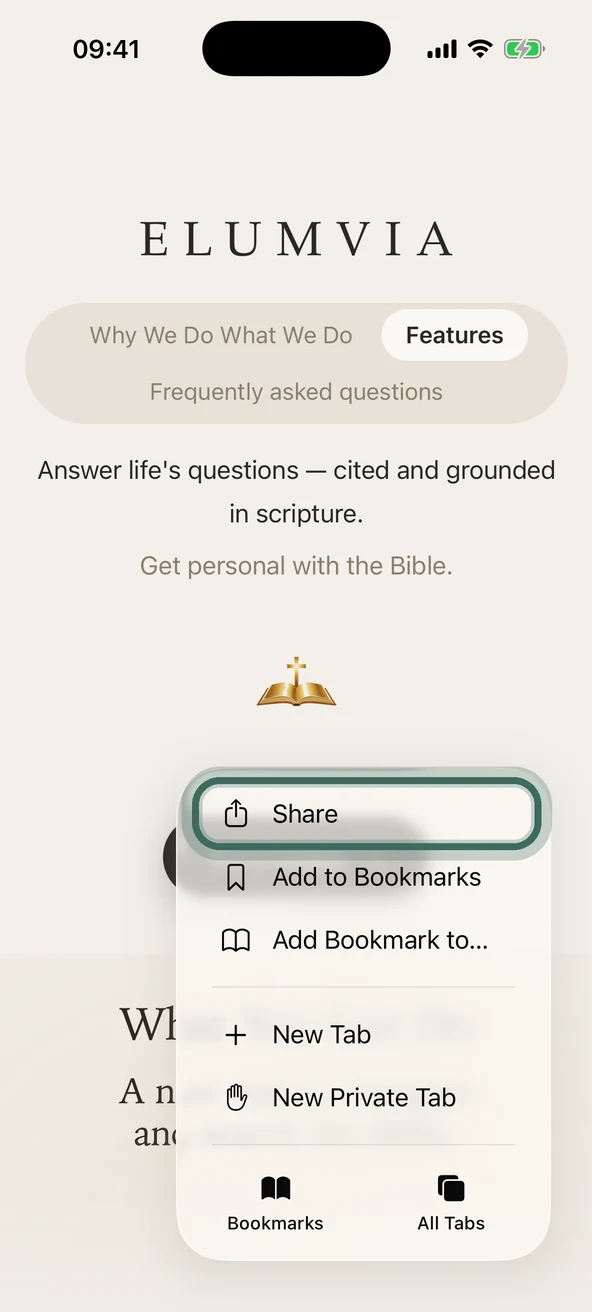
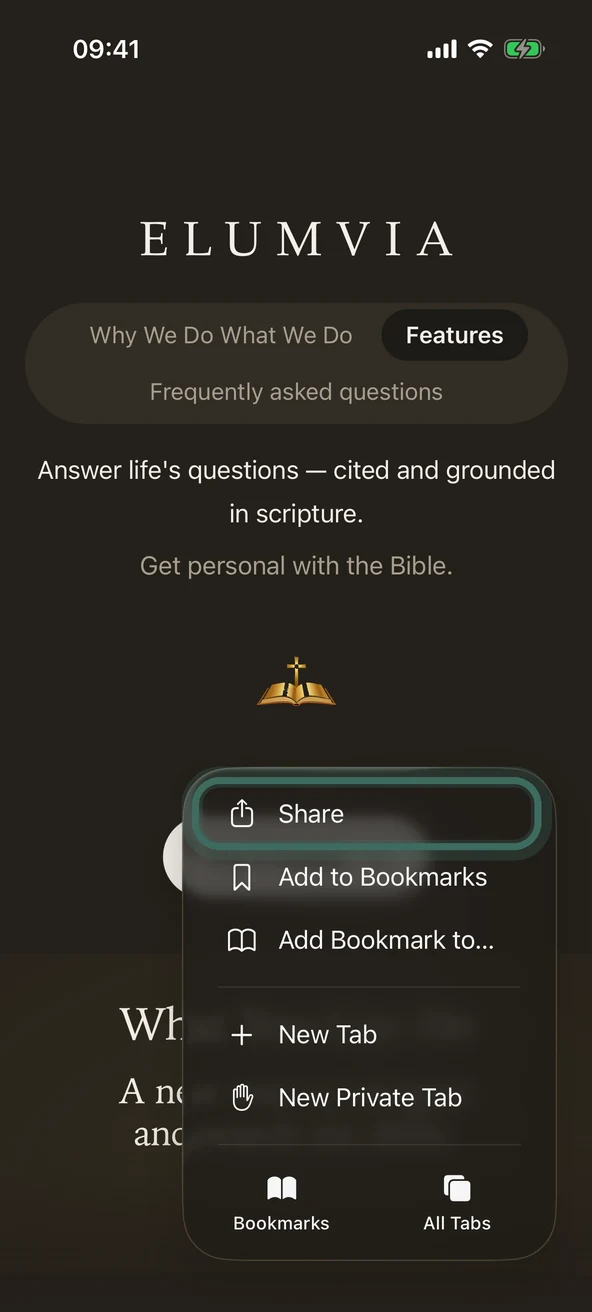
STEP 3

Select Share.

The Safari menu, with Share outlined. The Safari menu, with Share outlined.
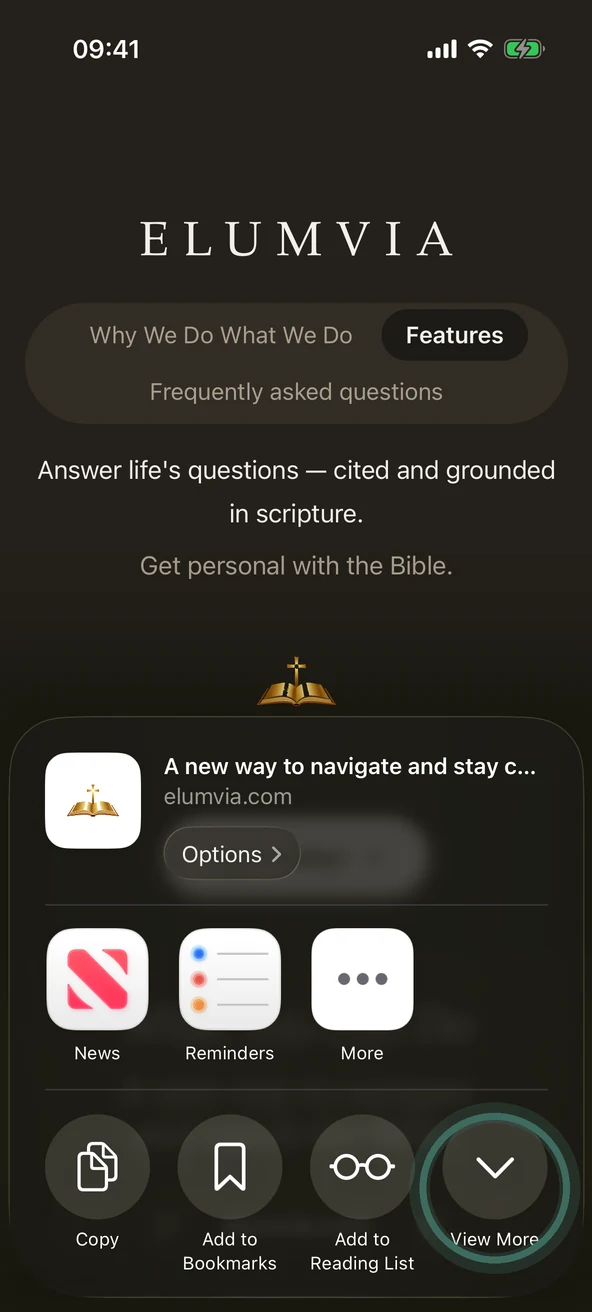
STEP 4

Select View More

The down arrow.
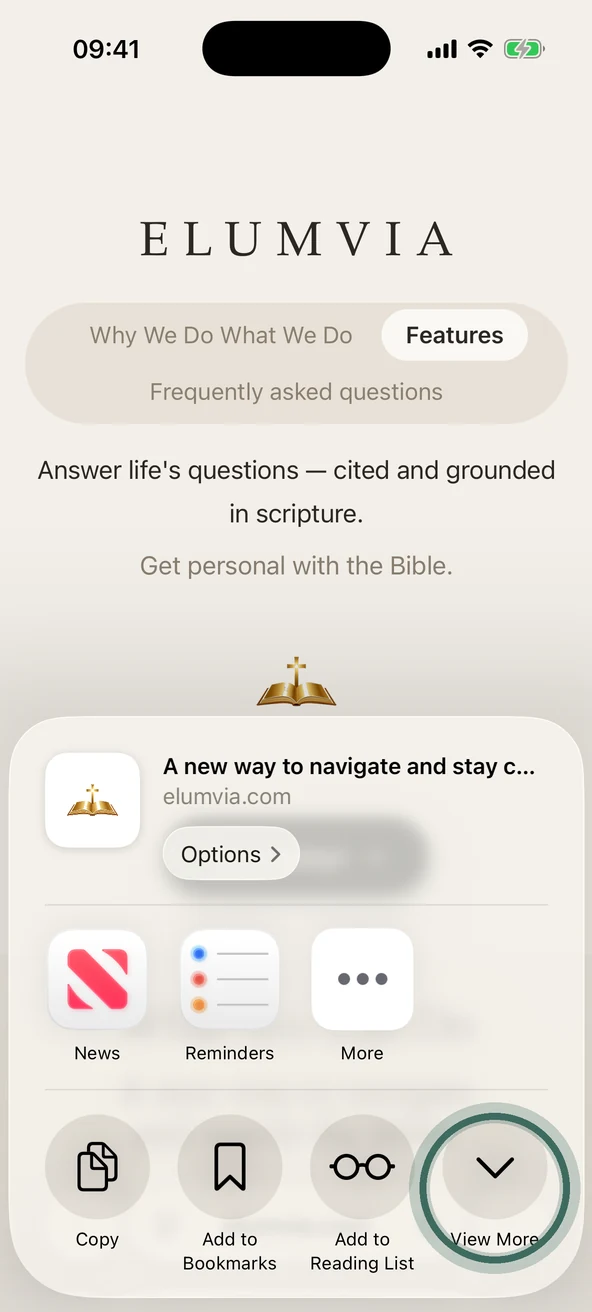
The share panel, with the View More down arrow outlined. The share panel, with the View More down arrow outlined.
STEP 5

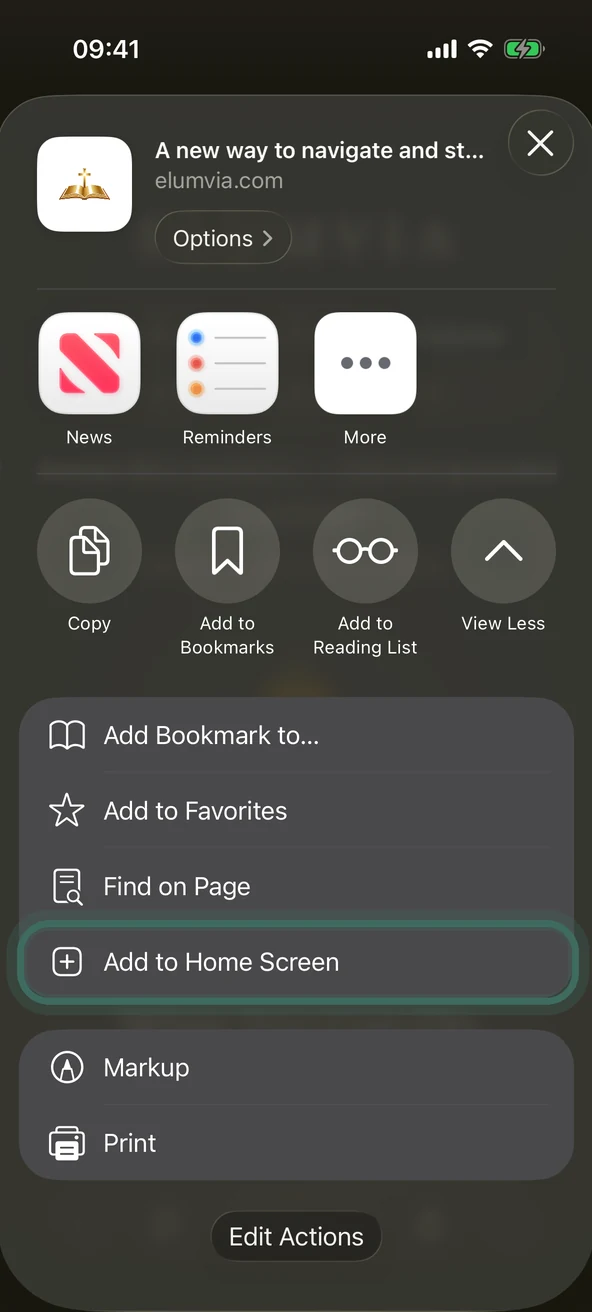
Select Add to Home Screen.

Not there? Scroll to the bottom, select Edit Actions, then select Add to Home Screen.
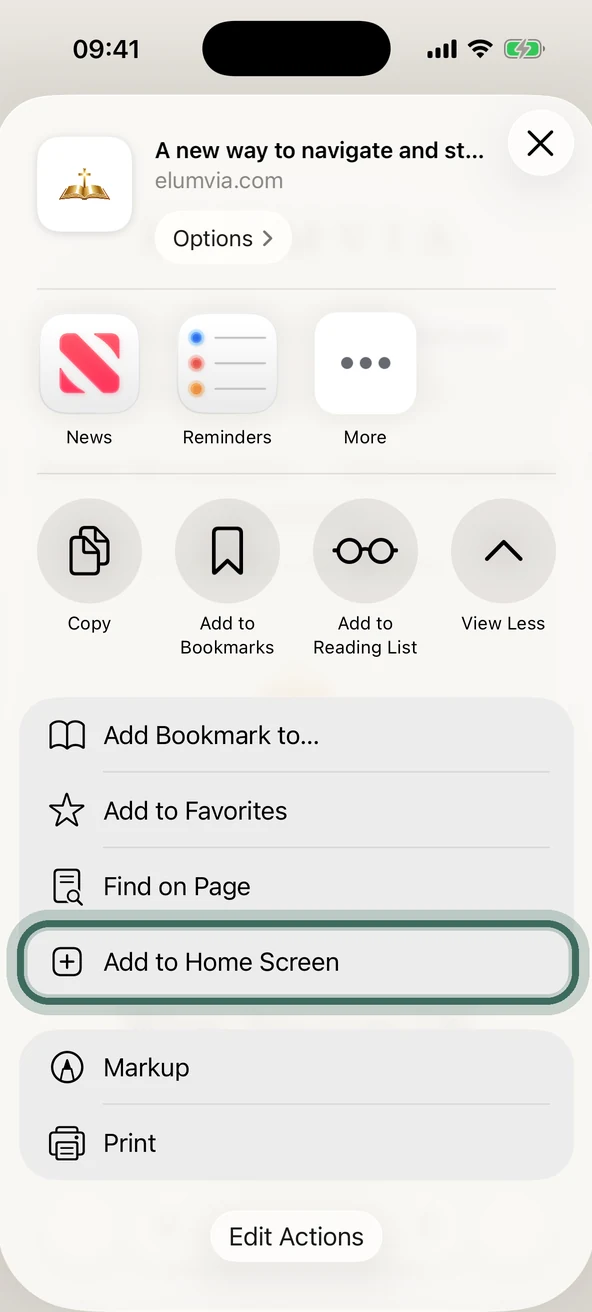
The full share list, with Add to Home Screen outlined. The full share list, with Add to Home Screen outlined.
STEP 6

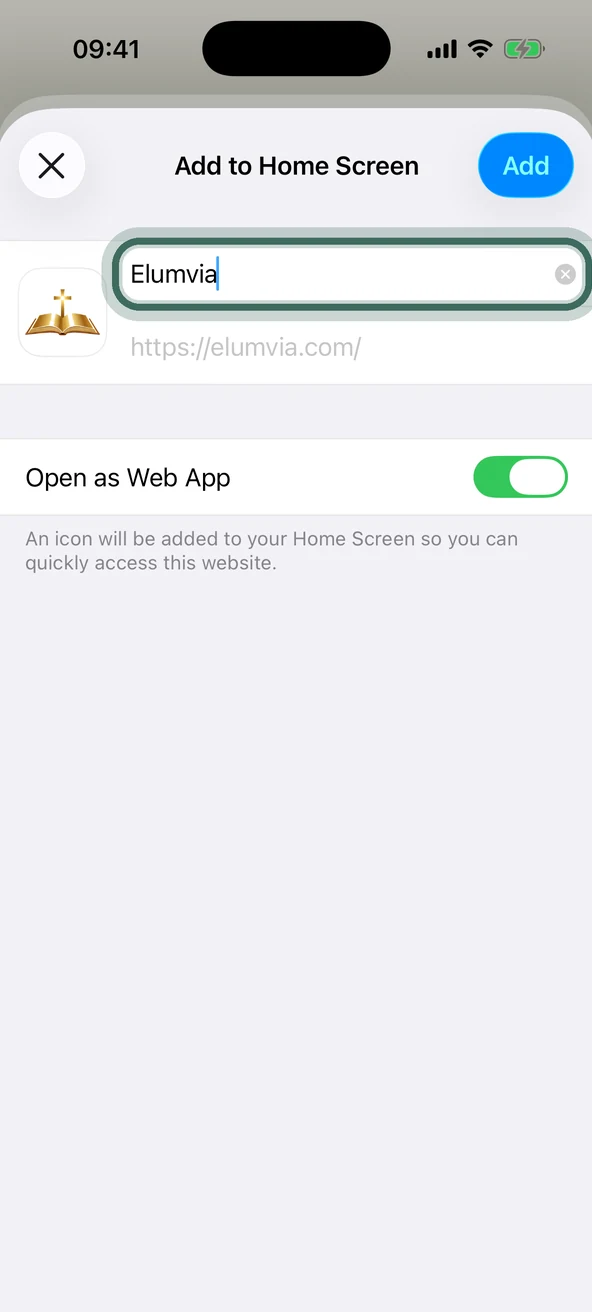
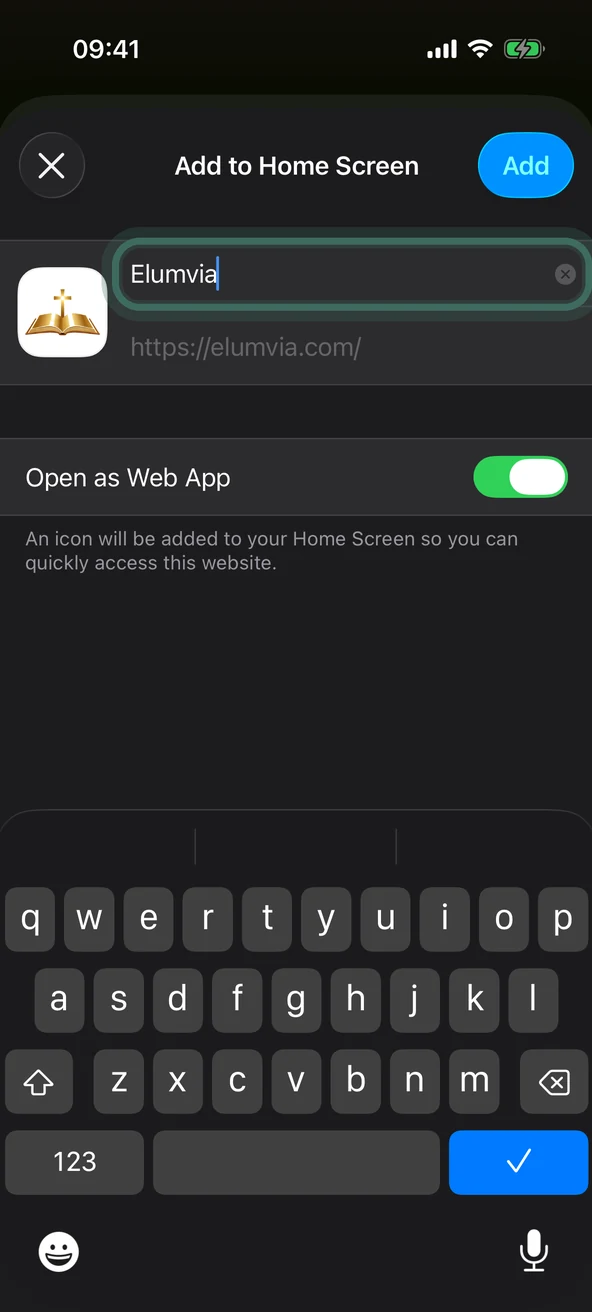
Name it Elumvia

If the name isn’t just Elumvia, change it to Elumvia. The name may start as a long line of text. Clear it and type Elumvia.
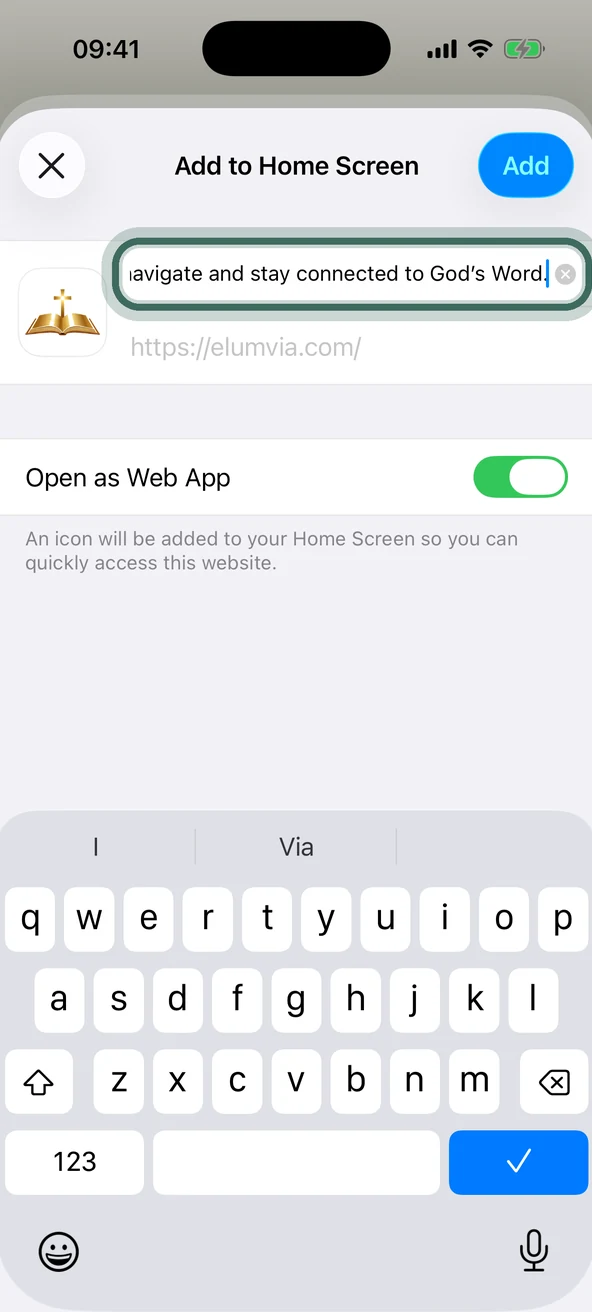
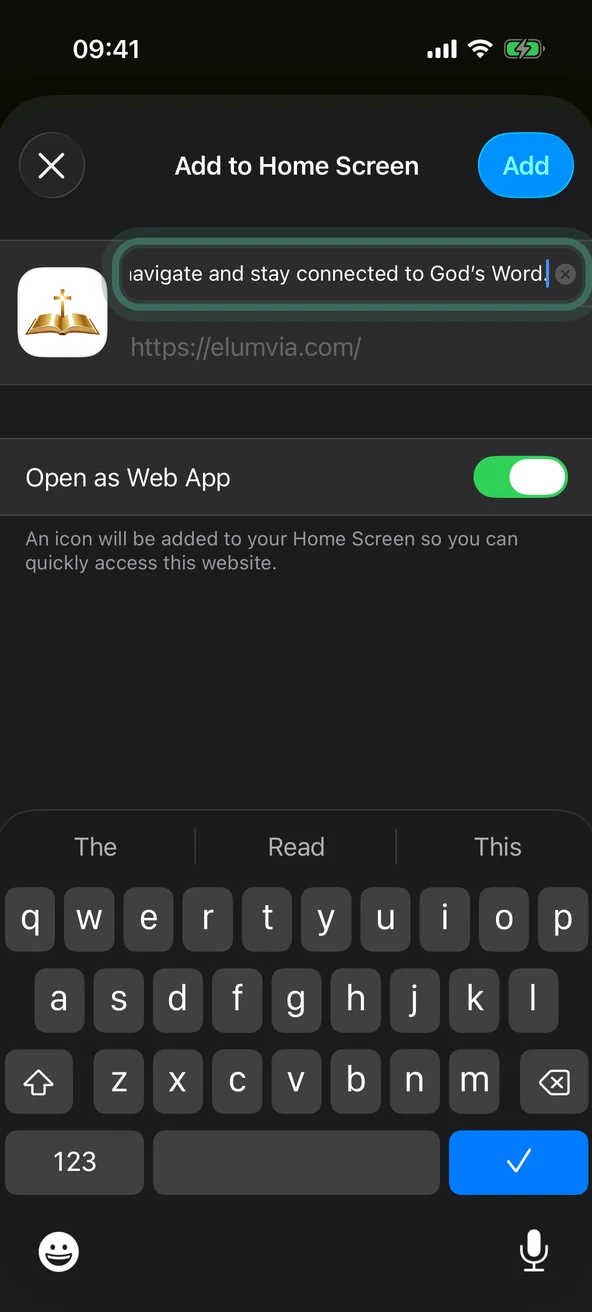
The Add to Home Screen panel with a long name in the name box, outlined. The Add to Home Screen panel with a long name in the name box, outlined.
The Add to Home Screen panel with the name changed to Elumvia, outlined. The Add to Home Screen panel with the name changed to Elumvia, outlined.
STEP 7

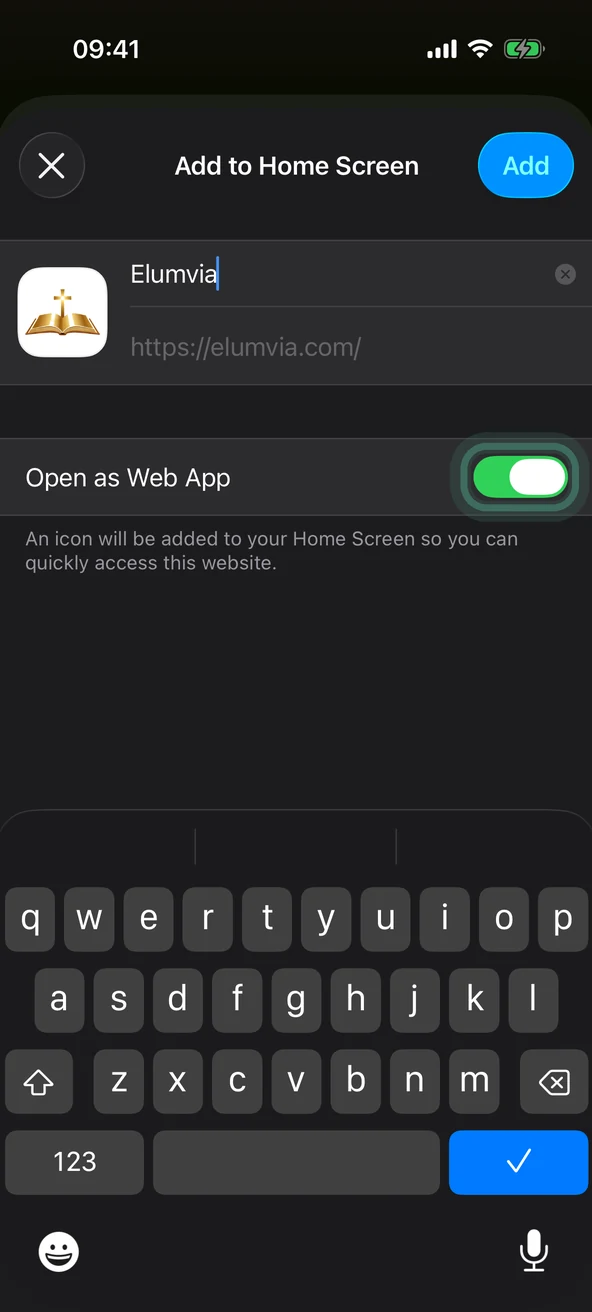
Open as a web app

Turn on Open as Web App so it opens like an app.
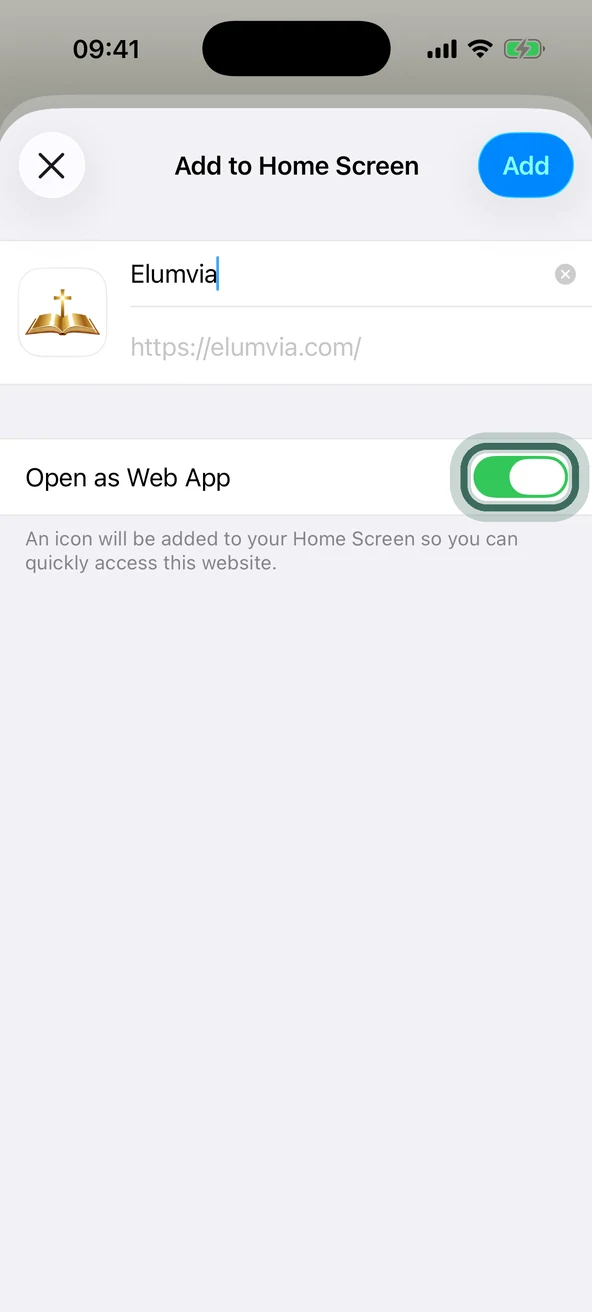
The Add to Home Screen panel with the Open as Web App switch outlined. The Add to Home Screen panel with the Open as Web App switch outlined.
STEP 8

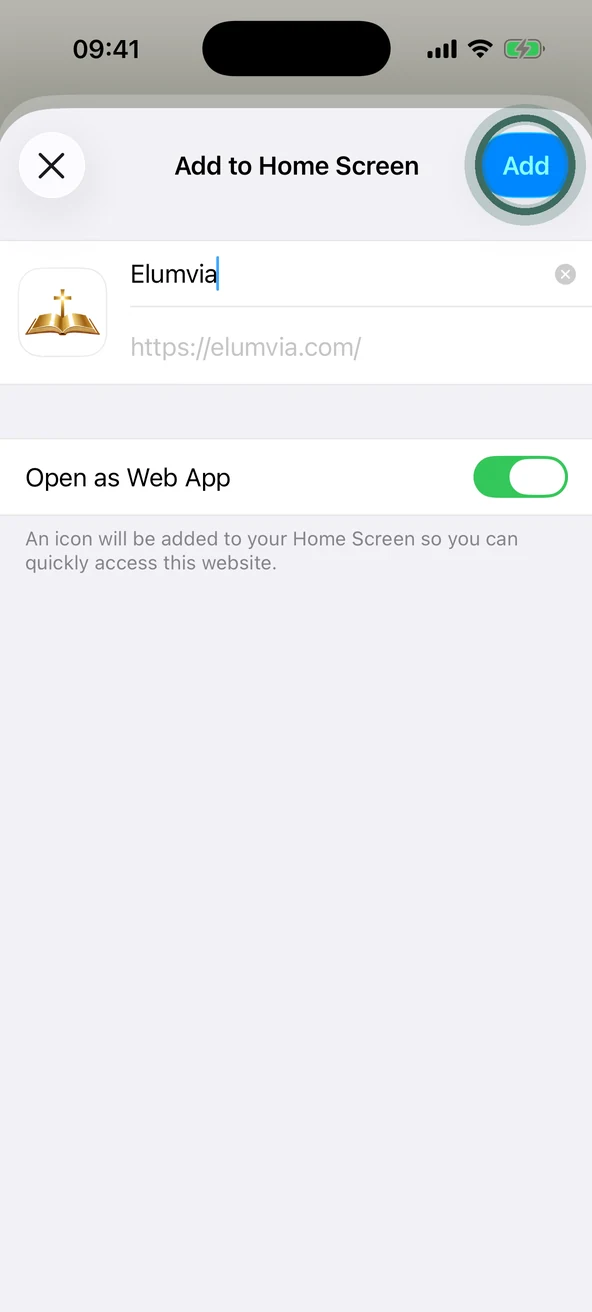
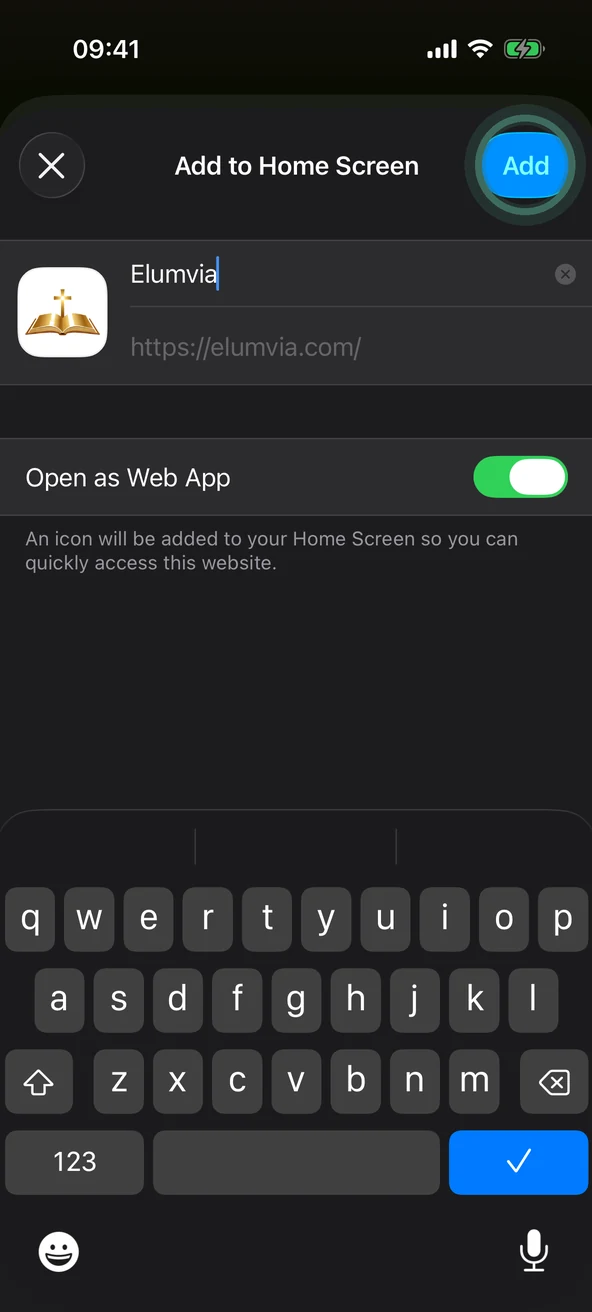
Select Add.

The Add to Home Screen panel with the Add button at the top right outlined. The Add to Home Screen panel with the Add button at the top right outlined.
STEP 9

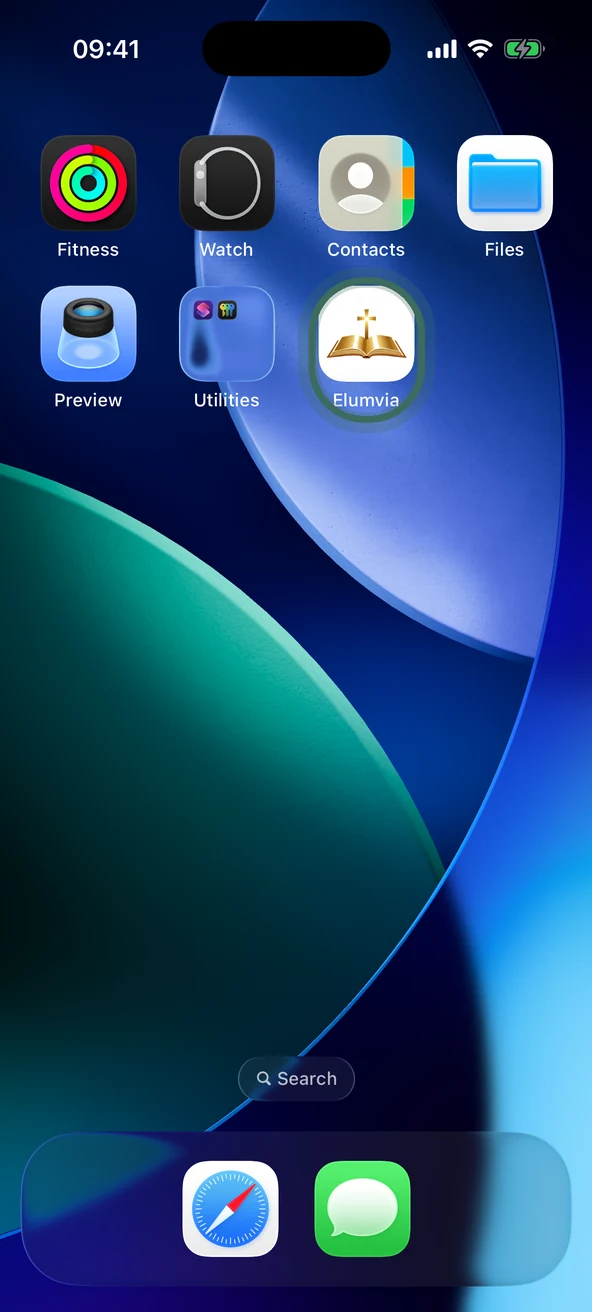
Open from Home Screen

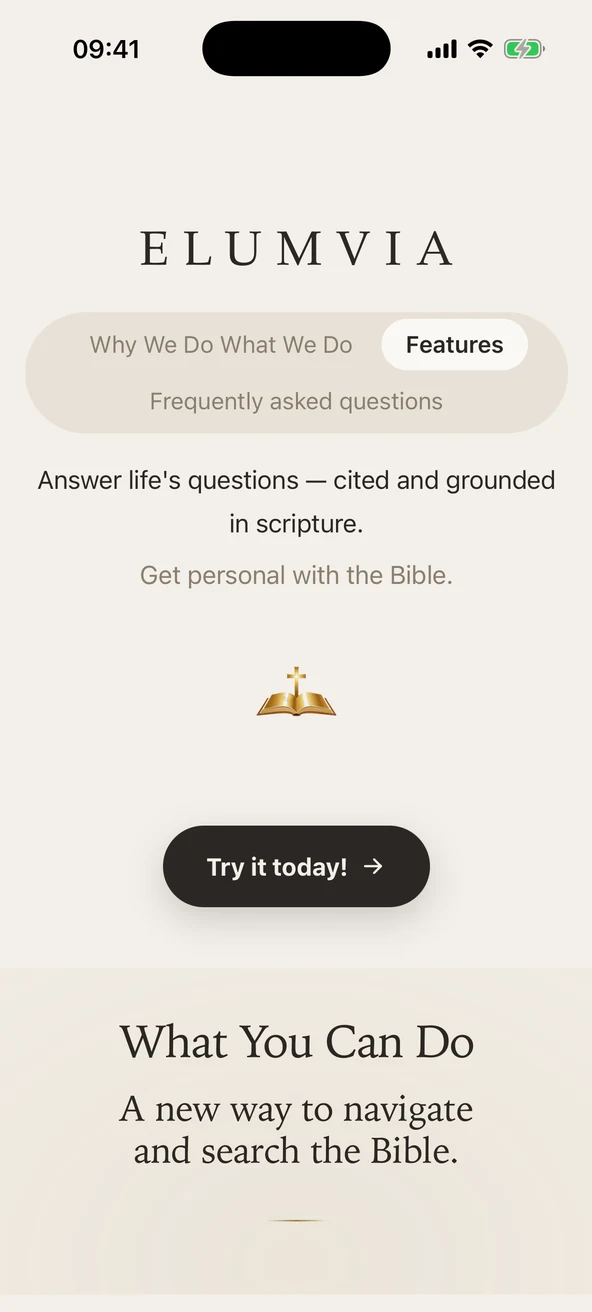
The Elumvia icon is now on your Home Screen. Select it to open.
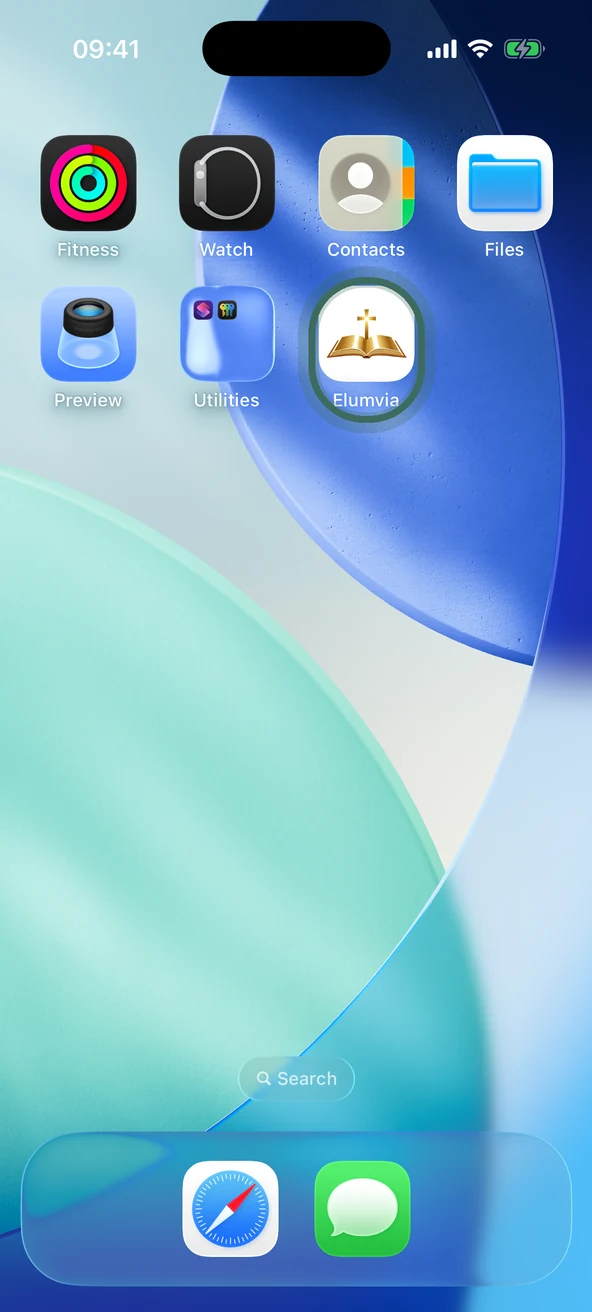
Home Screen with the Elumvia icon outlined. Home Screen with the Elumvia icon outlined.
Elumvia open on the iPhone. Elumvia open on the iPhone.

Good to know: If you don’t see the Open as Web App switch, select Add. Elumvia still works.

Screens may look a little different on your phone.

Next: Ask your first question

Elumvia

“Thy word is a lamp unto my feet, and a light unto my path.”

Psalm 119:105
Read it for yourself