
- Check any cited verse and read the whole chapter around it.
- Follow a book by its story, in KJV or plain English.
- Save, highlight and share what matters to you.
Check the verse
Every answer cites its verses. Open one and read it where it sits.
Start from any answer. New here? Ask your first question.
Open a cited verse
Select a small number in the answer to see the verse it cites.

Check the verse
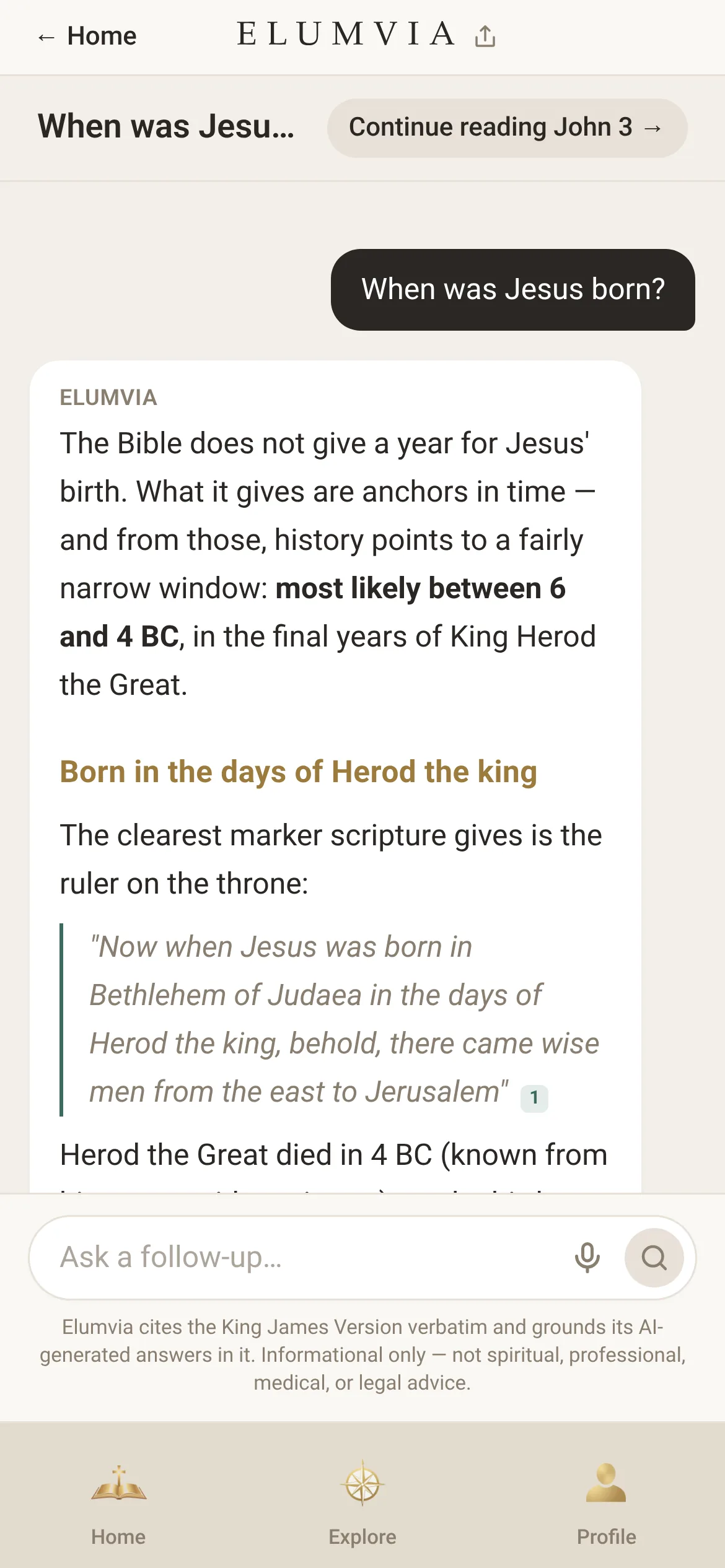
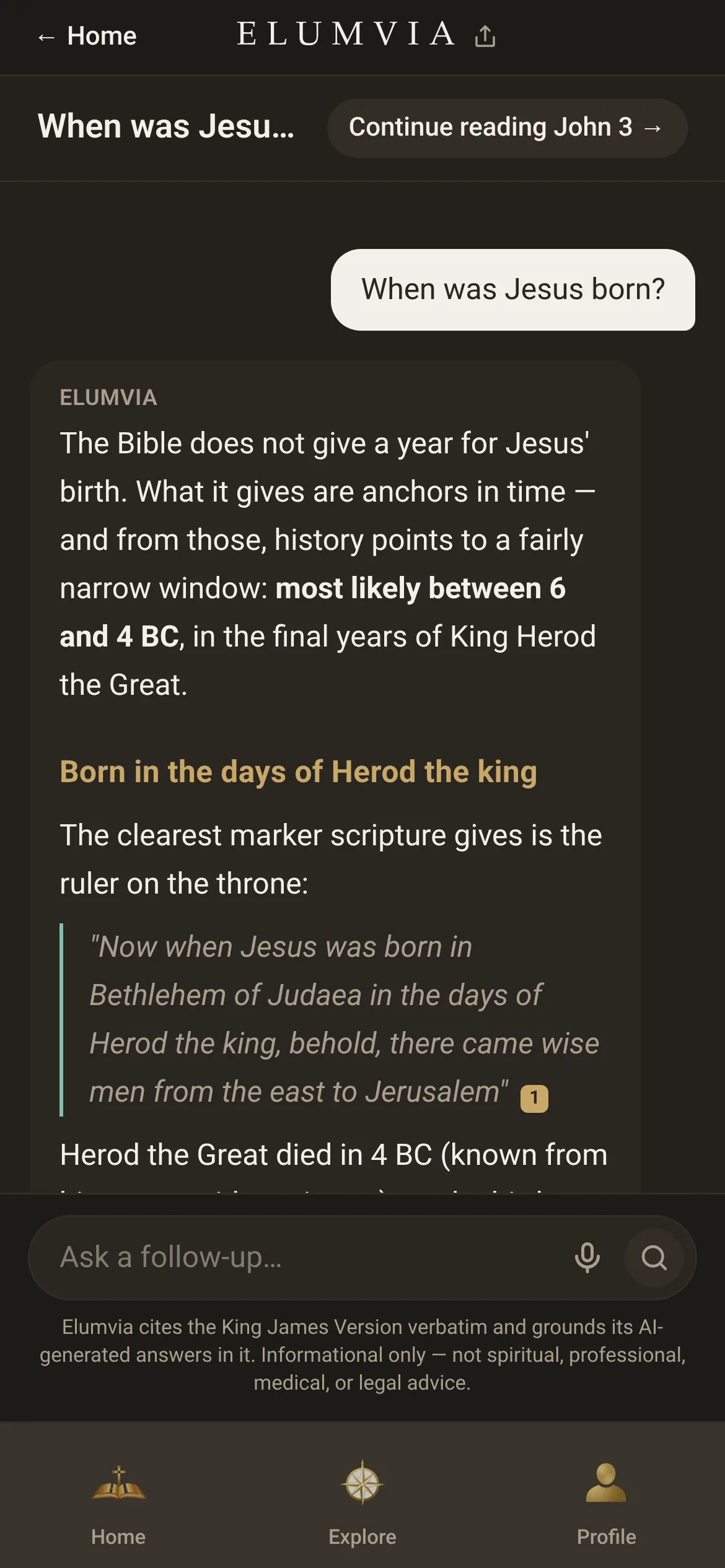 1
Read the chapter
Select “Read in context” to read the whole chapter around it.
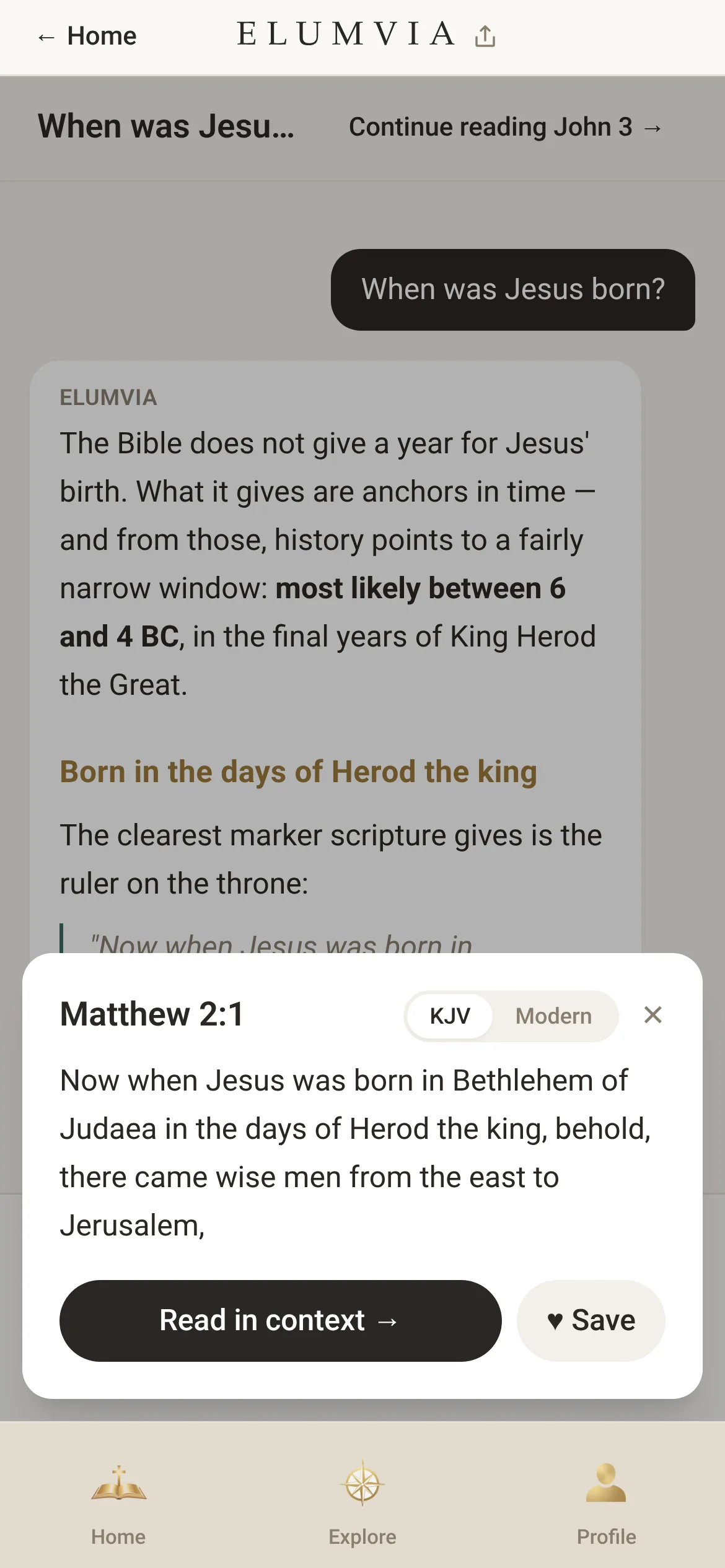
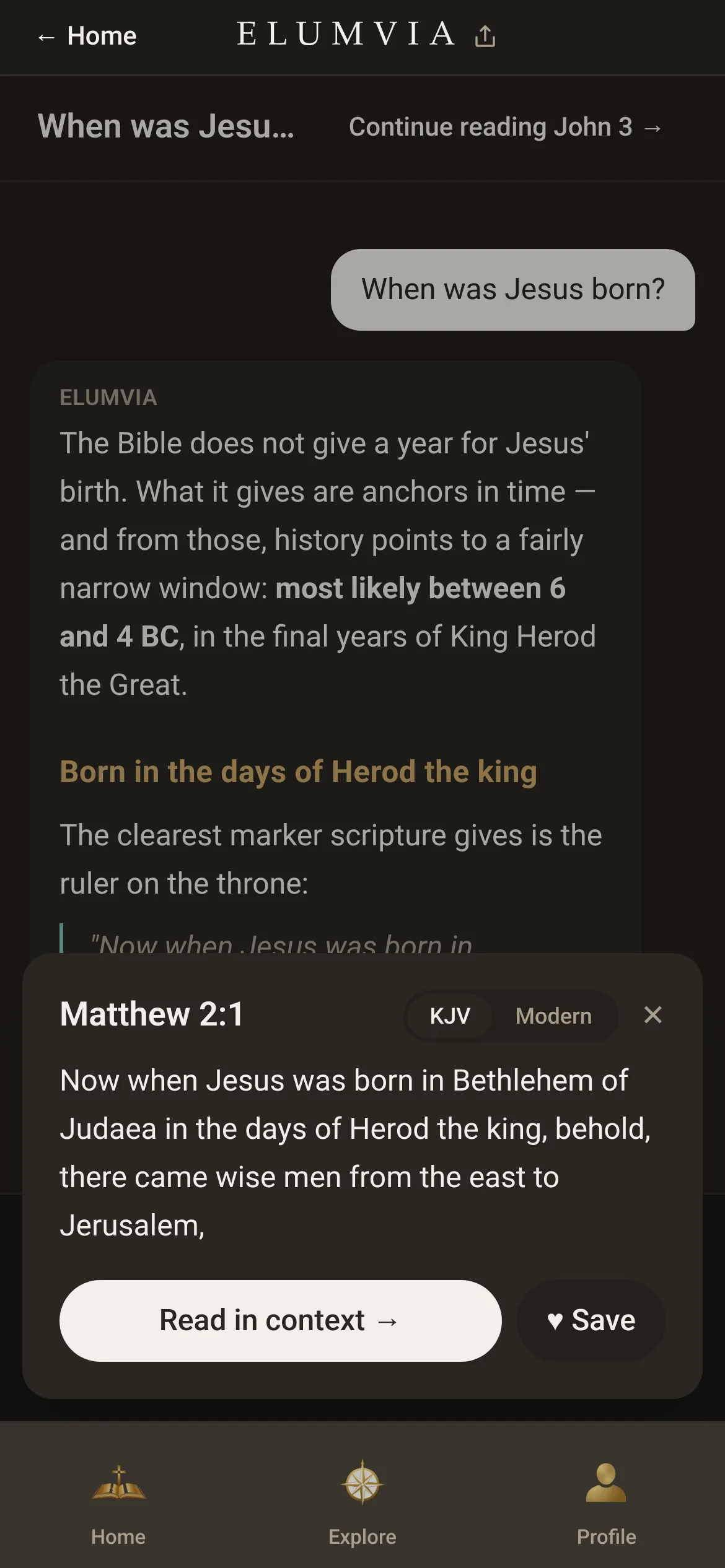 2
Read by story or chapter
Follow David and Goliath like a story, switch to plain English, or show Jesus’ words in red.
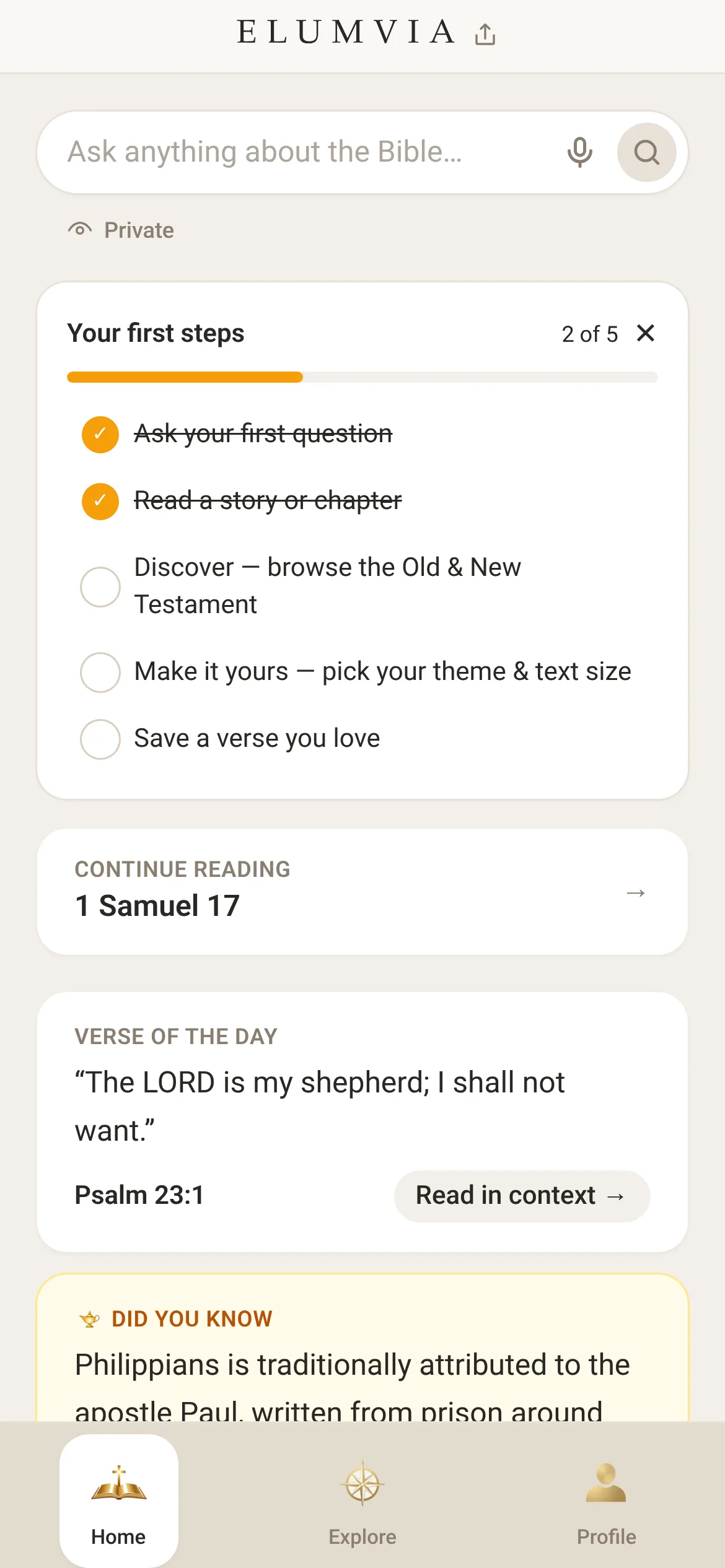
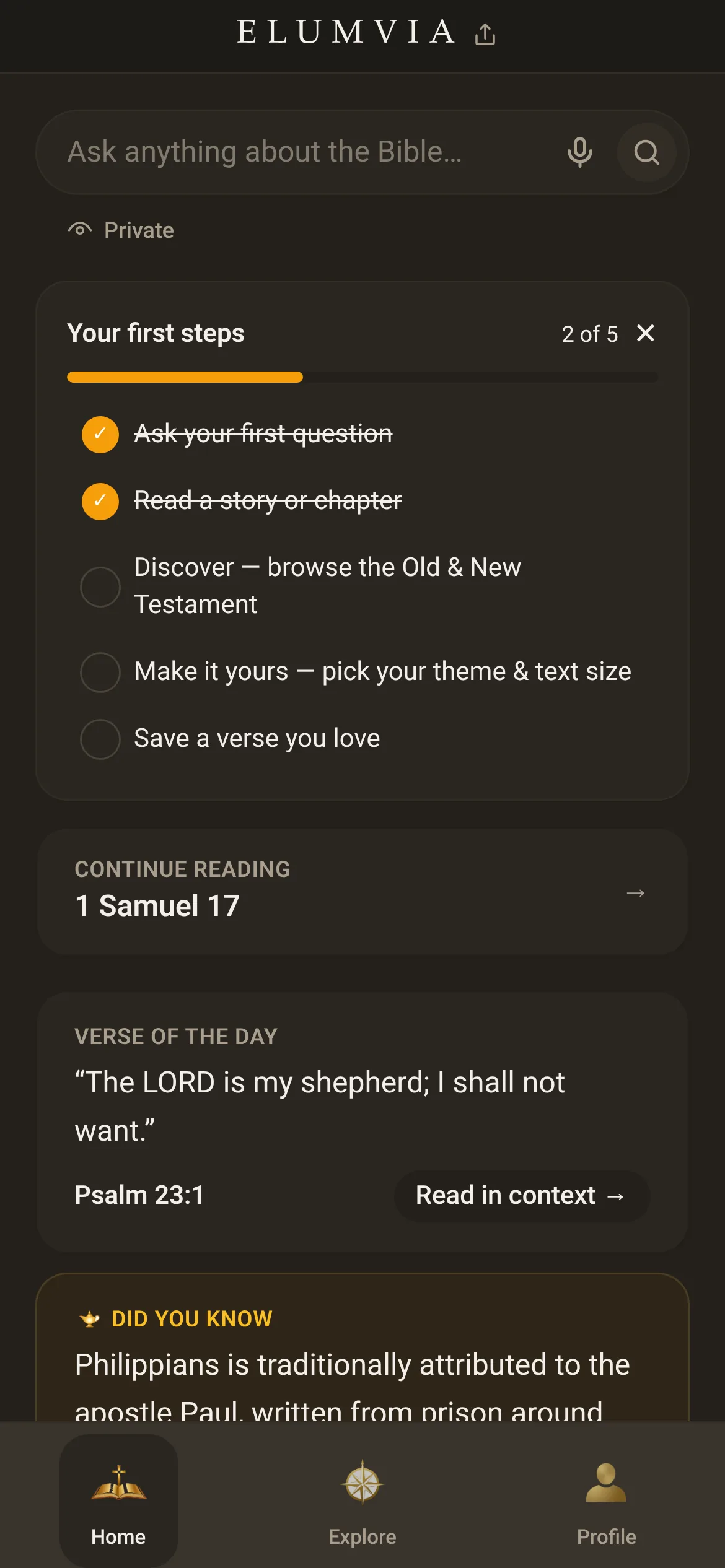
Open Explore
Select Explore to browse the Old Testament, New Testament and stories.

Explore
 3
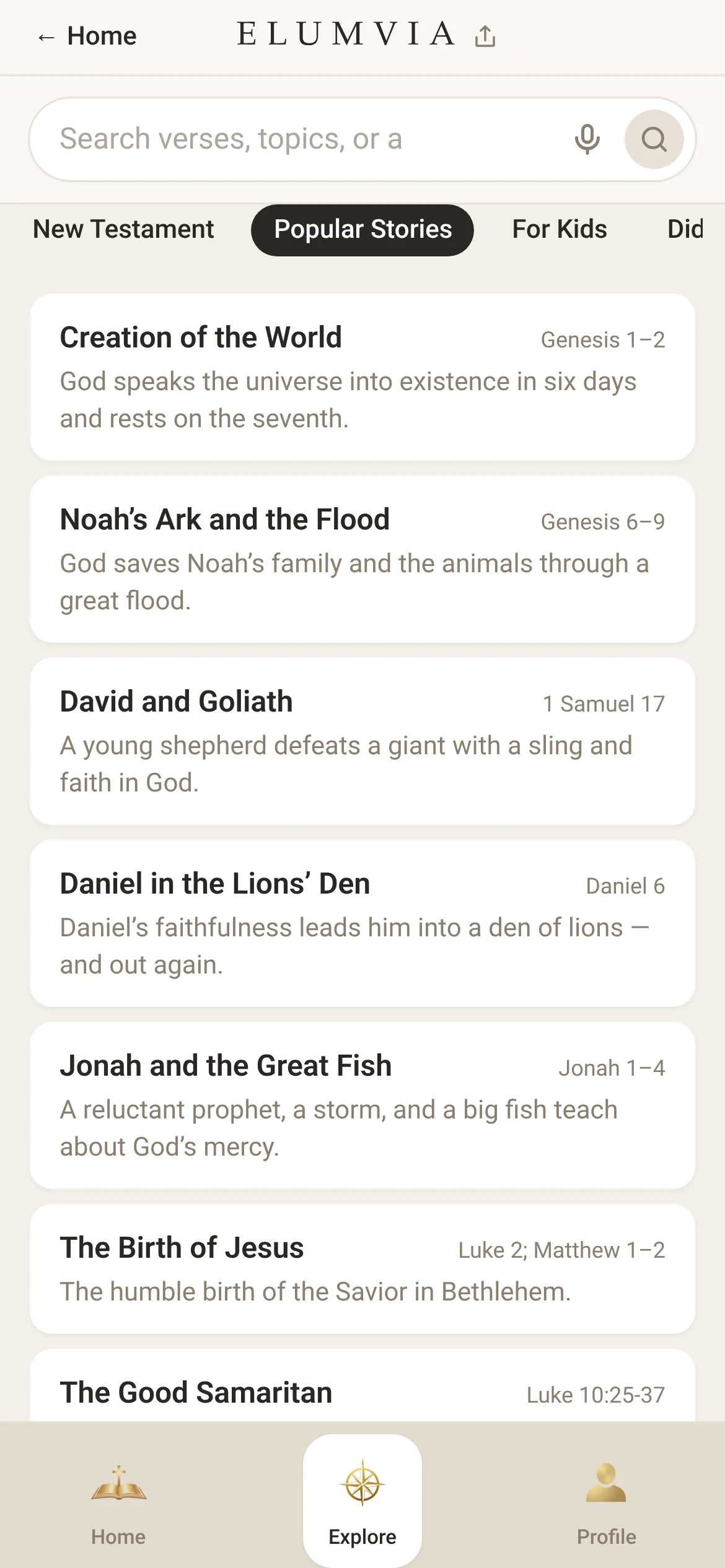
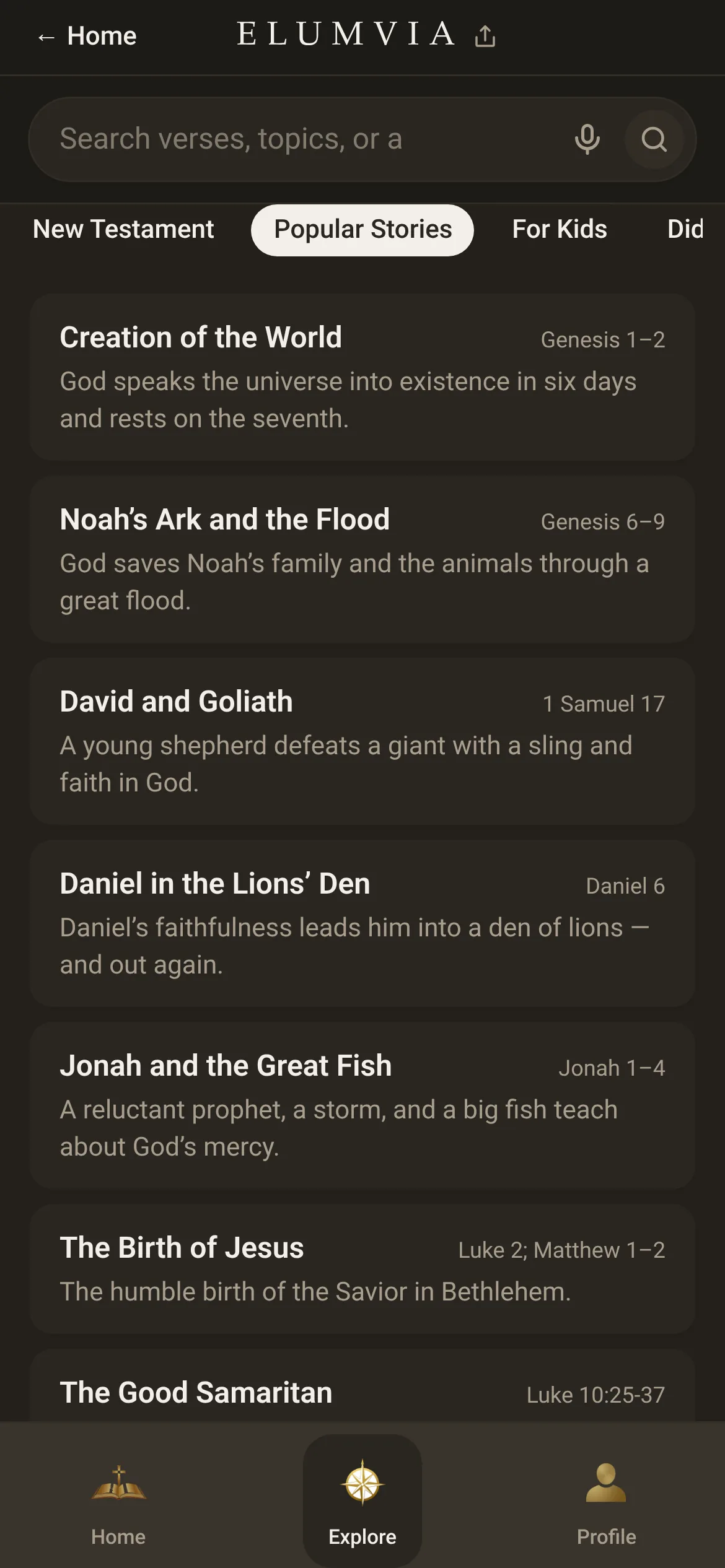
Open a story
Select a story, like “David and Goliath”, to start reading.
 4
Switch the translation
Select “KJV” or “Modern” to switch between the King James text and a plain-English paraphrase.

KJV to Modern
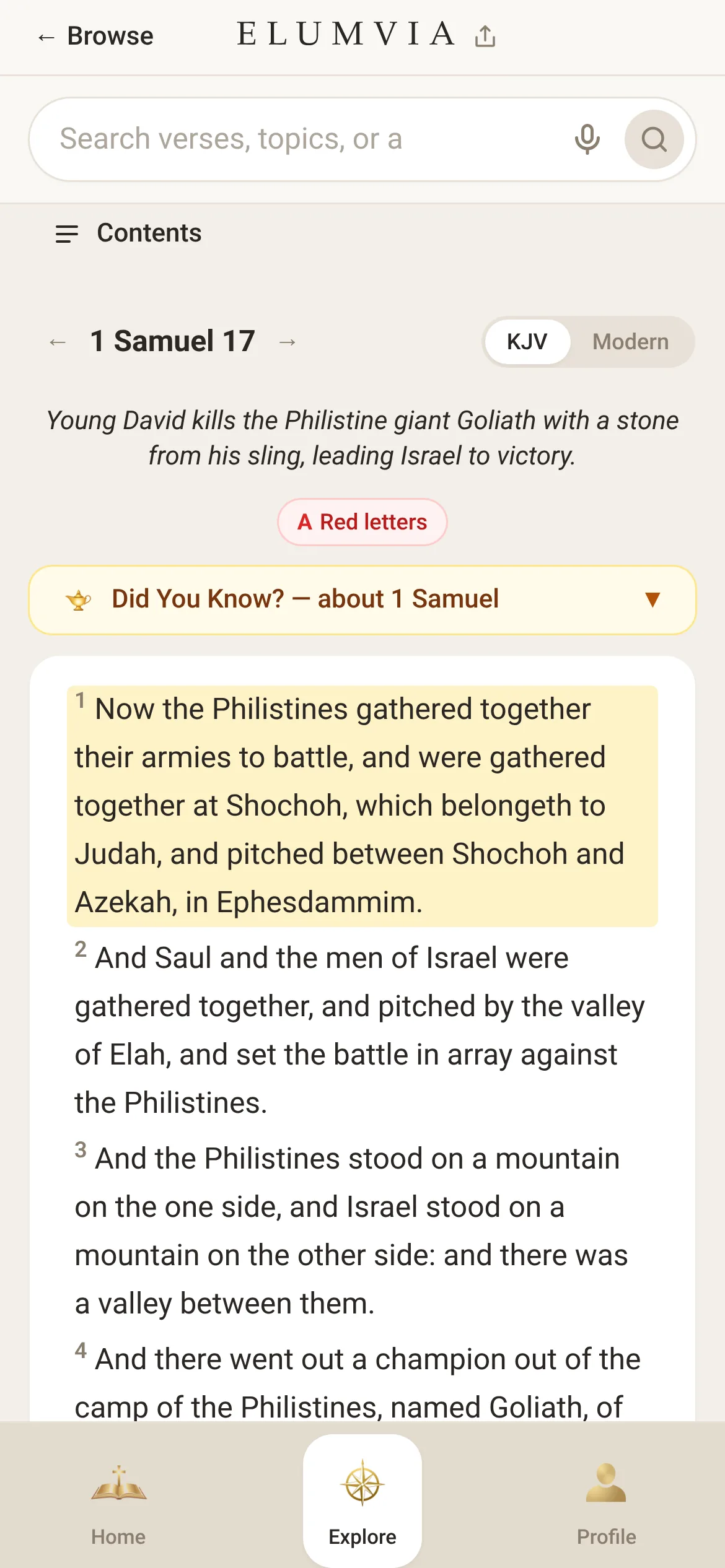
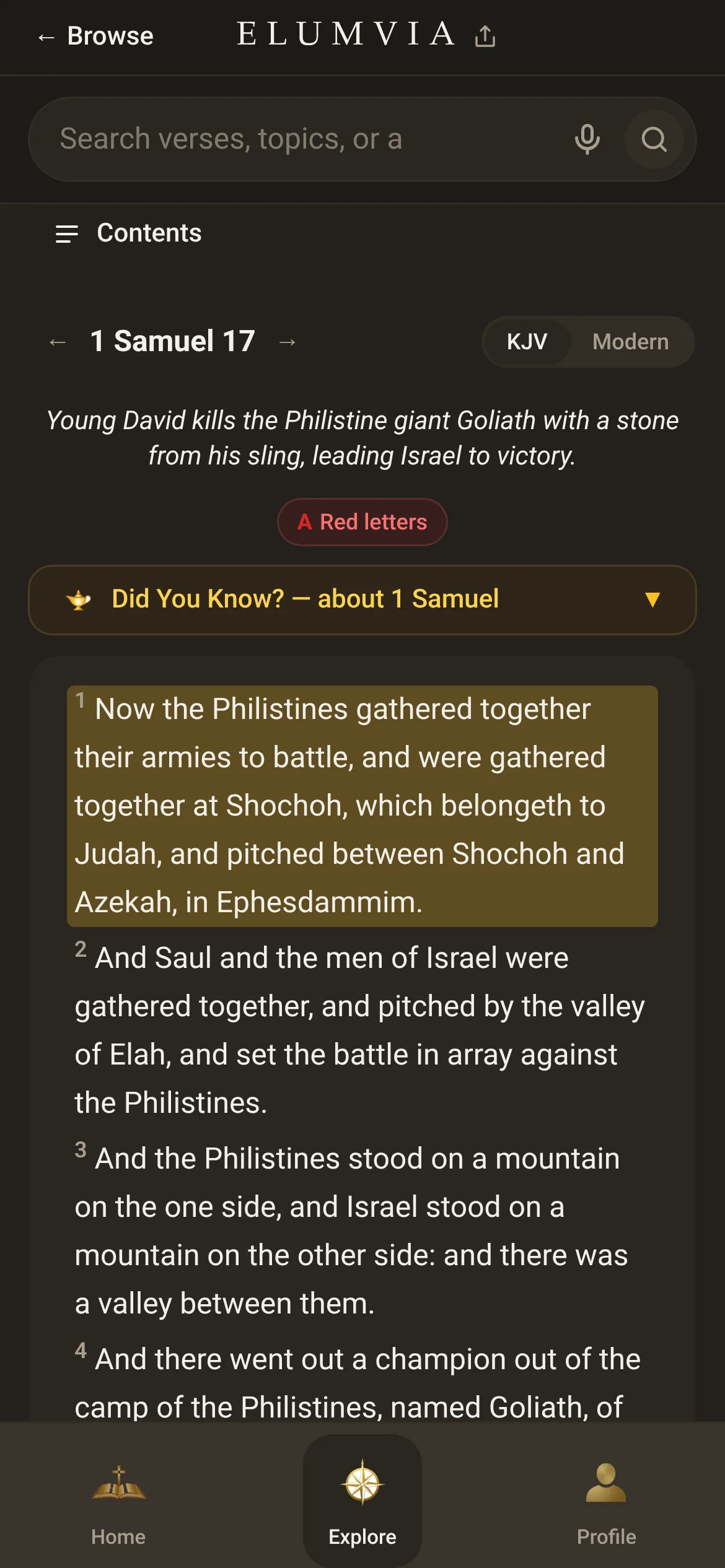 5
Show words in red
In KJV, select “Red letters” to show Jesus’ words in red. First open a chapter where Jesus speaks, like John 3.

Red letters
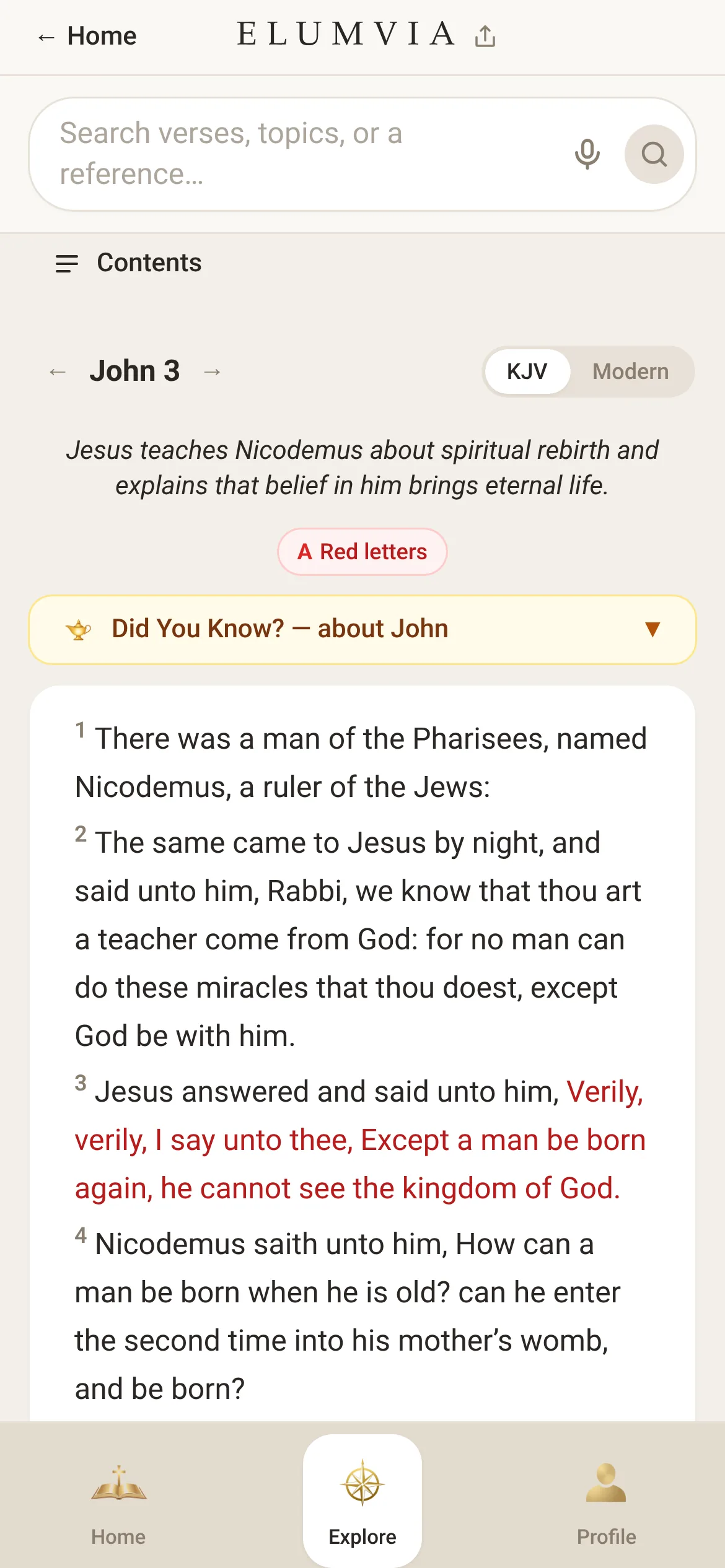
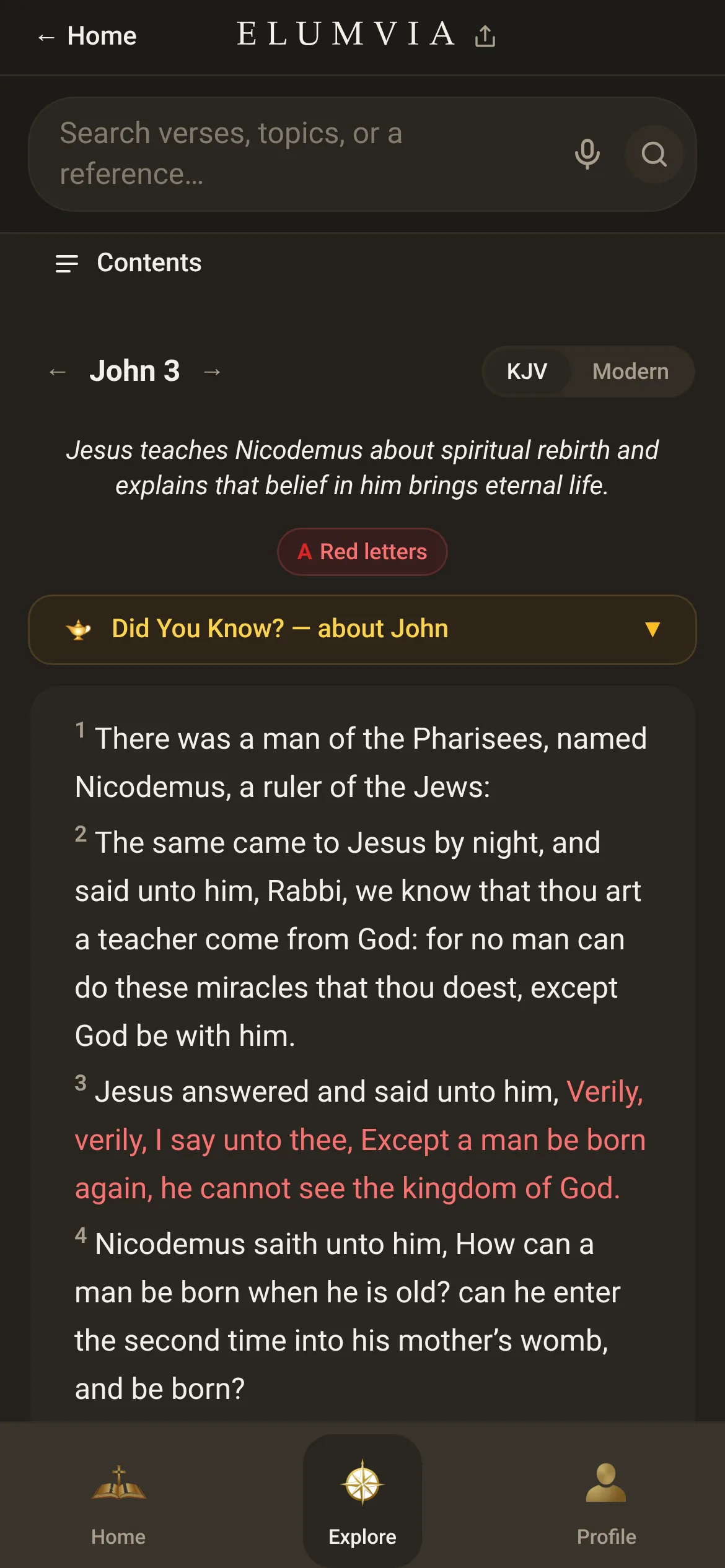 6
Save and highlight verses
Mark favorites and key verses so you can come straight back.
Select a verse
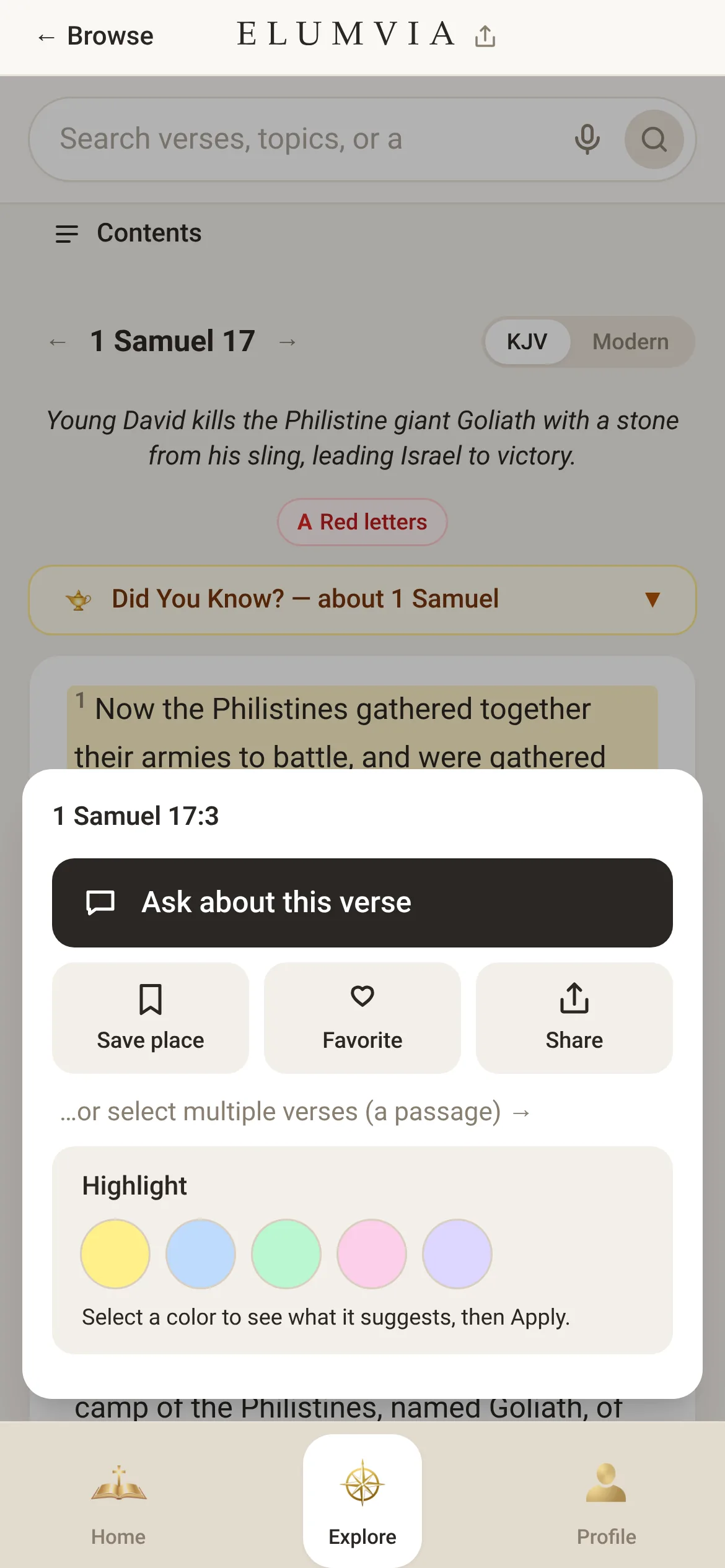
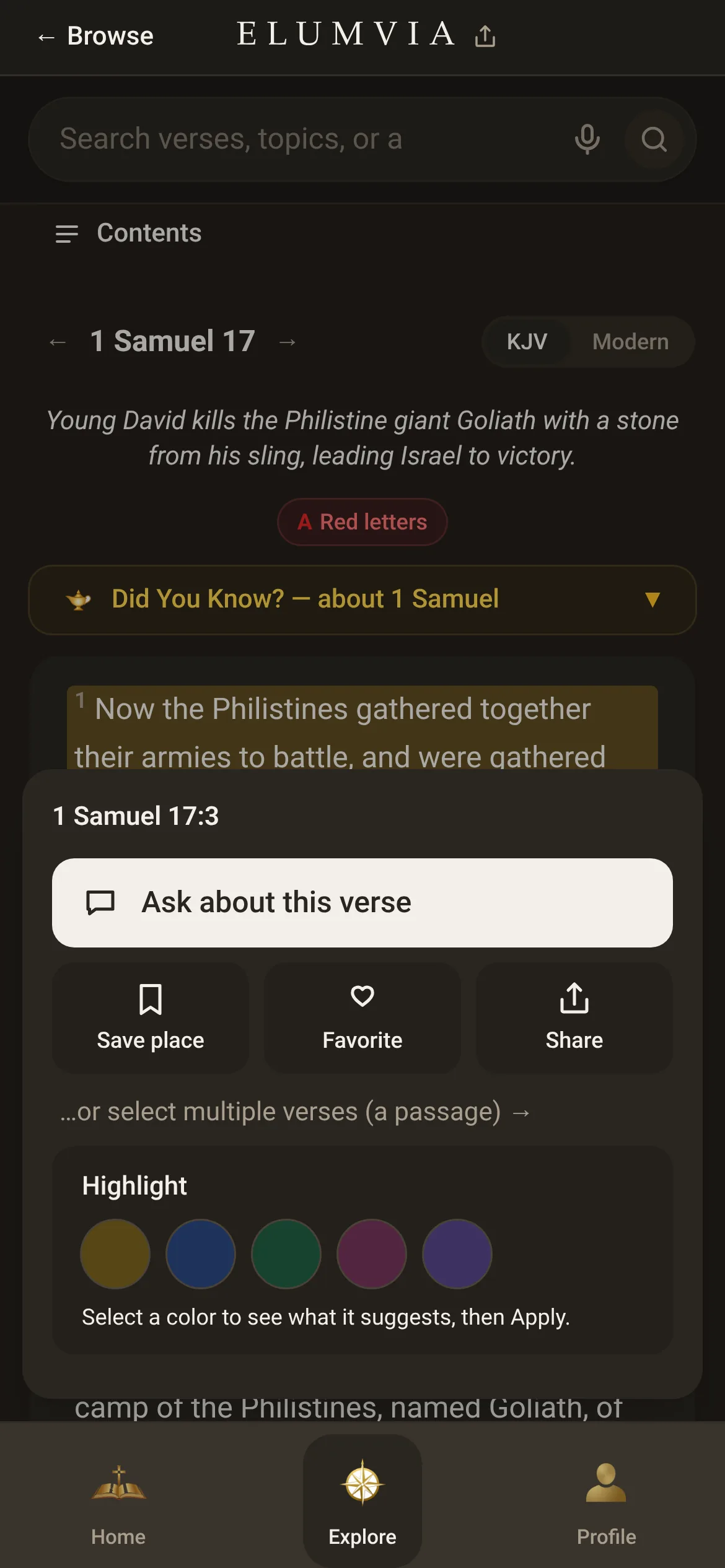
Select a verse to save, highlight or share it.
7
Save a favorite
Select “Favorite” to save the verse to your Favorites. A small red heart marks it.

Save a verse
Highlight a key verse
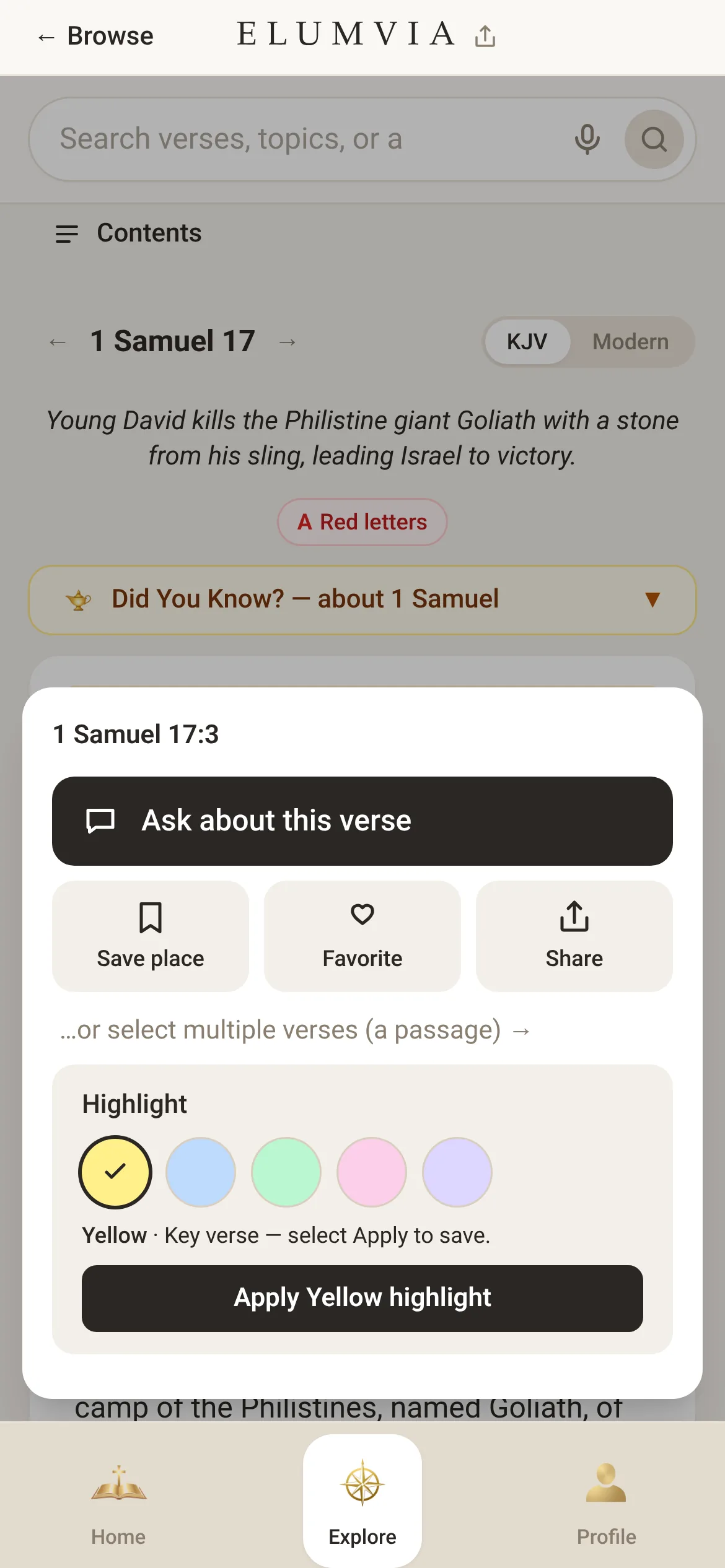
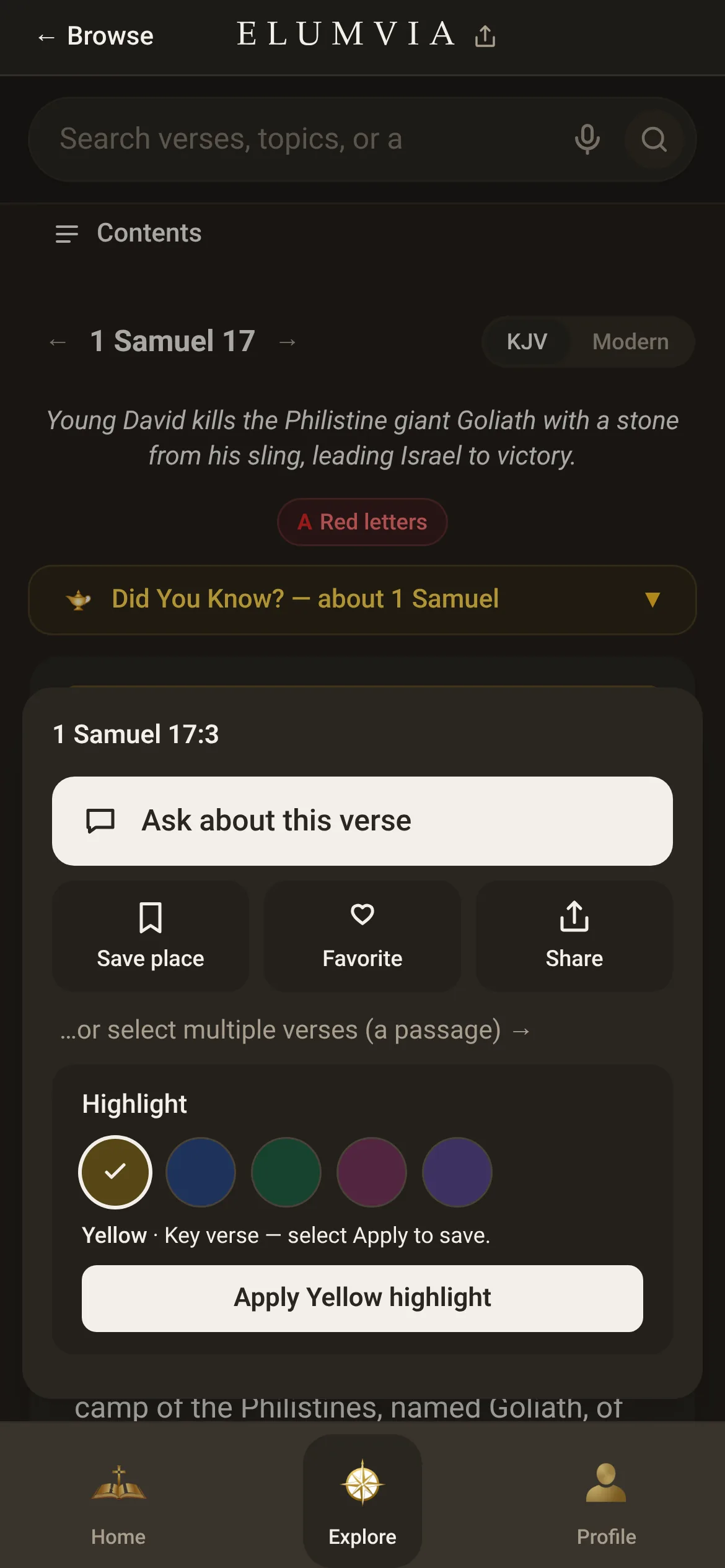
Select a highlight color to see what it suggests, like “Key verse” or “Promise”. Then select “Apply Yellow highlight” to mark a key verse.

Highlight a verse
 89
 9
Share a verse or an answer
Send a verse with your own note. Your name and email are never shown.
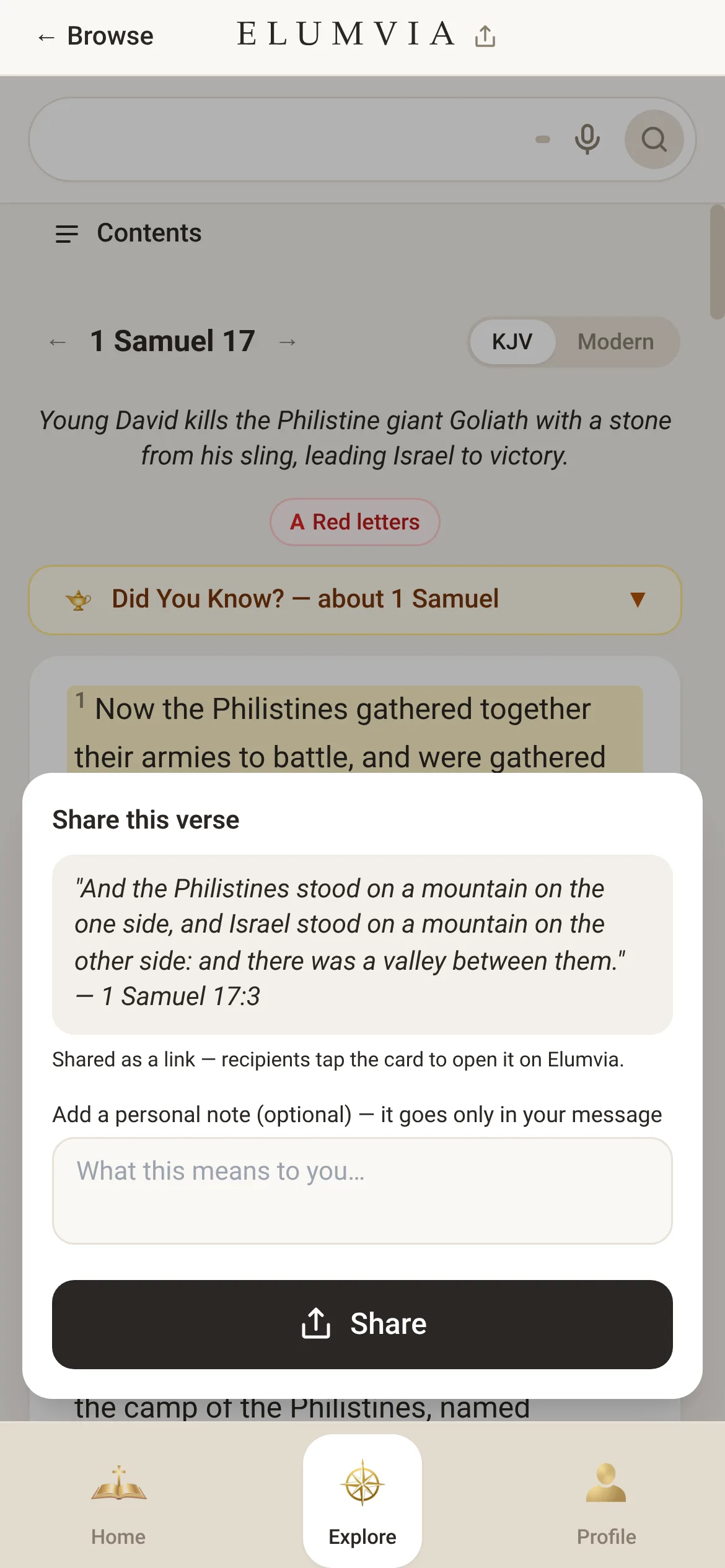
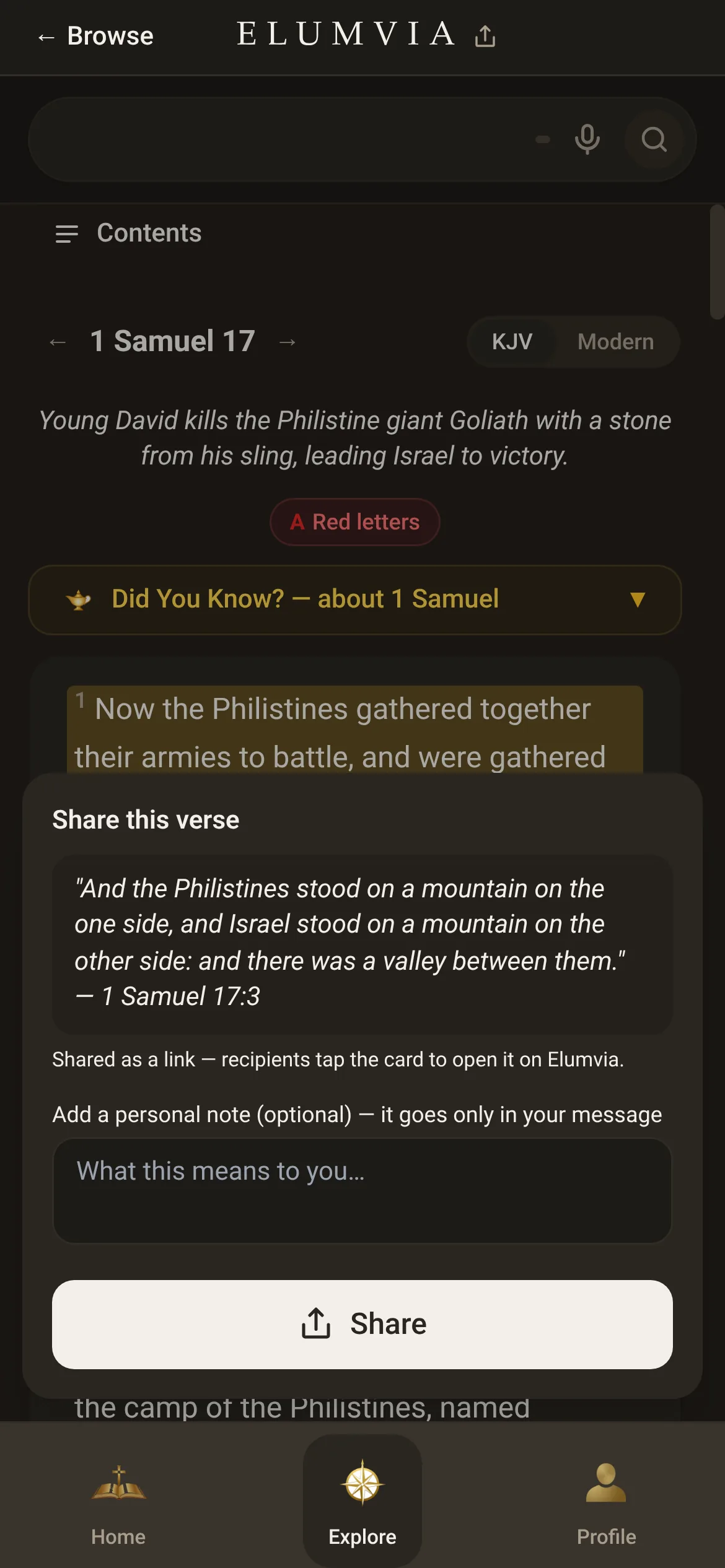
Share the verse
In the verse menu, select “Share” to send the verse as a link.

Share a verse
10
Add a note
If you like, add a note in “What this means to you…”, then select “Share”. Your note goes only in your message.
 11
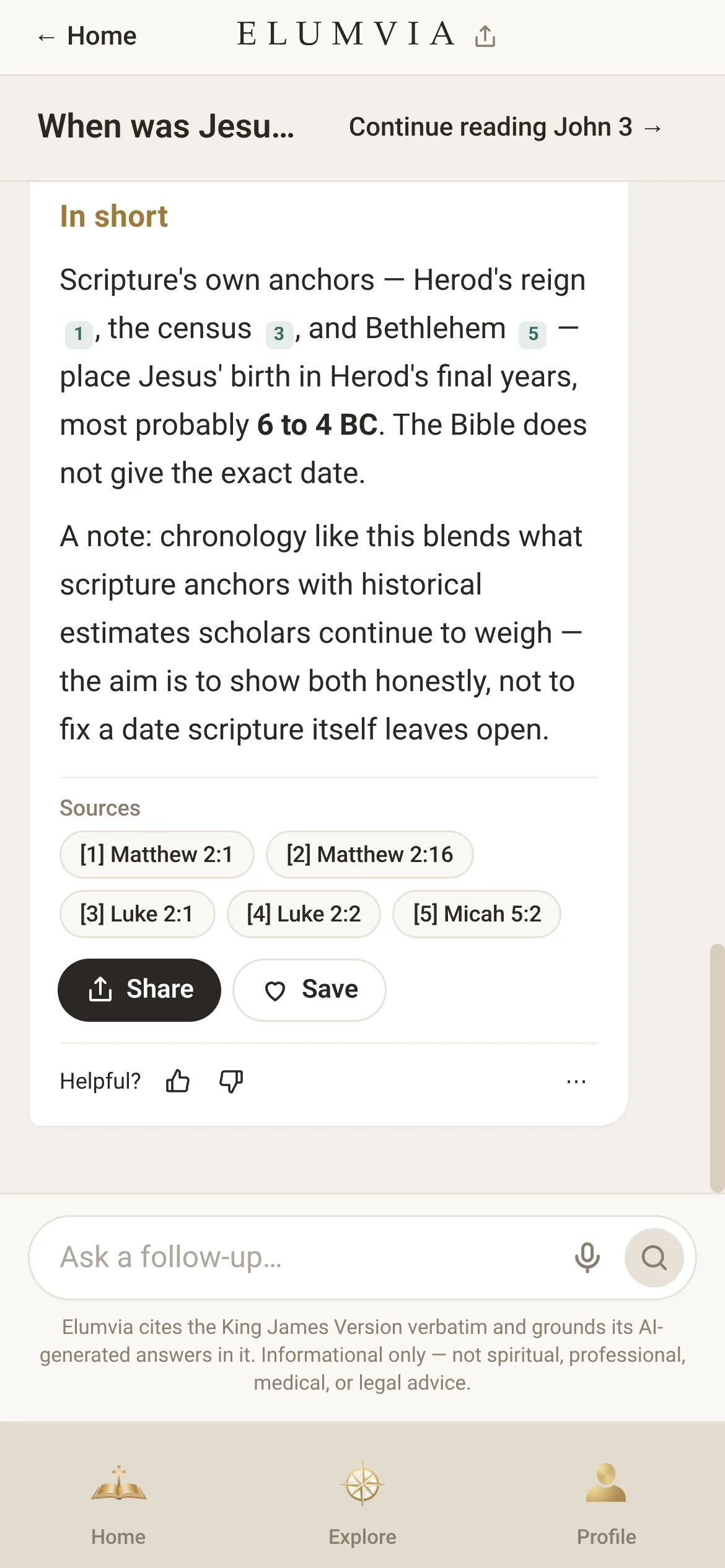
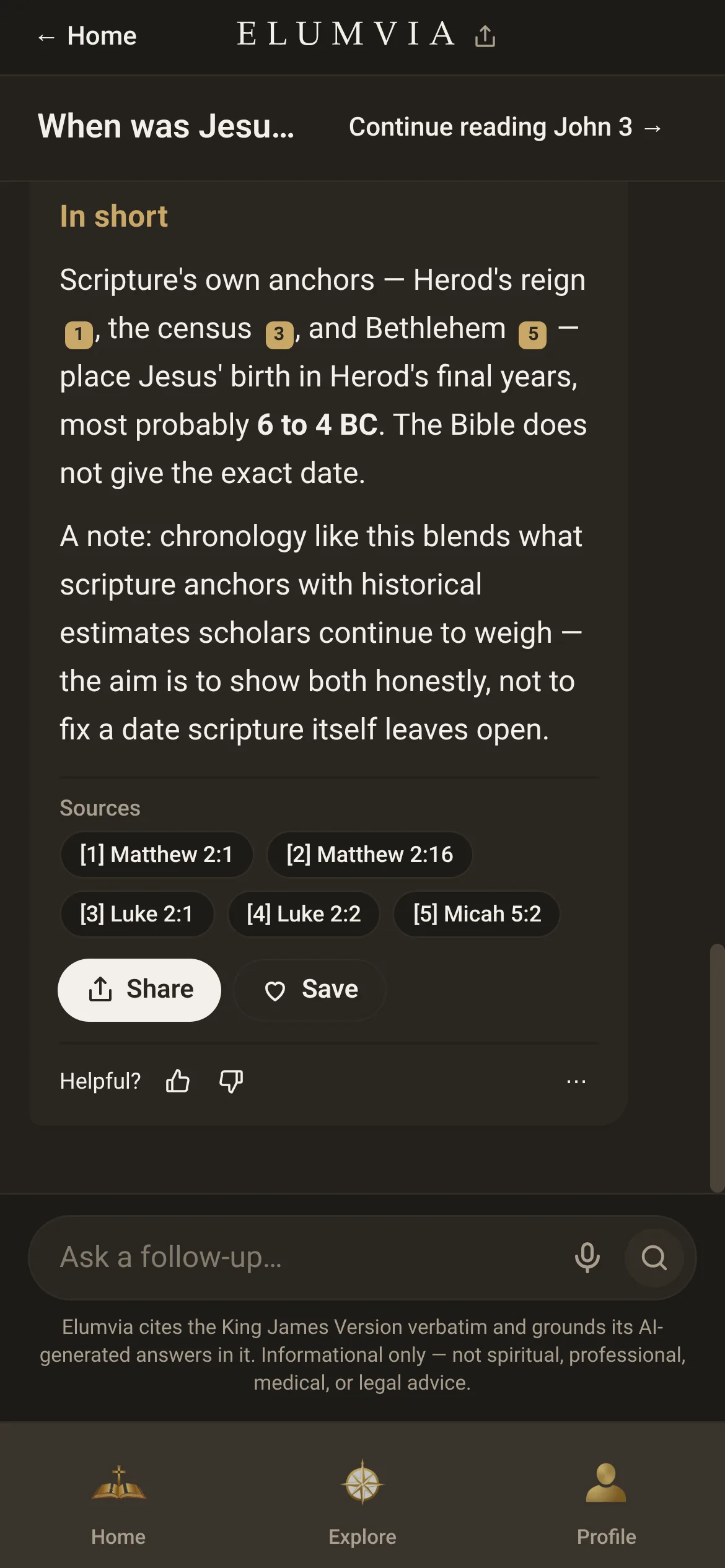
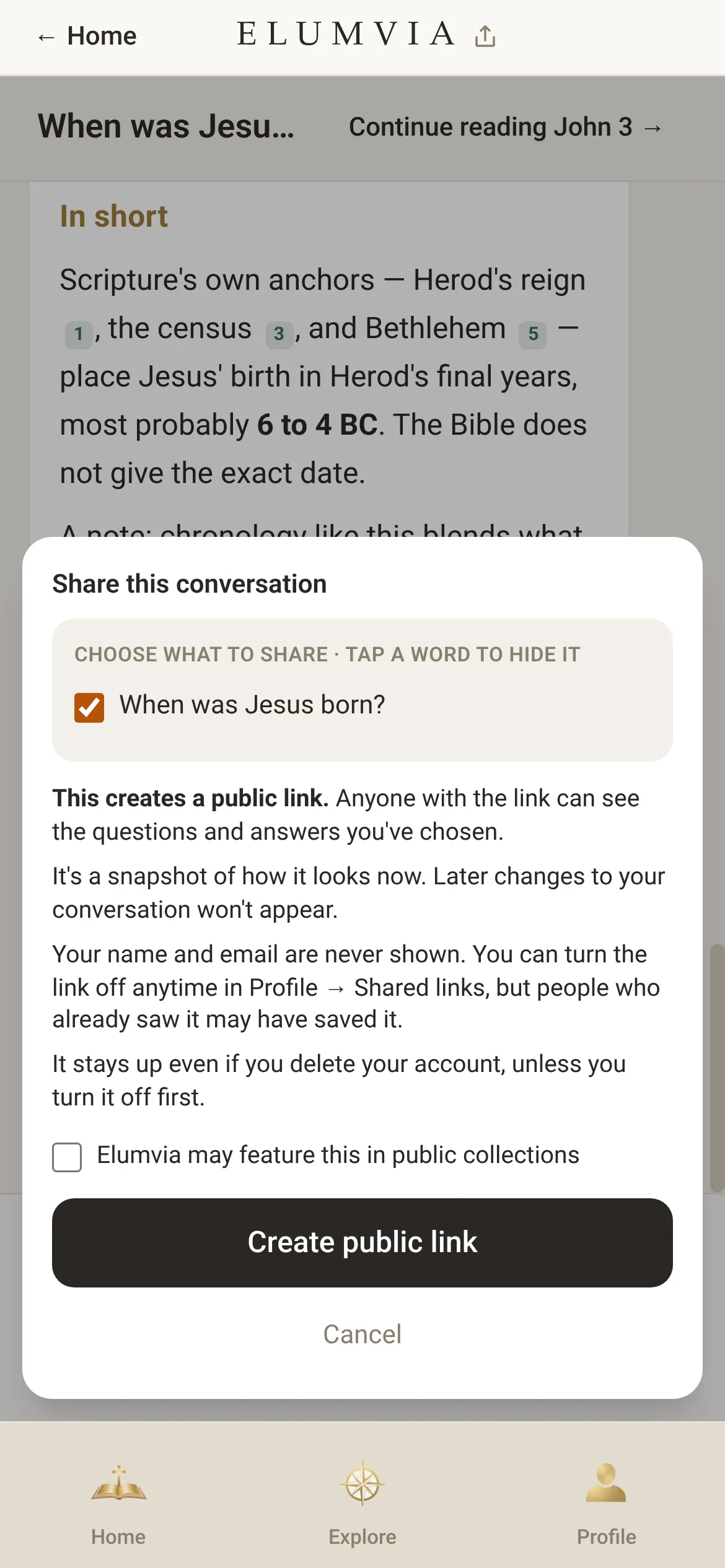
Share the conversation
Sharing a whole answer works the same way. Under an answer, select “Share”.

Share an answer
 12
Choose the verses to share
Pick the scripture verses from the answer you want to send.
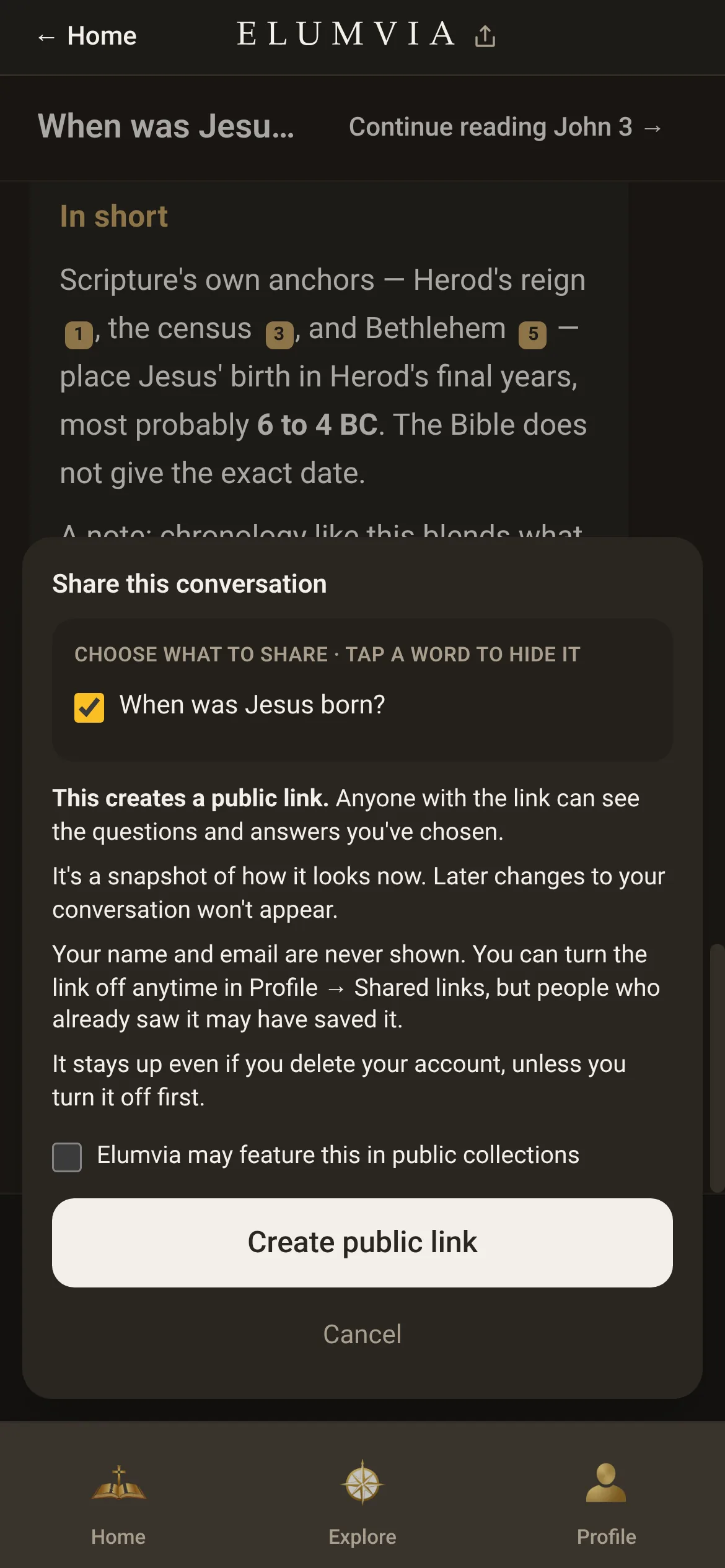
Create a public link
Select “Create public link”. Your name and email are never shown. To turn the link off, go to Profile, then “Shared”.
 14