
- Add Elumvia from Chrome in about a minute.
- Give it a clean name and icon.
- Open it like an app, with no browser bars.
STEP 1
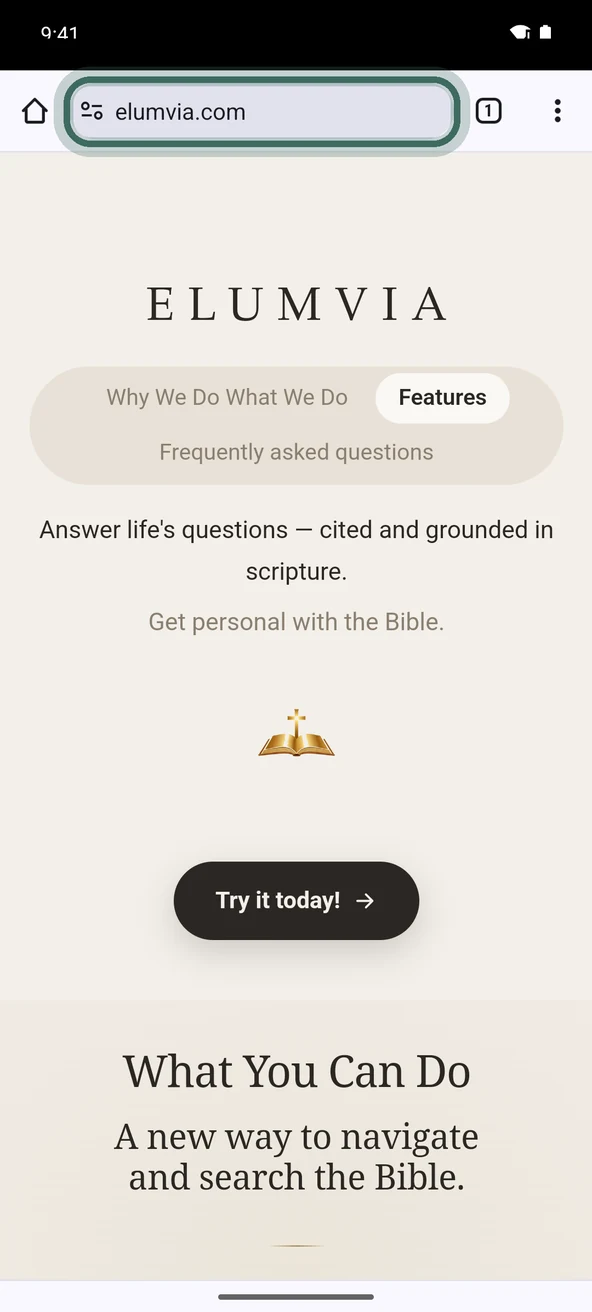
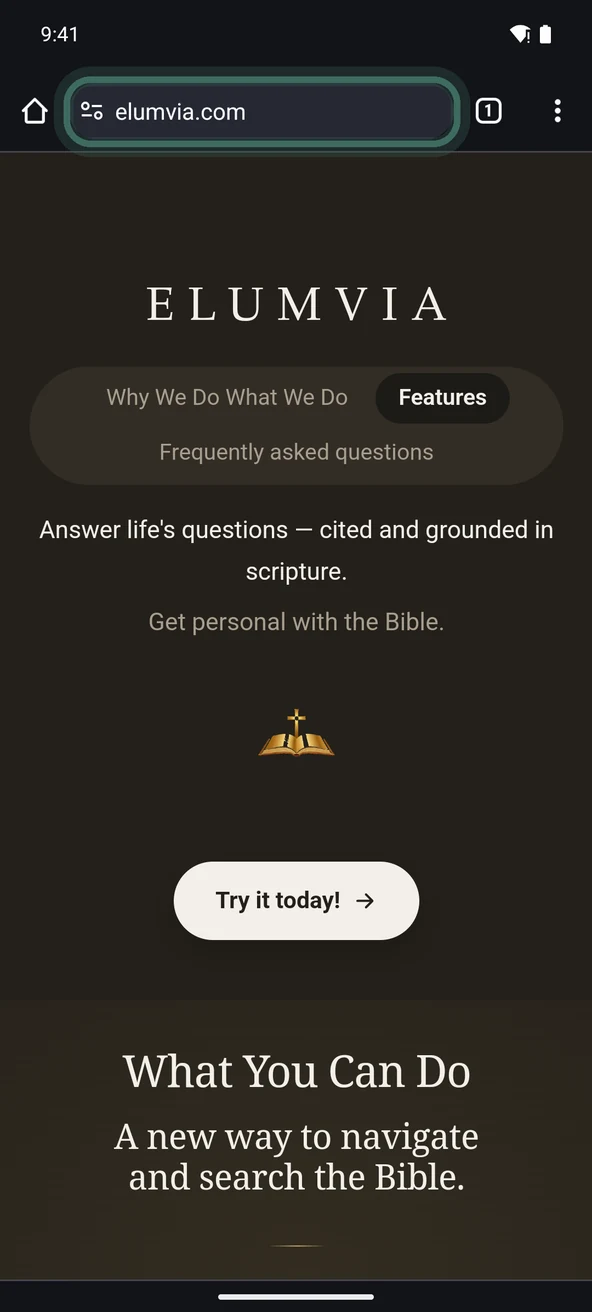
Open Chrome
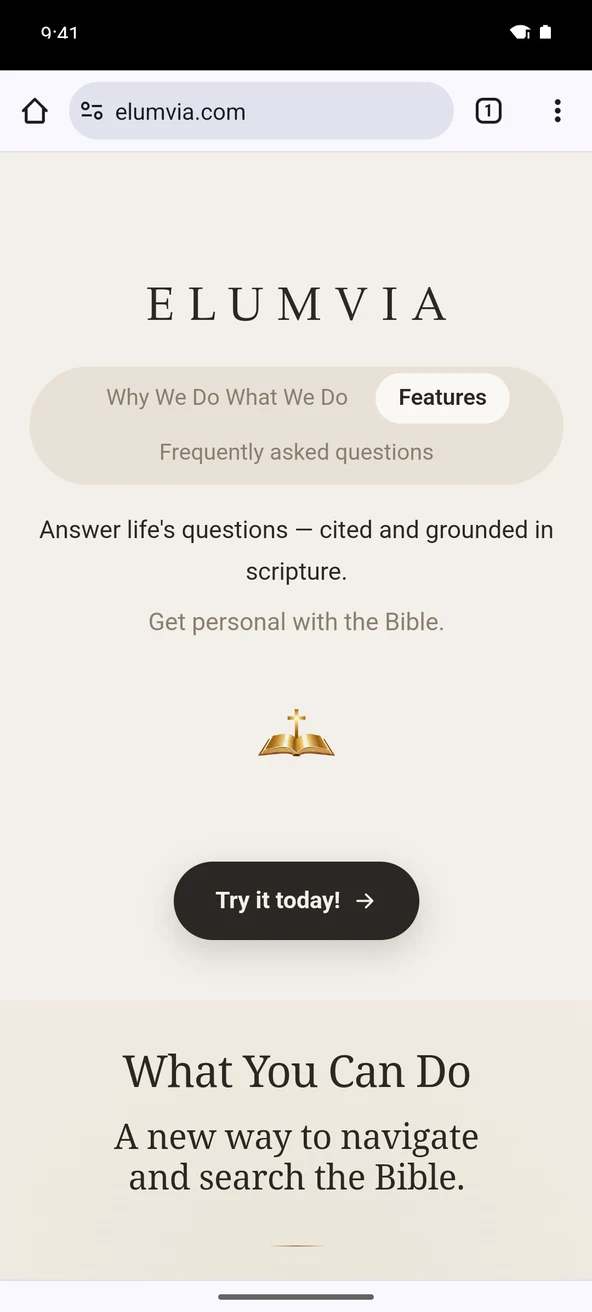
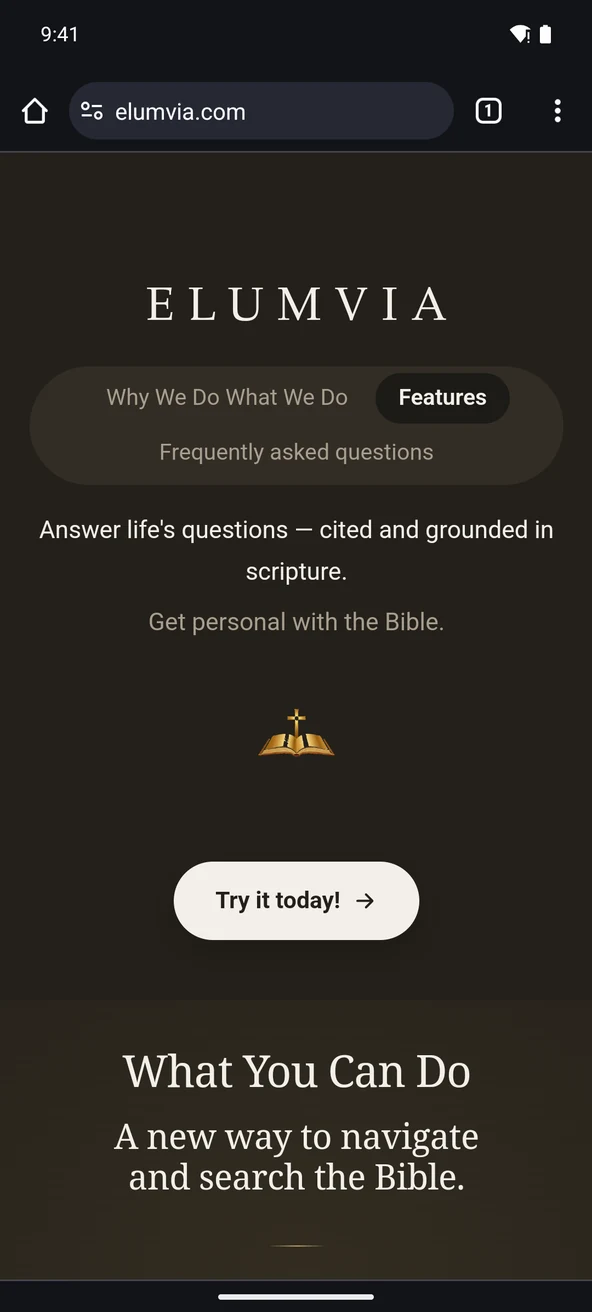
Go to elumvia.com.
STEP 2
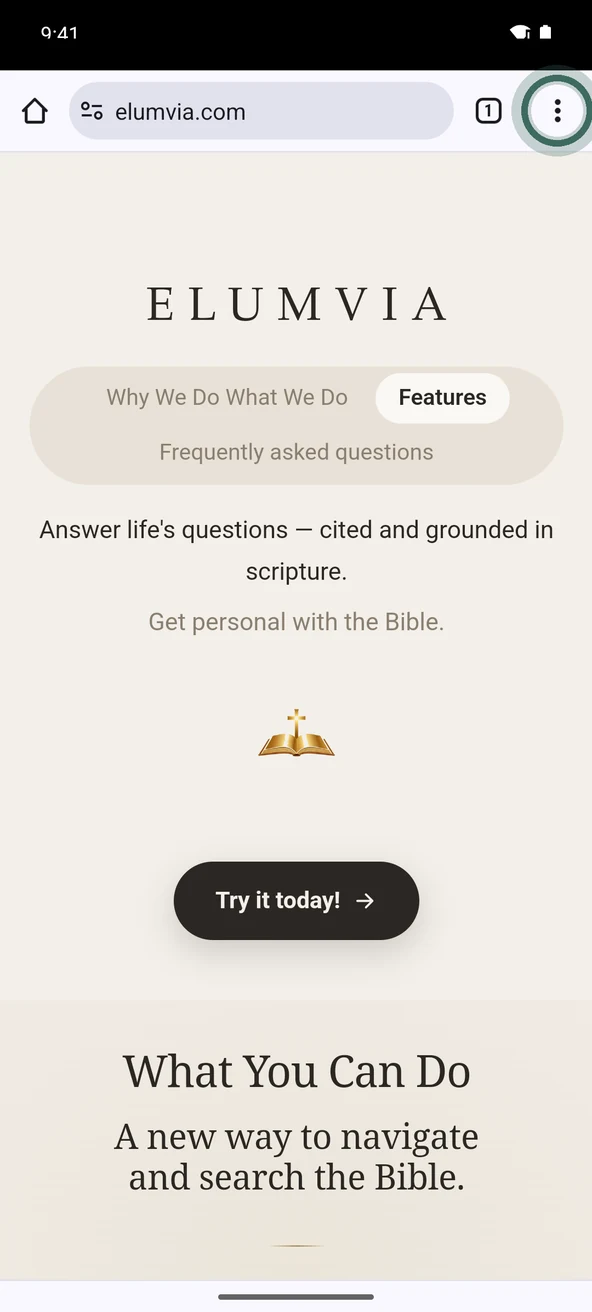
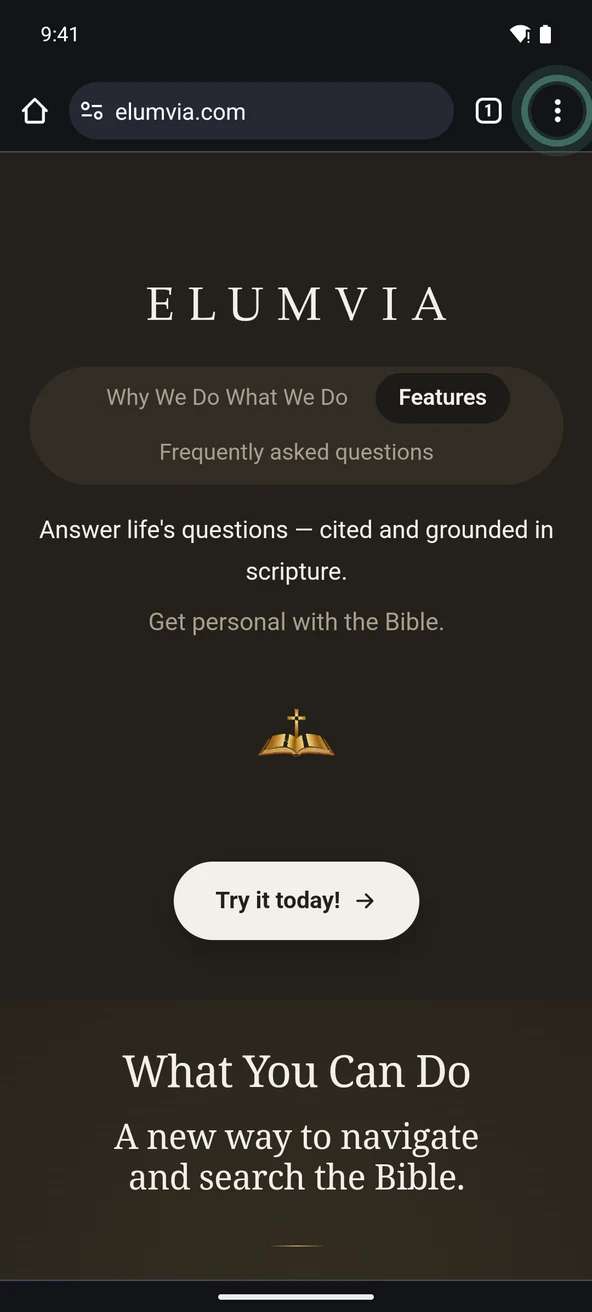
Open the menu
Select ⋮, right of the address bar.
STEP 3
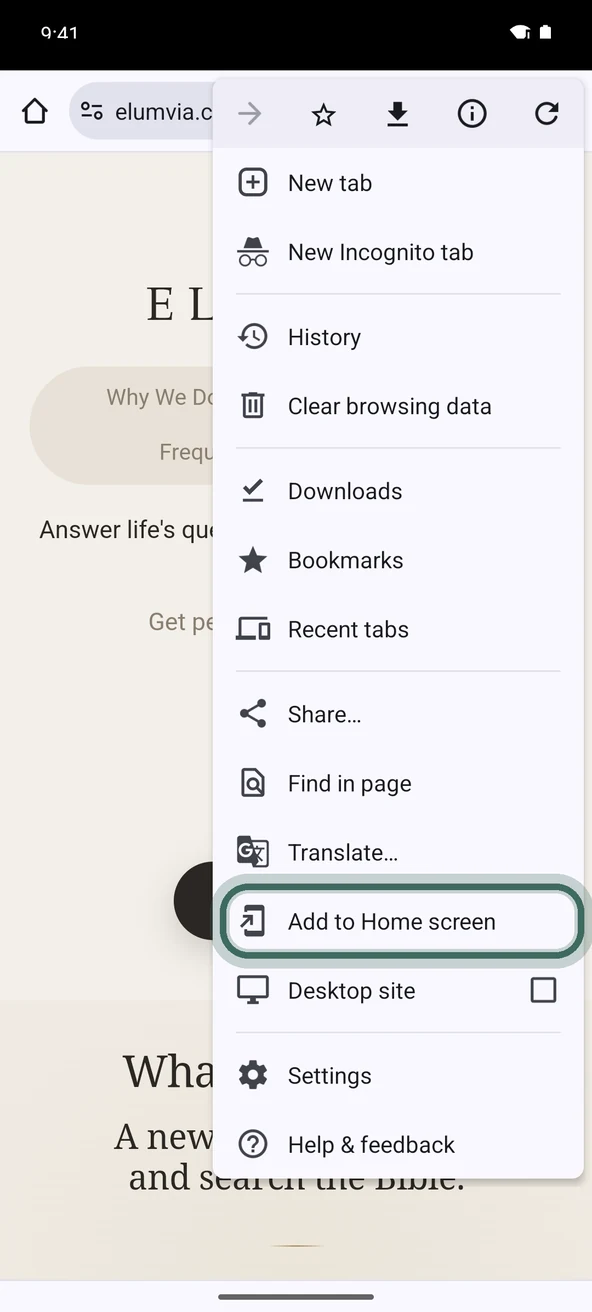
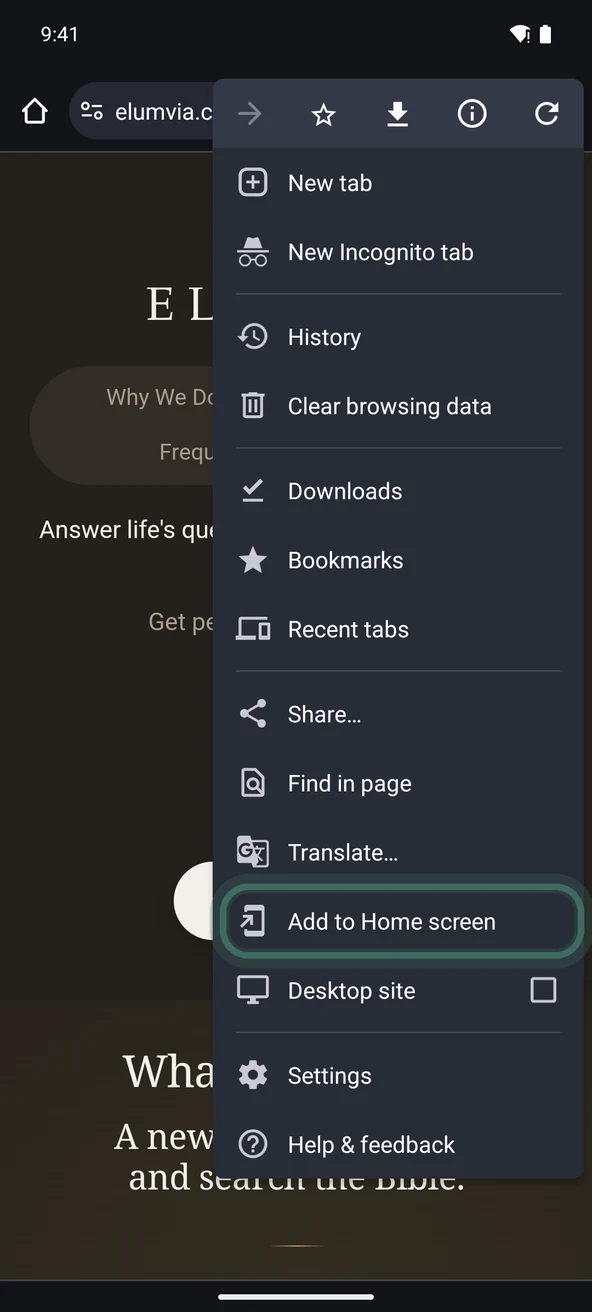
Select Add to Home Screen.
If you see Install app instead, select it and follow the steps on your screen.
STEP 4
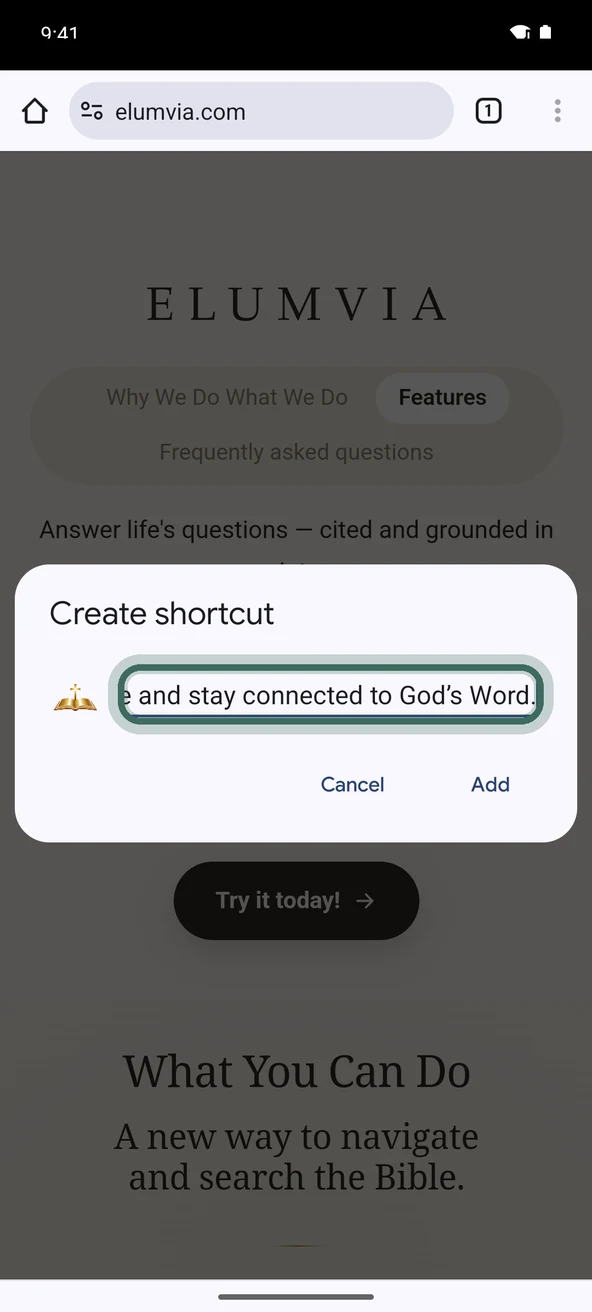
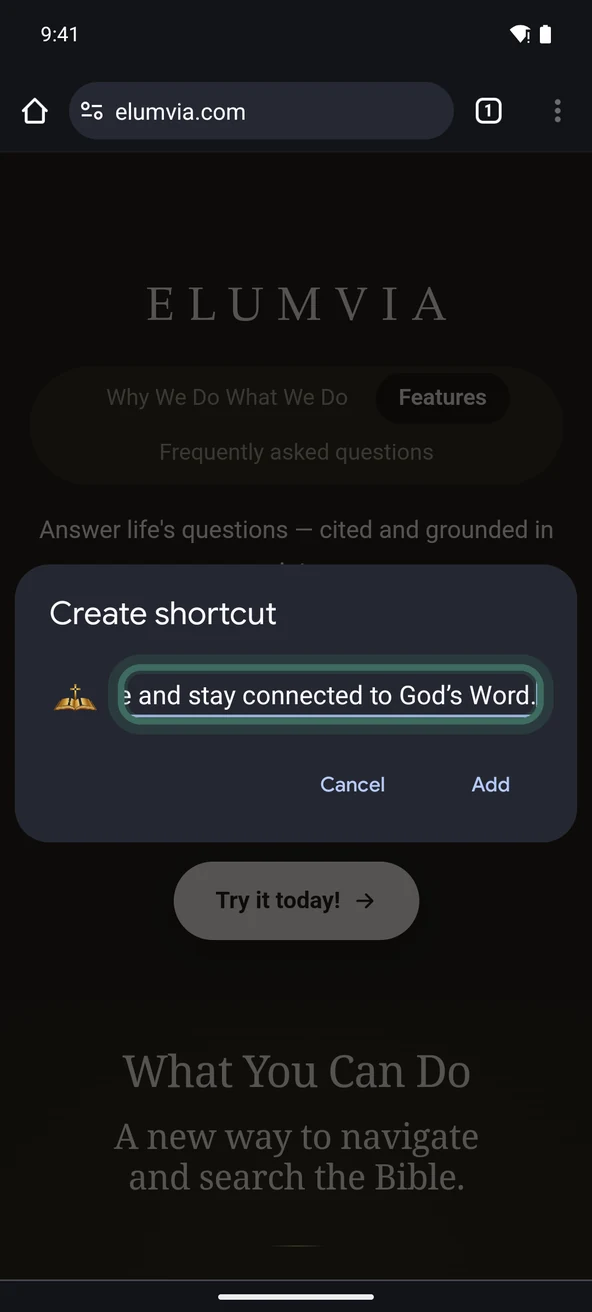
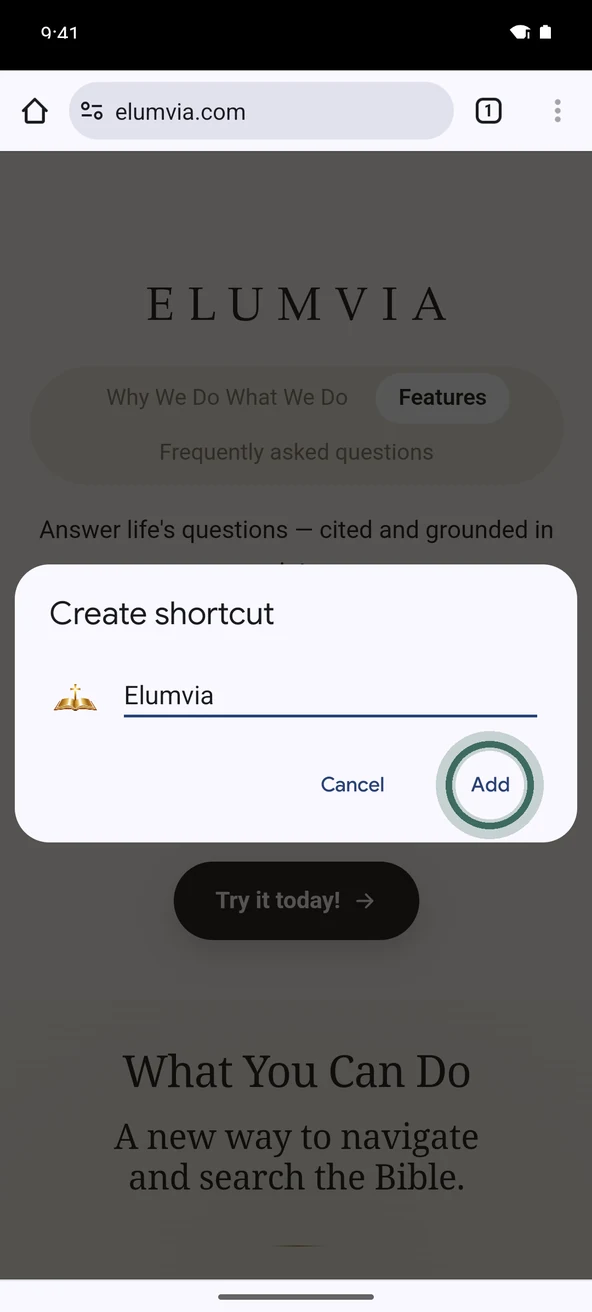
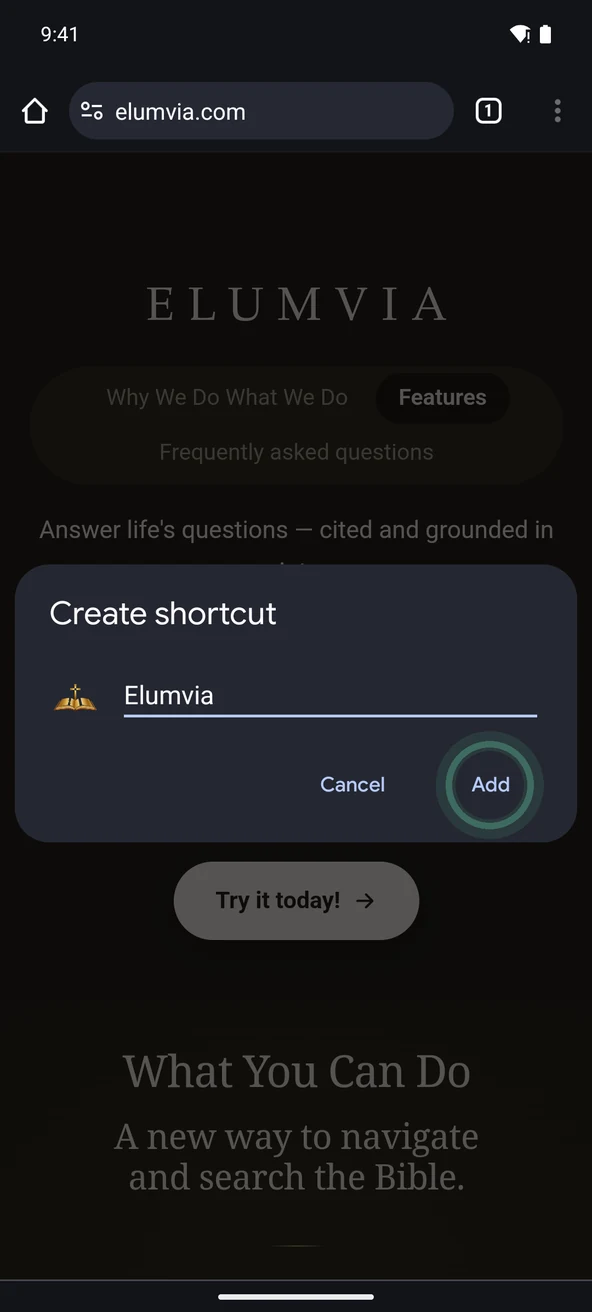
Name it Elumvia
If the name isn’t just Elumvia, change it to Elumvia. Then select Add. The name may start as a long line of text. Clear it and type Elumvia.
STEP 5
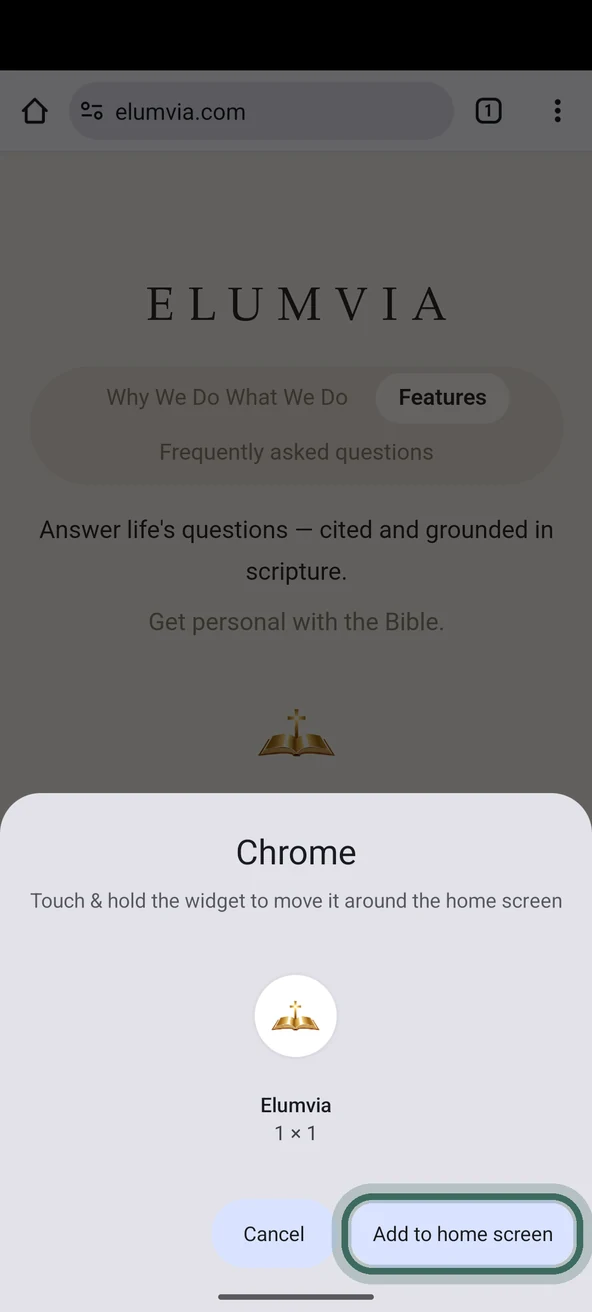
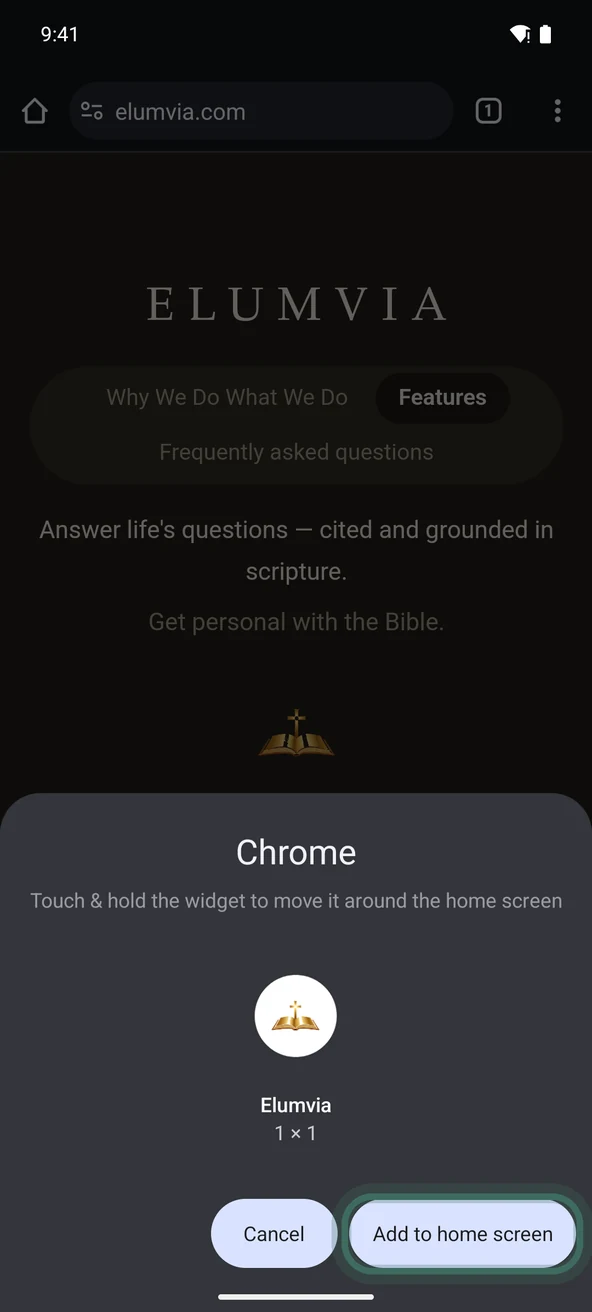
Place the icon
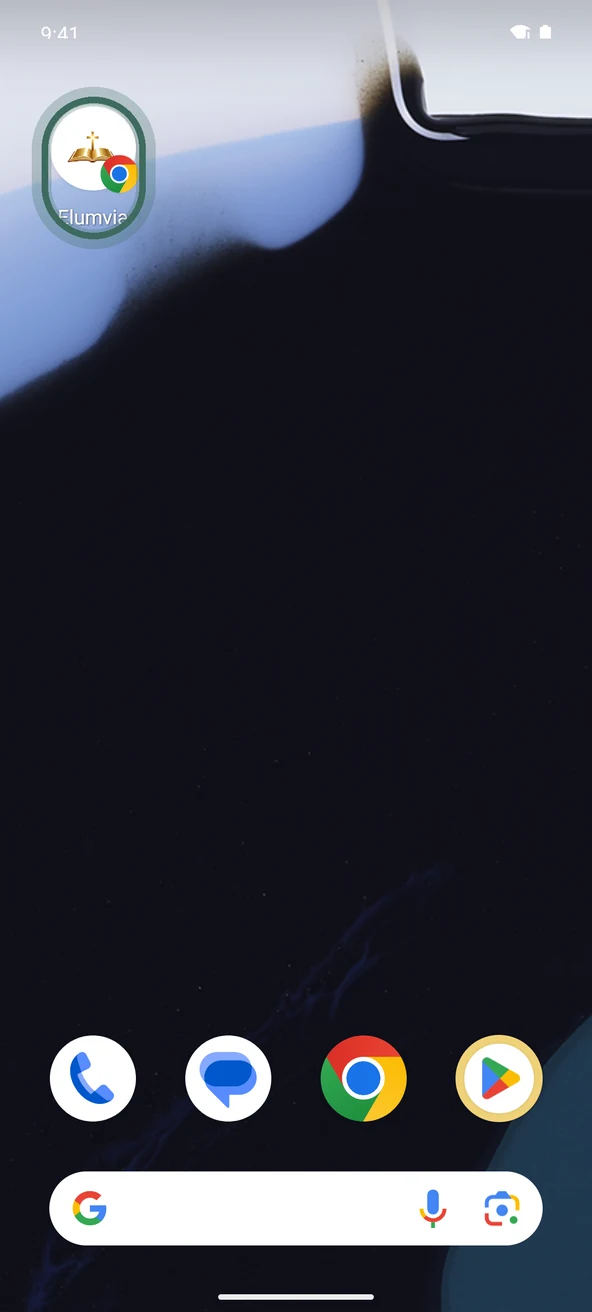
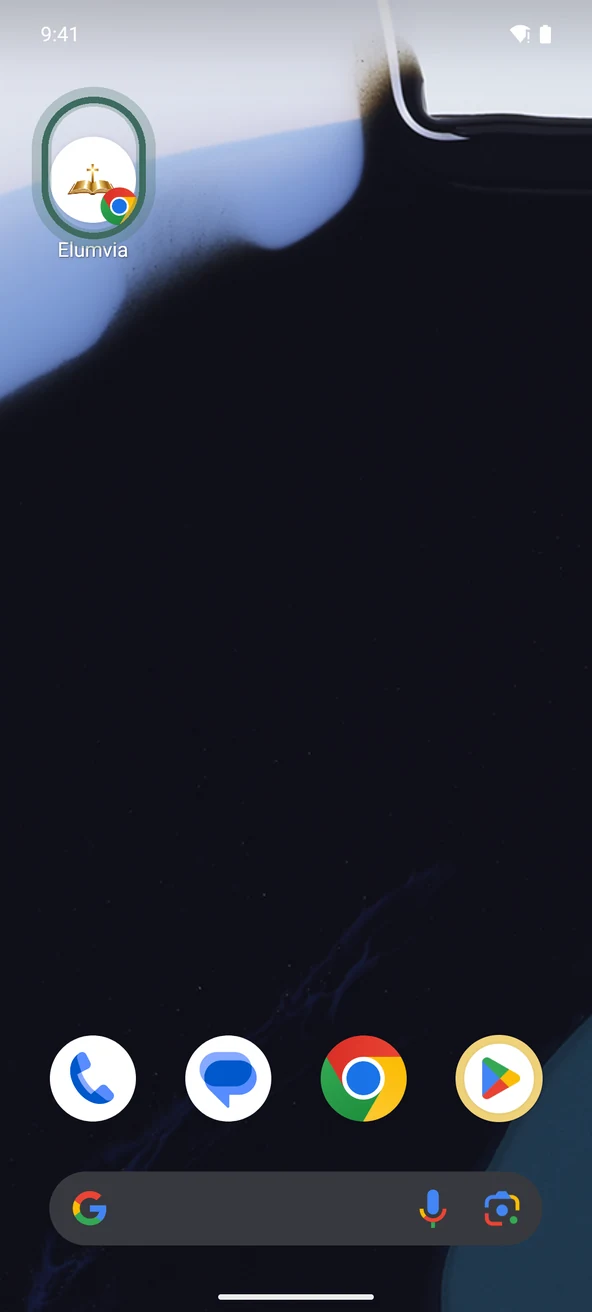
You can also touch and hold the icon to place it yourself.
STEP 6
Open from Home Screen
The Elumvia icon is now on your Home Screen. Select it to open.
Using Samsung Internet? Select the three lines at the bottom right, then Add page to, then Home Screen.
Screens may look a little different on your phone.