
- Add Elumvia from Safari in about a minute.
- Give it a clean name and icon.
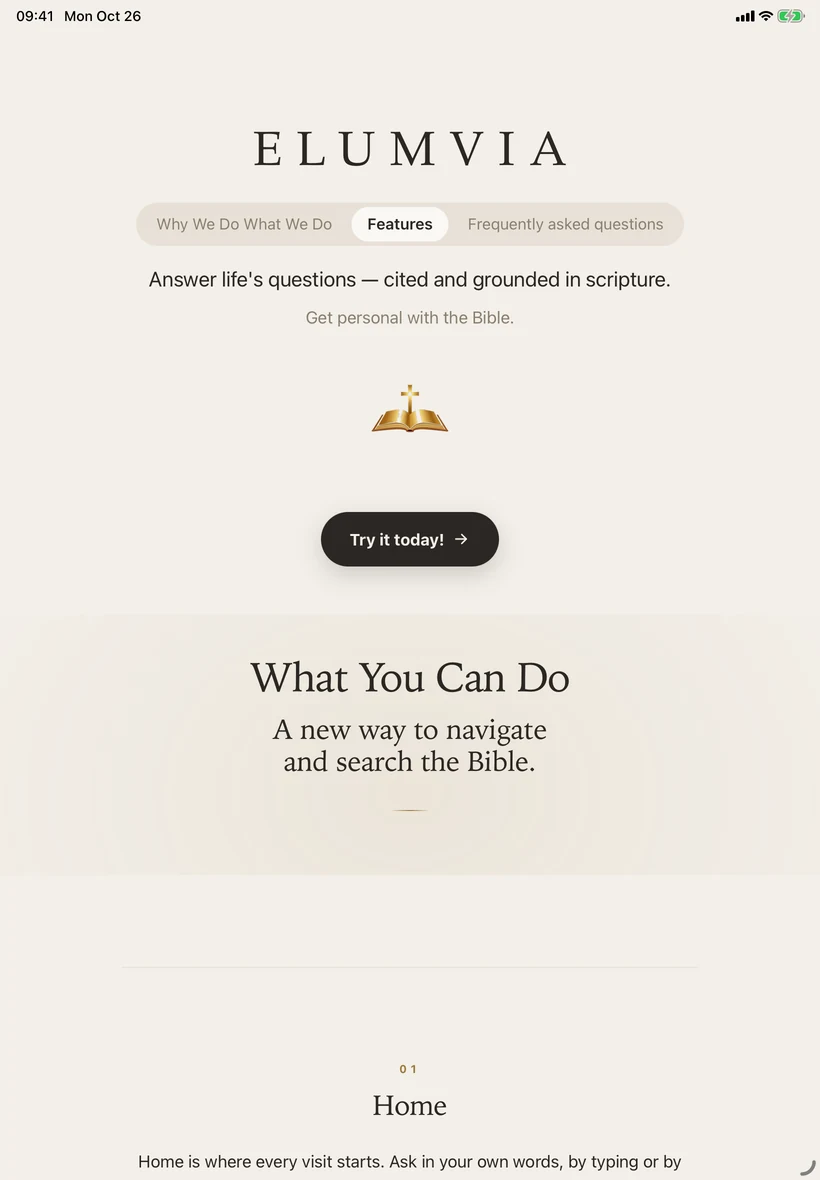
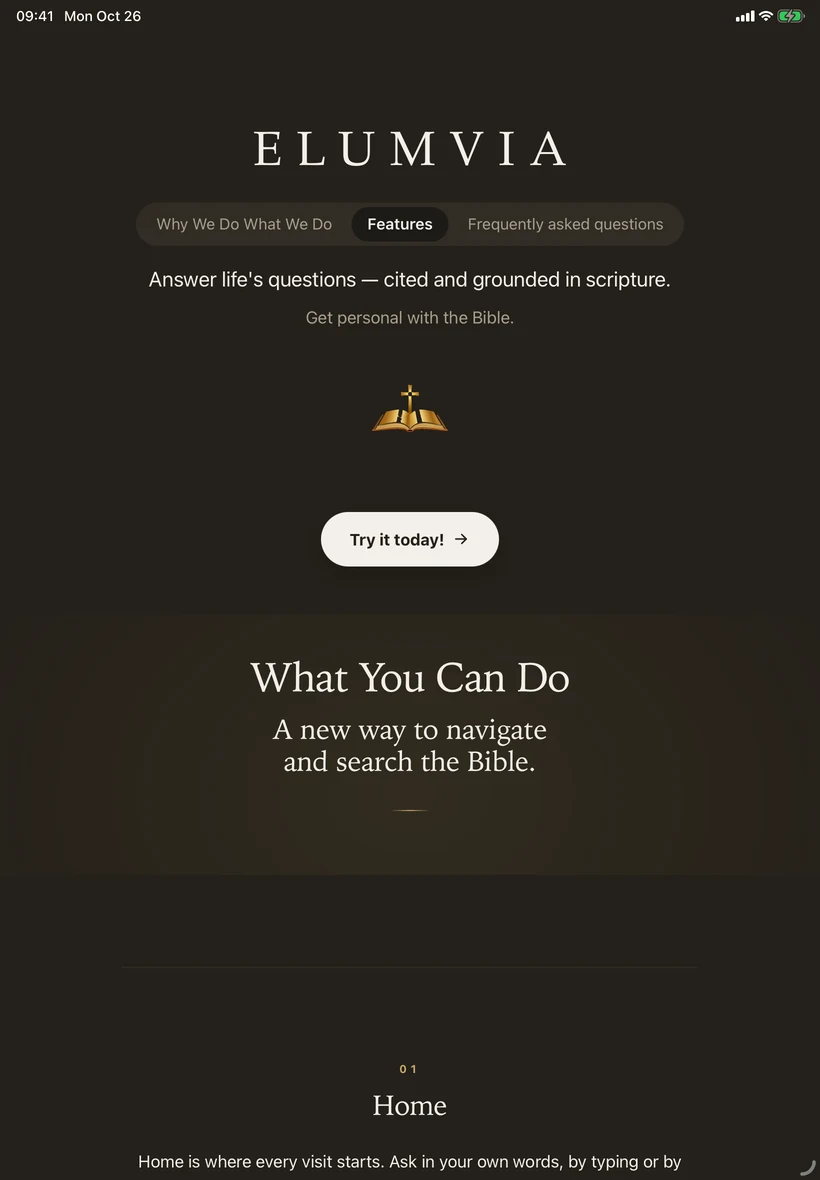
- Open it like an app, with no browser bars.
STEP 1
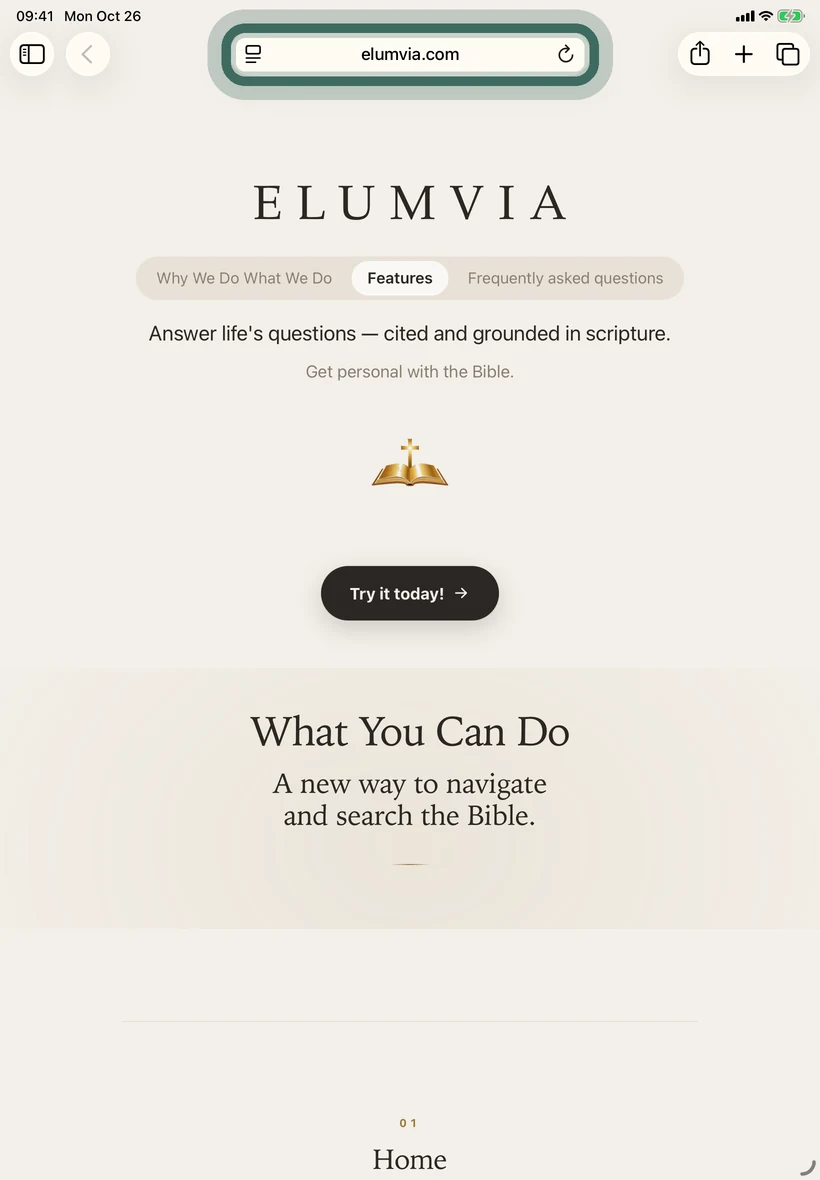
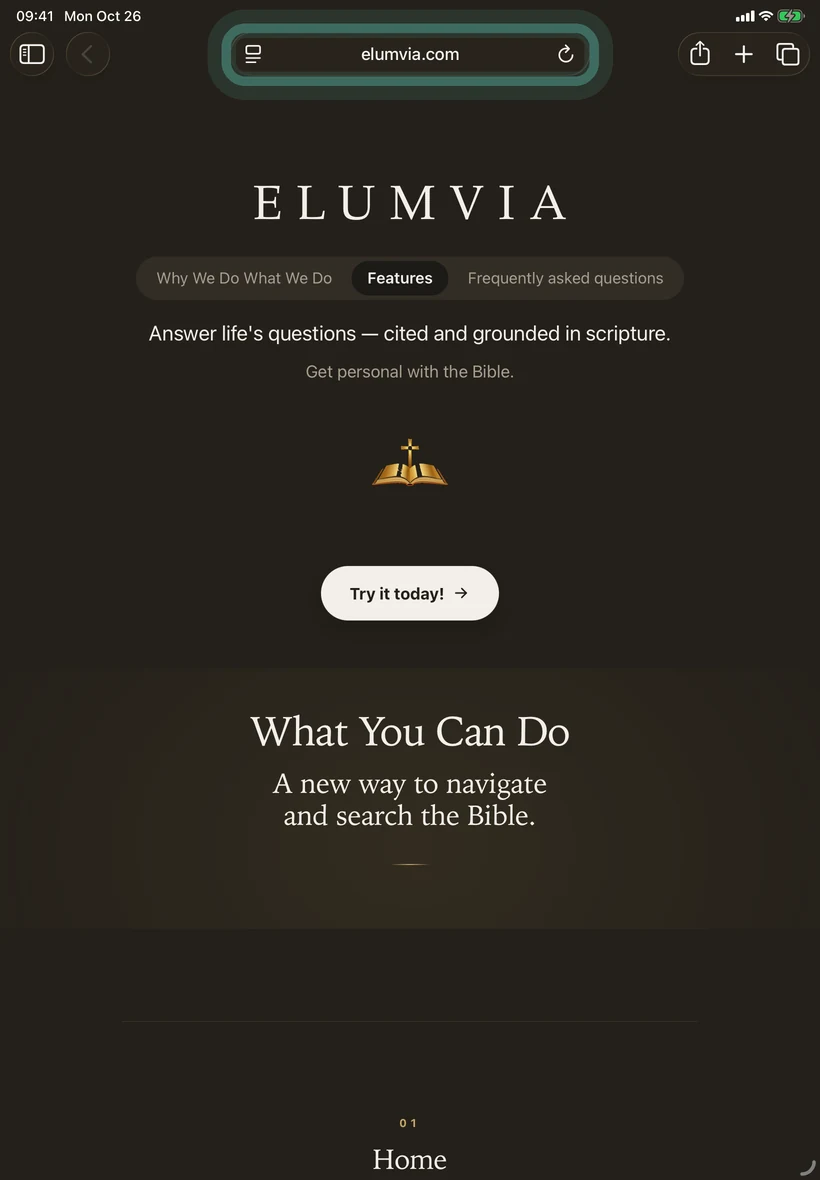
Open Safari
Go to elumvia.com.
STEP 2
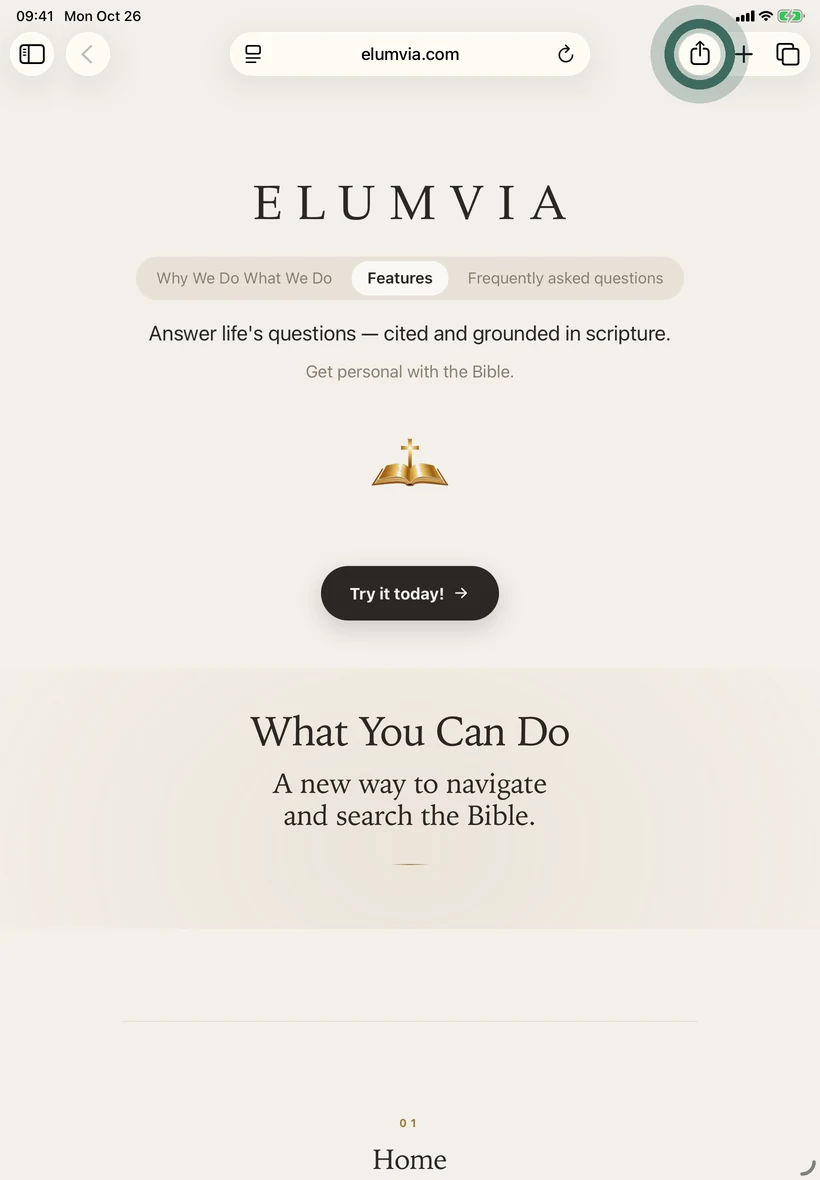
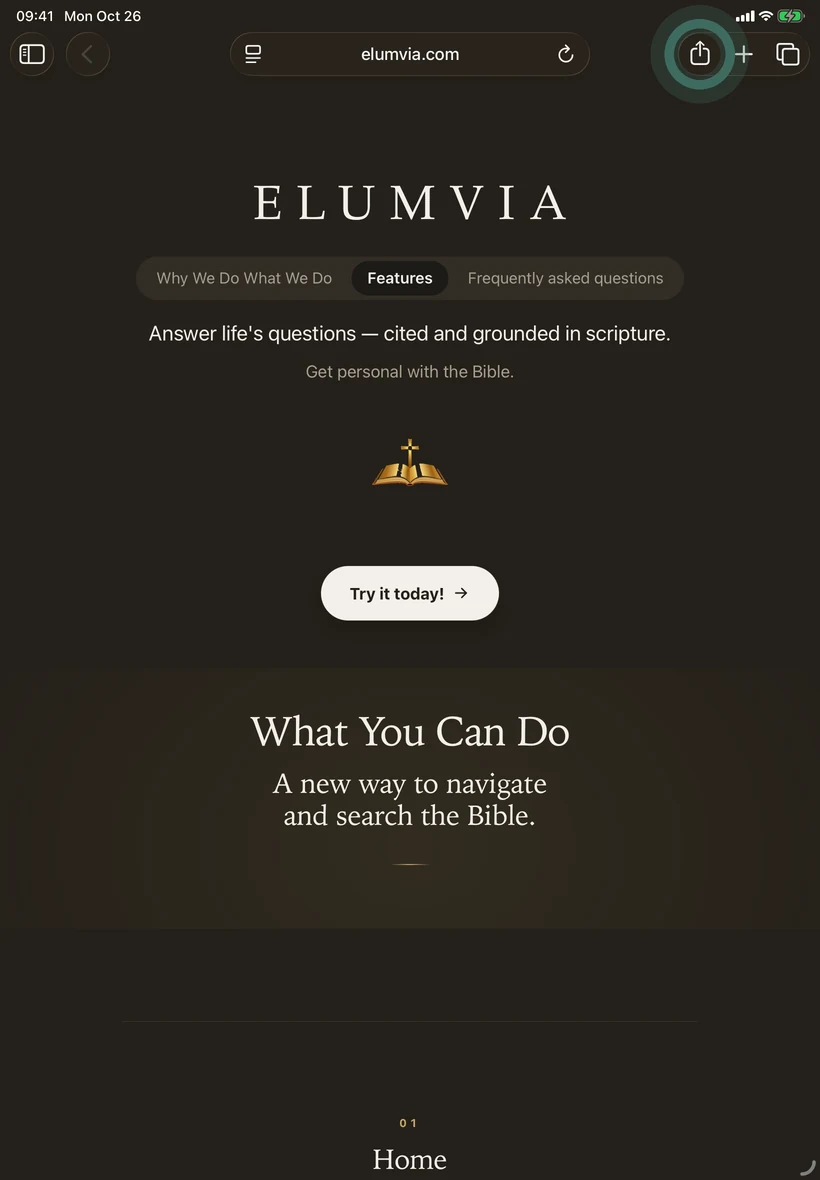
Select Share
The Share button is a square with an arrow pointing up, at the top right of Safari.
STEP 3
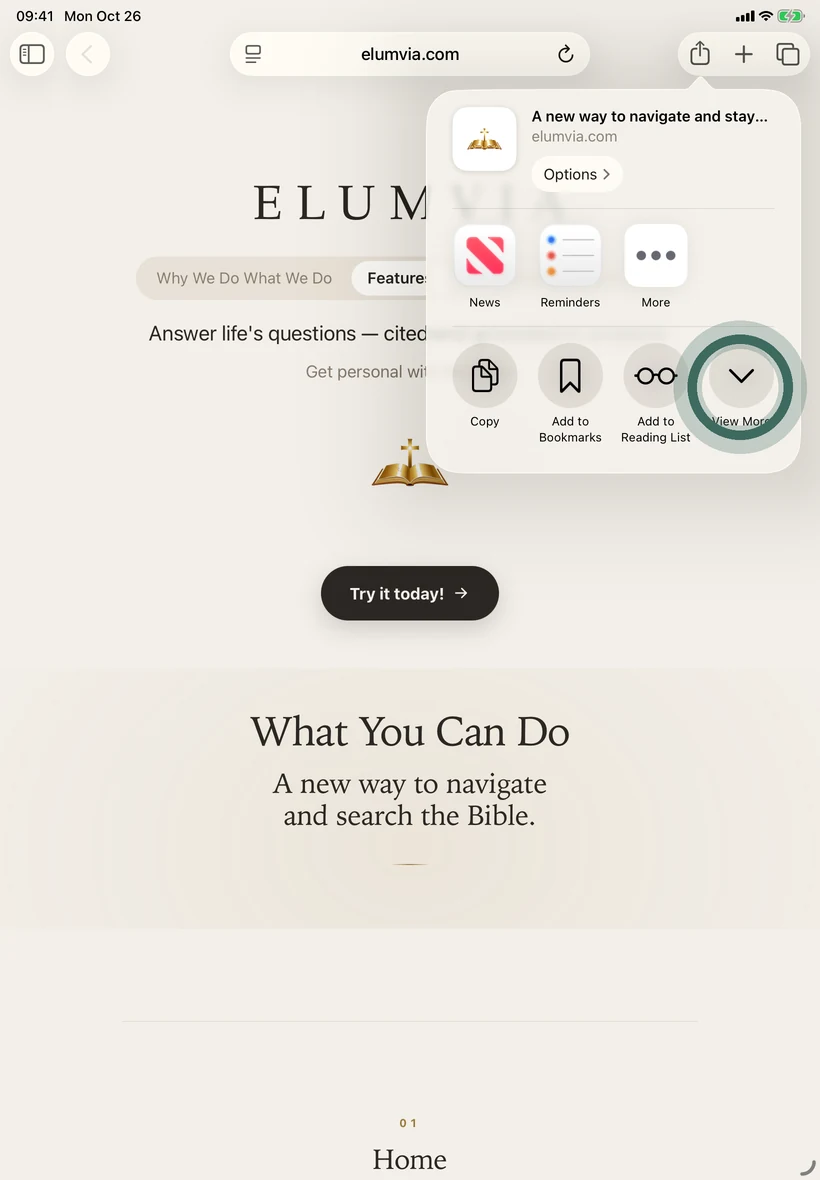
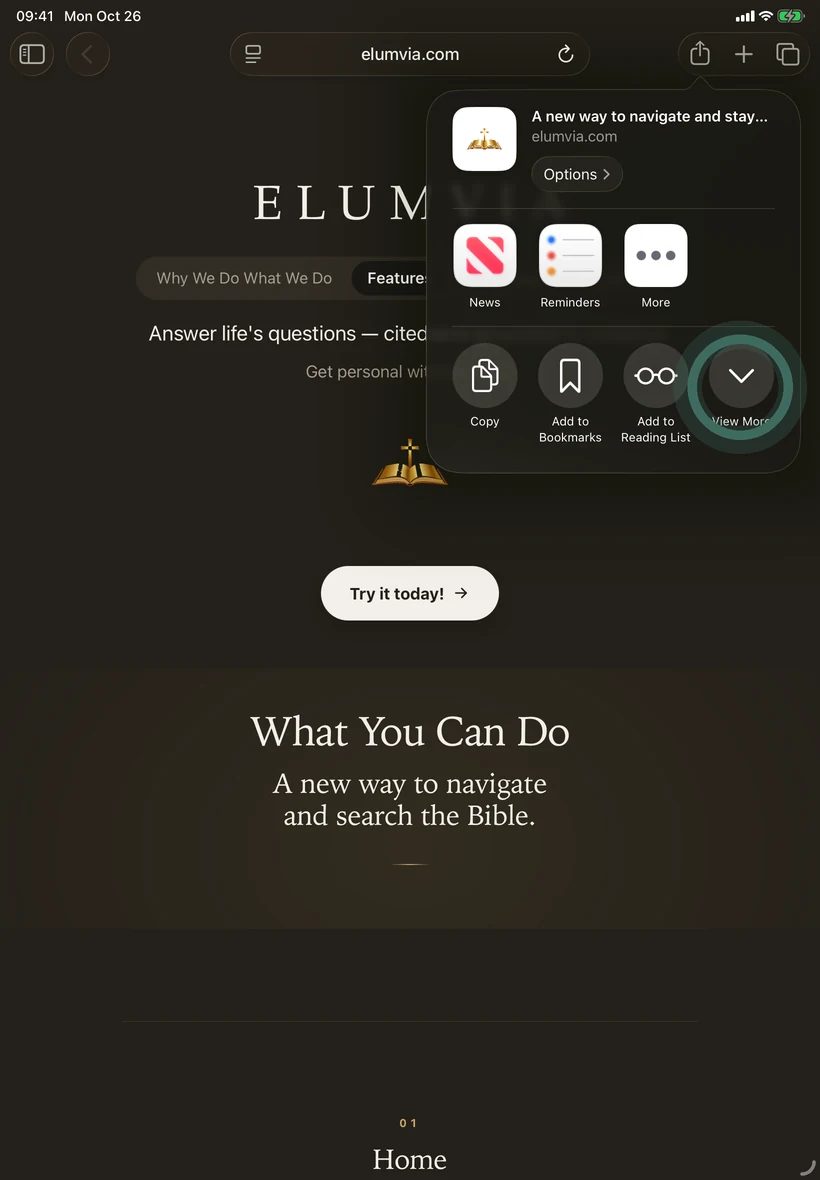
Select View More
The down arrow. Don’t see View More? Scroll down to Add to Home Screen, select it, then go to step 5.
STEP 4
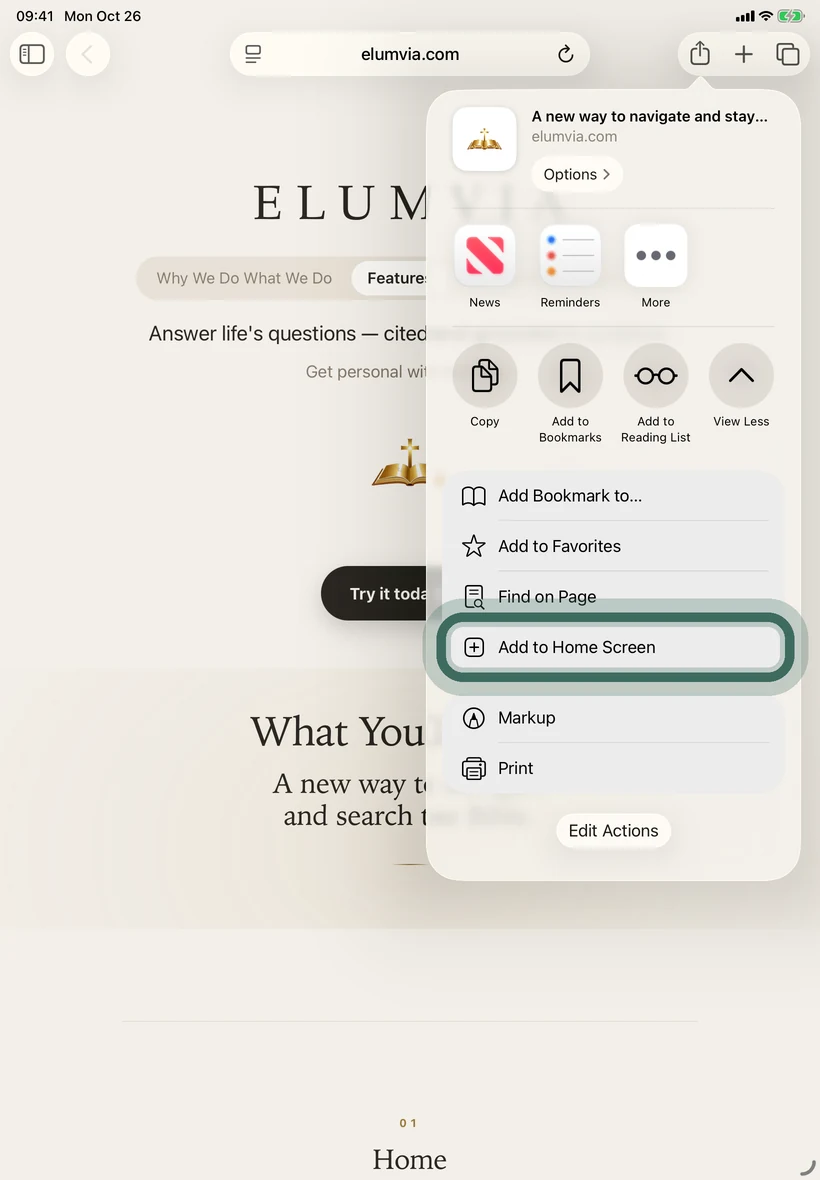
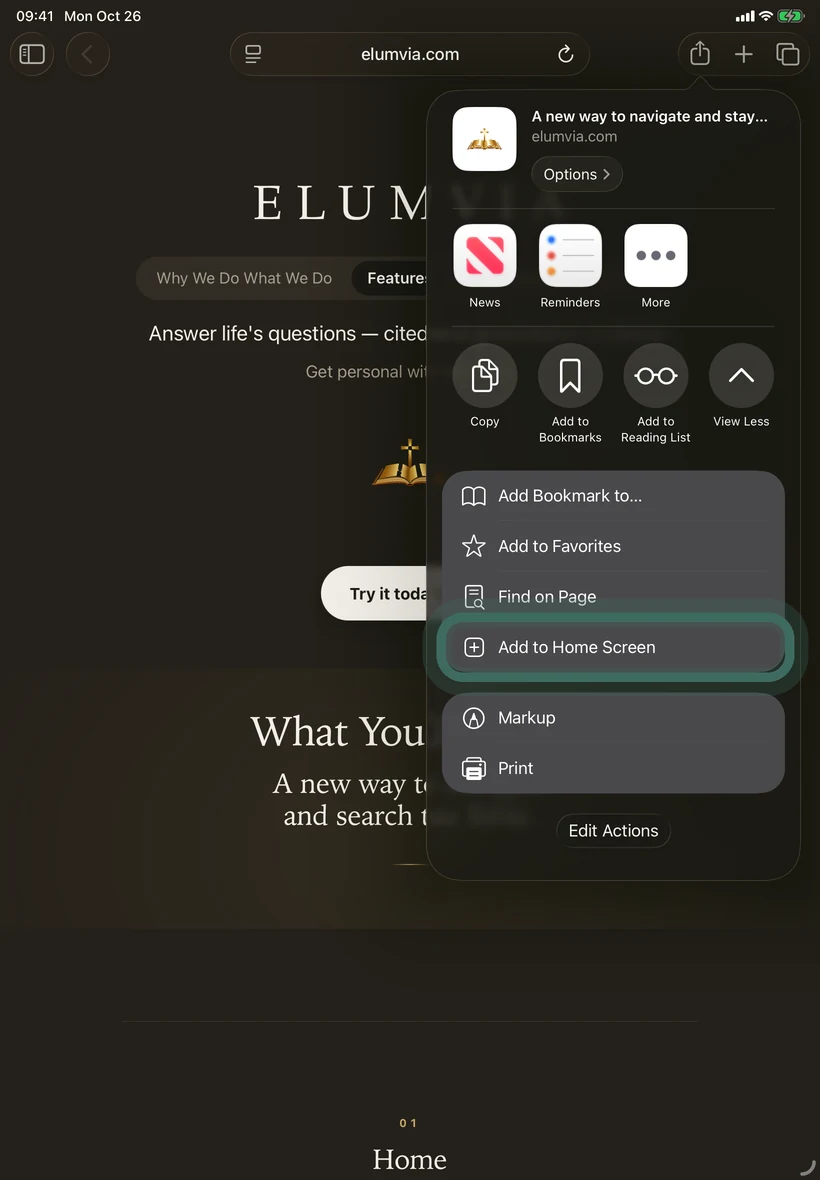
Select Add to Home Screen.
STEP 5
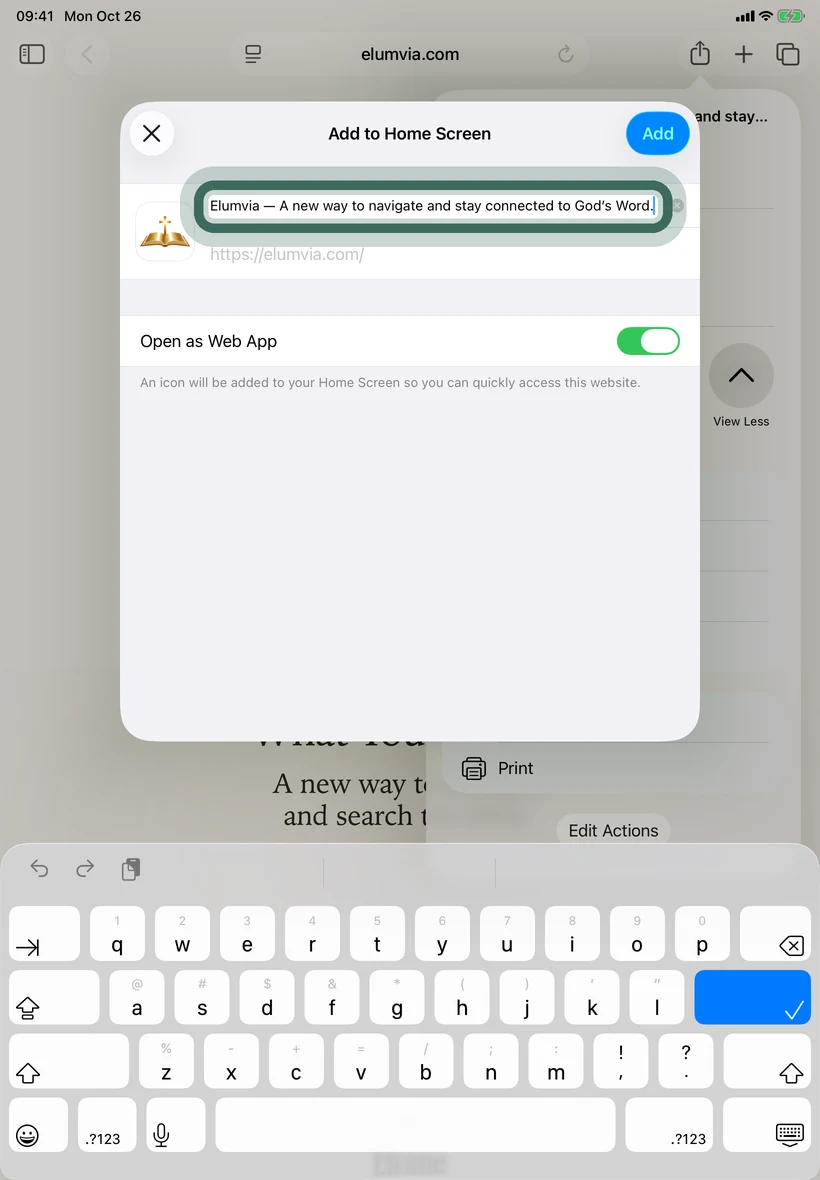
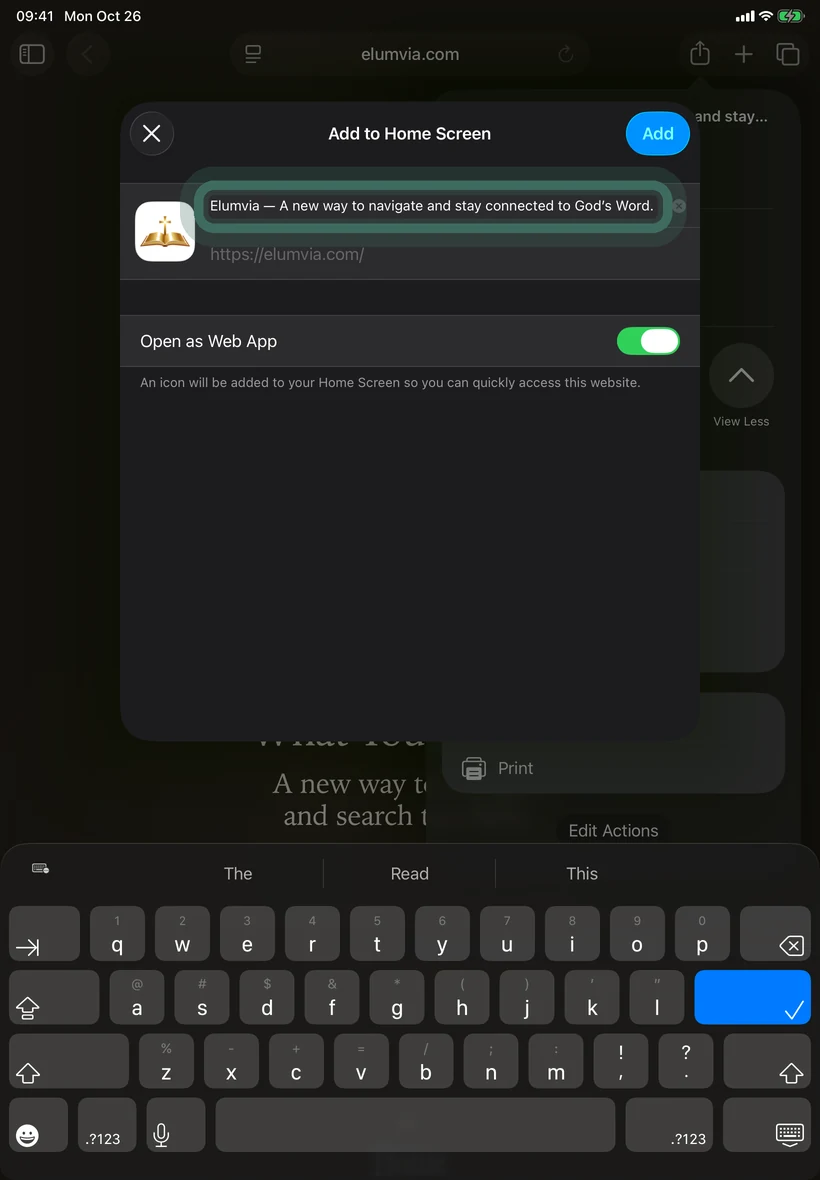
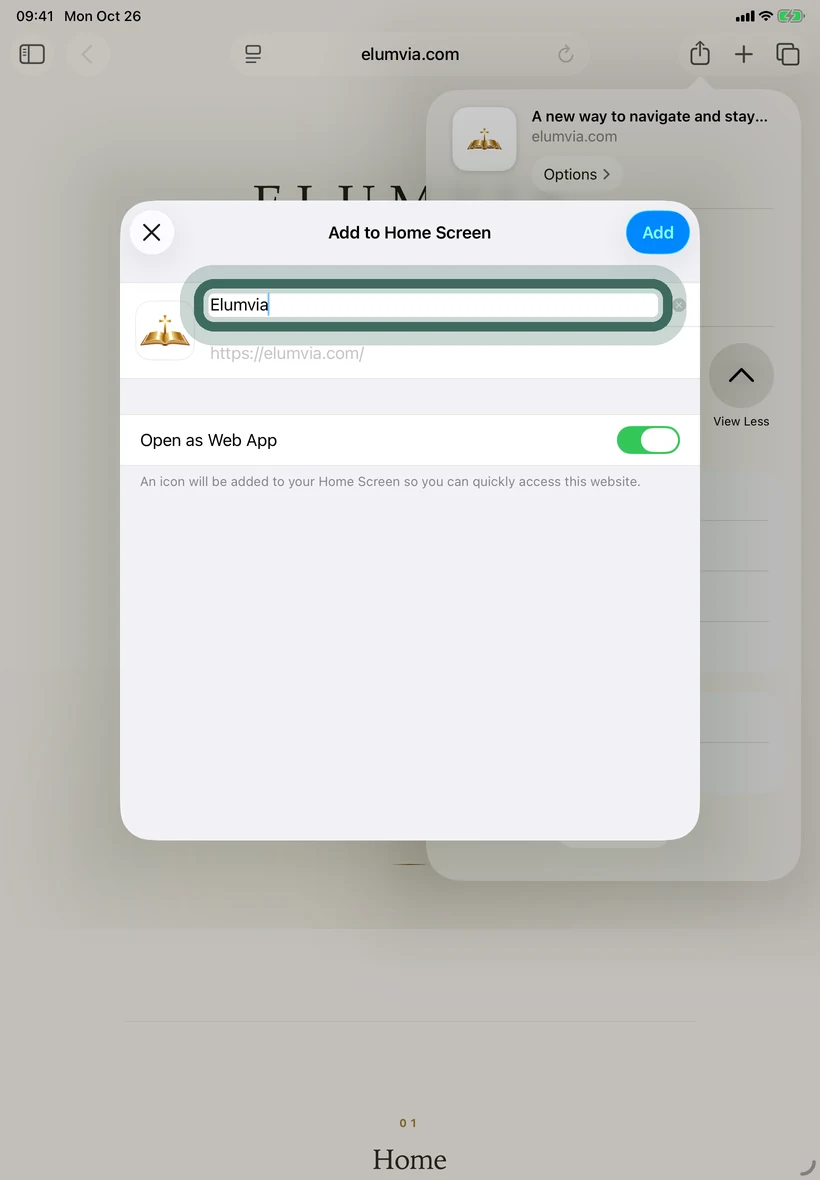
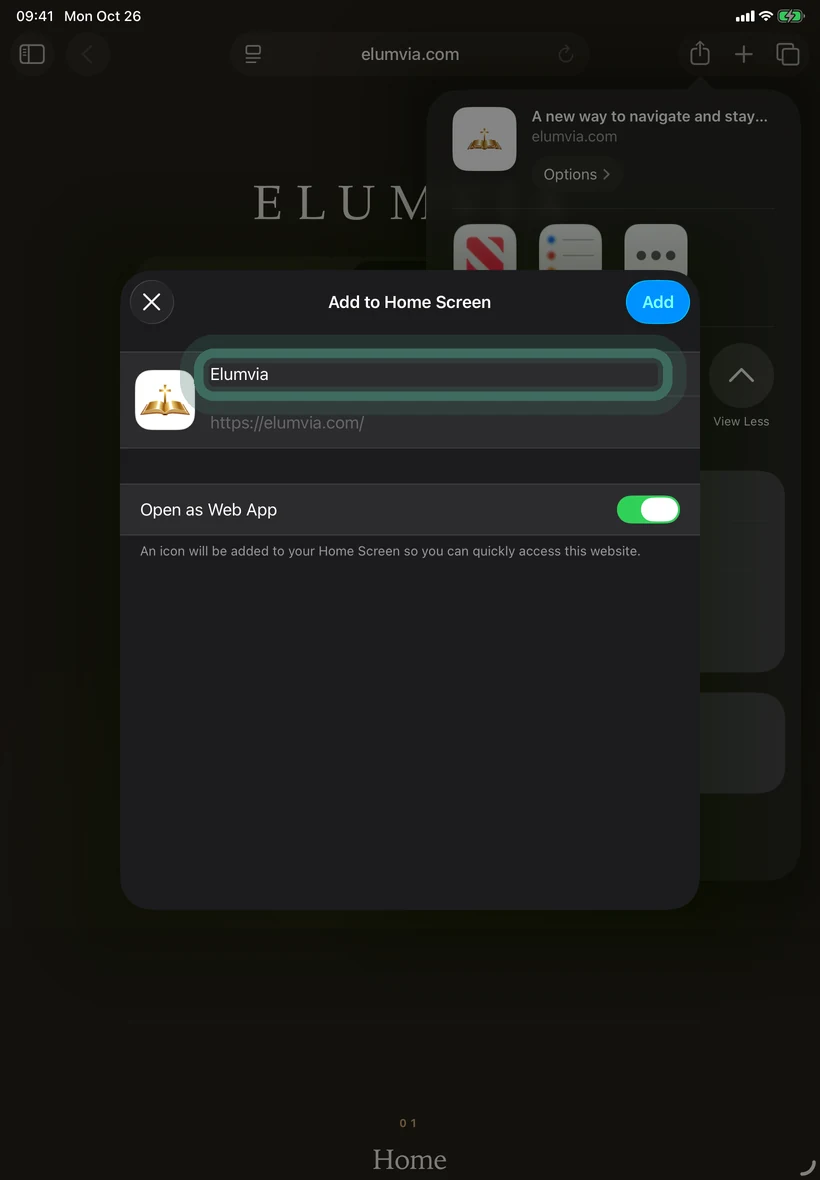
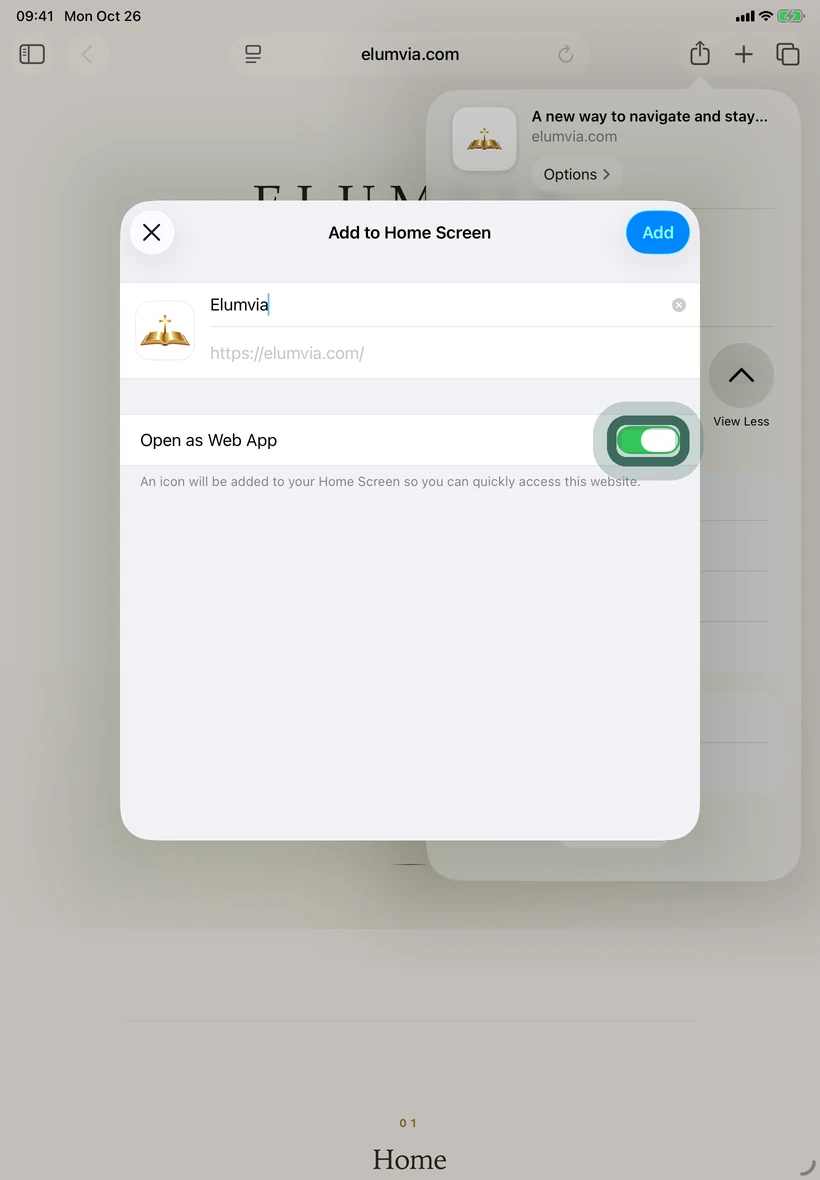
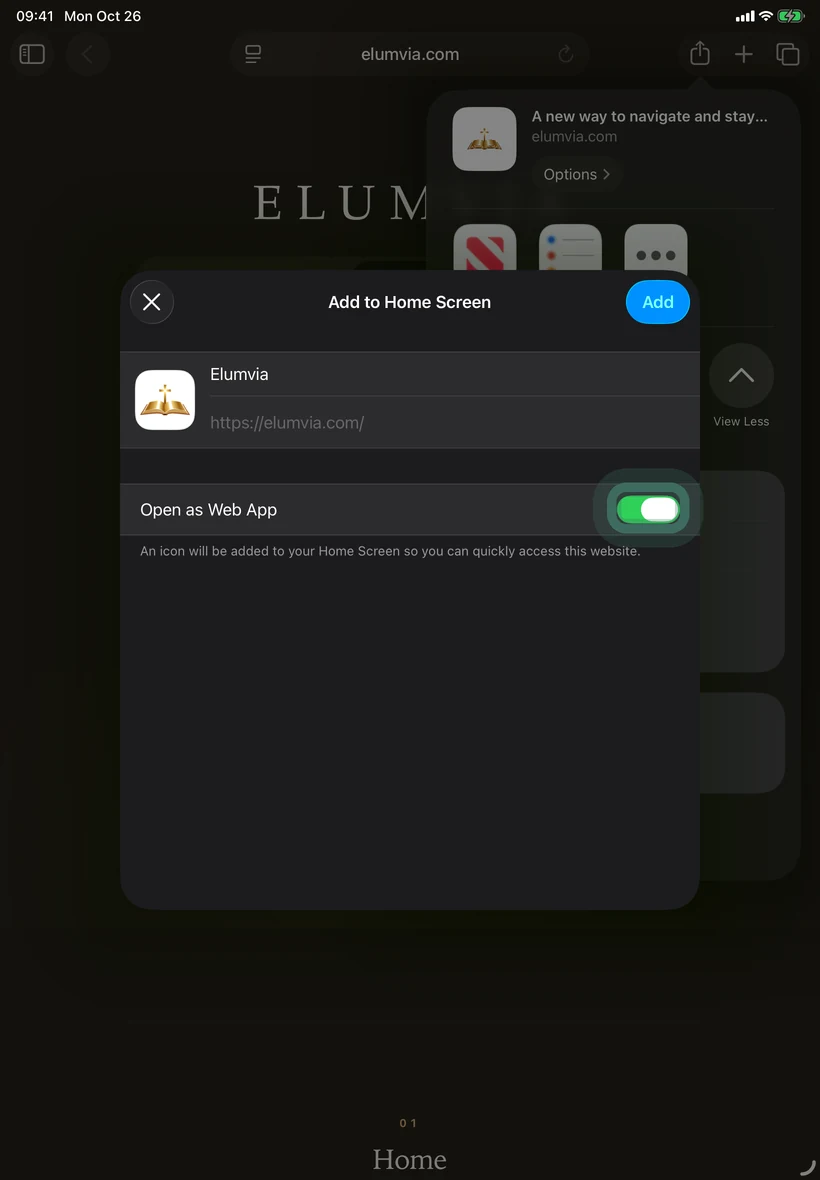
Name it Elumvia
If the name isn’t just Elumvia, change it to Elumvia. The name may start as a long line of text. Clear it and type Elumvia.
STEP 6
Open as a web app
Turn on Open as Web App so it opens like an app.
STEP 7
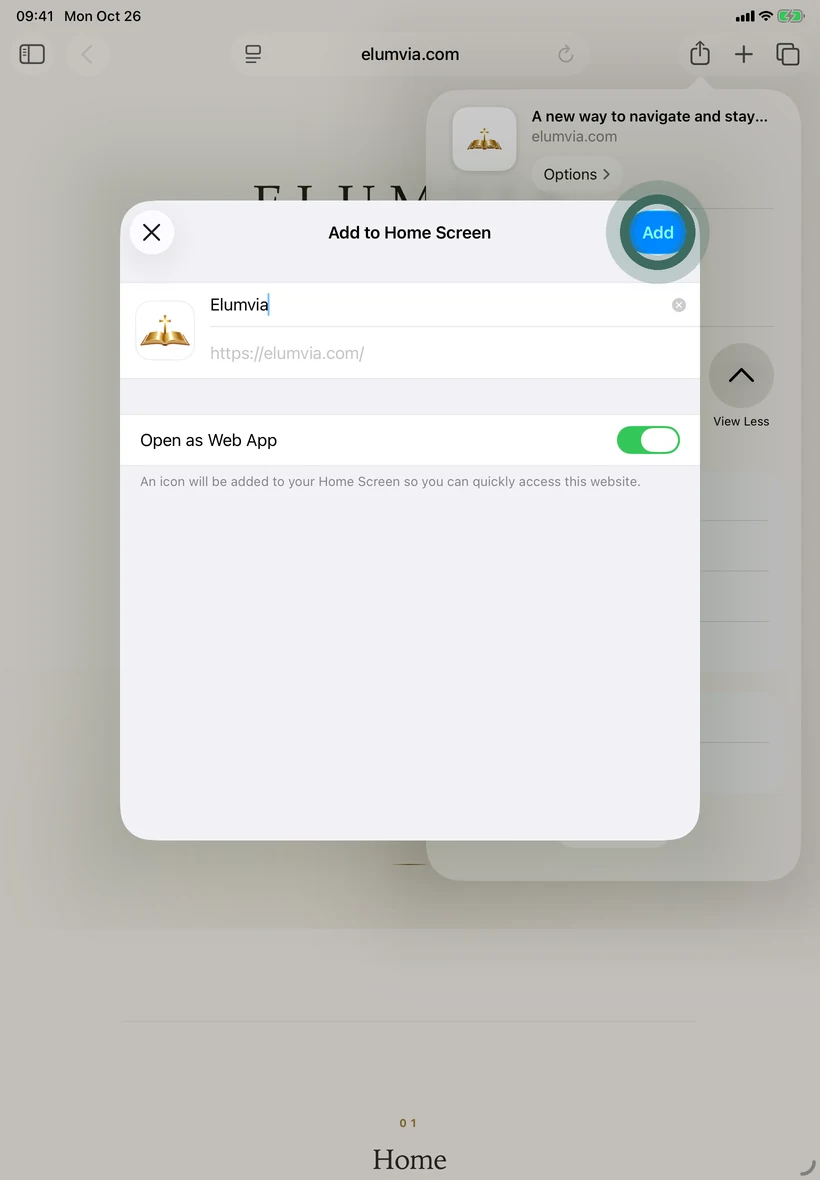
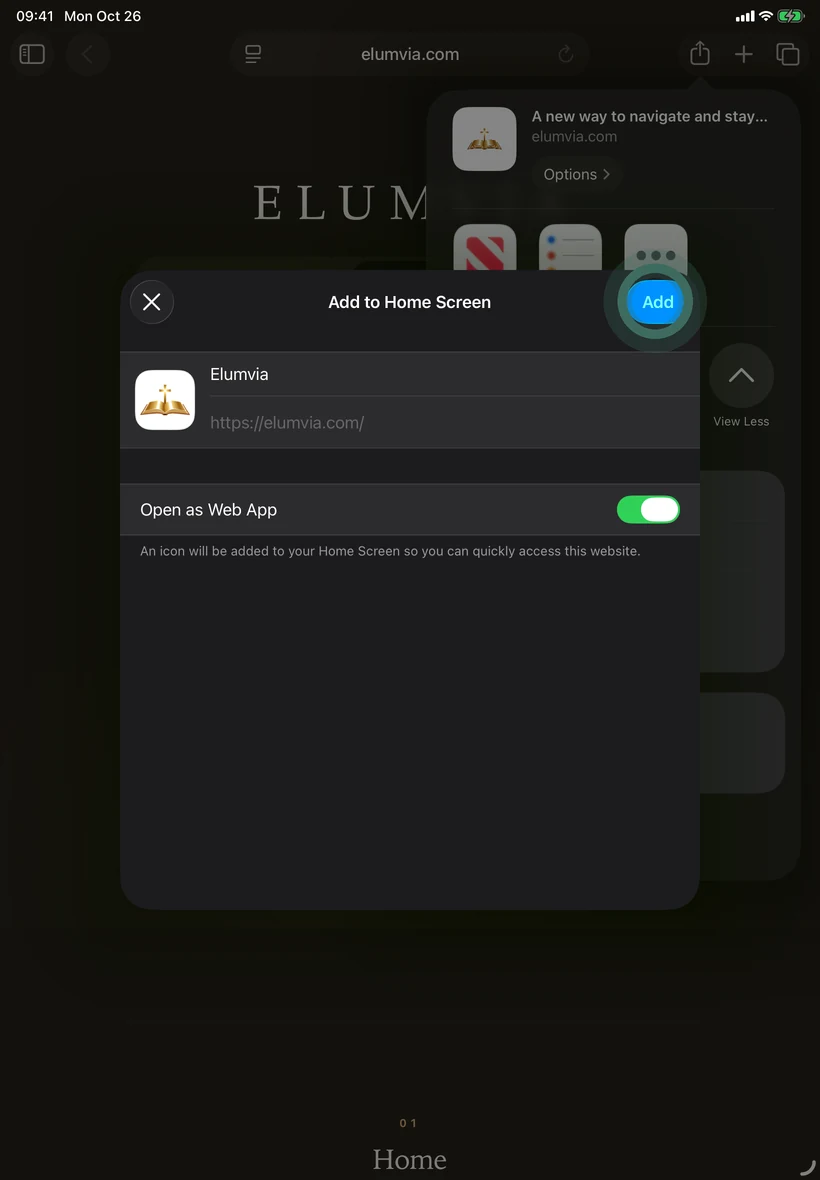
Select Add.
STEP 8
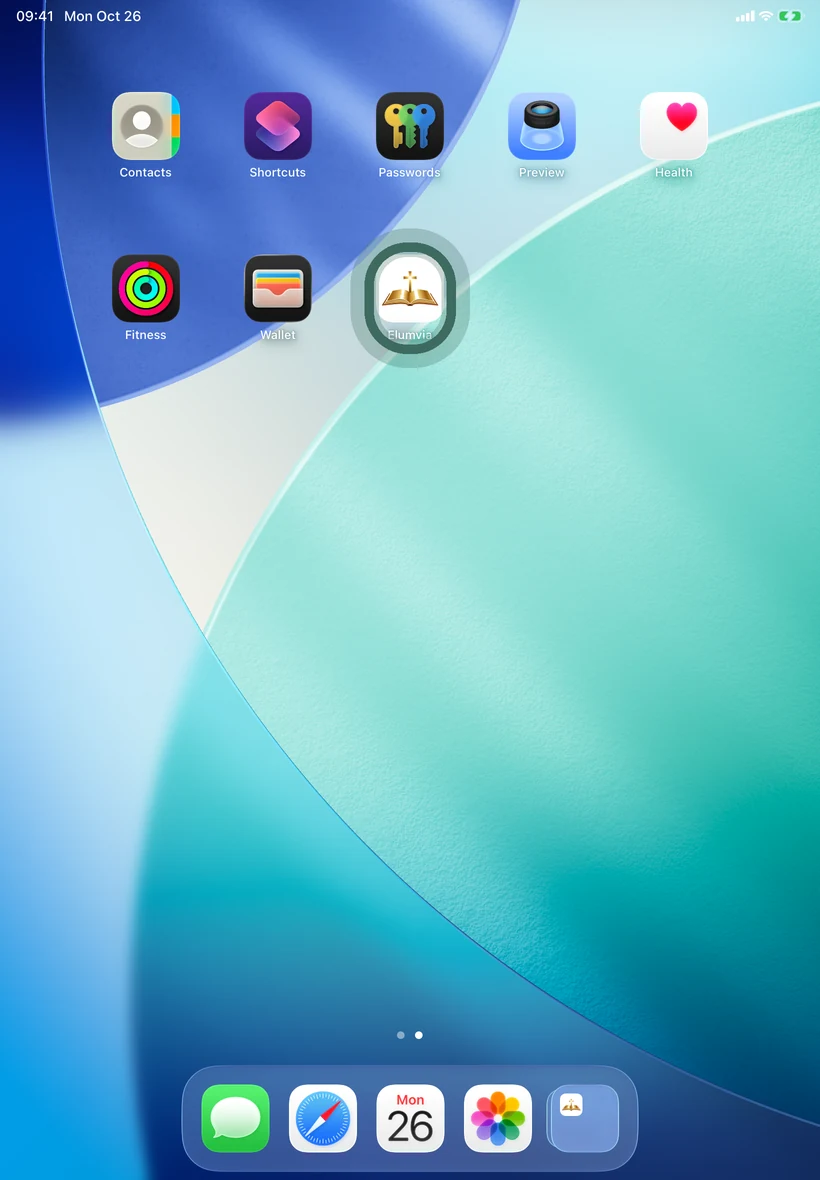
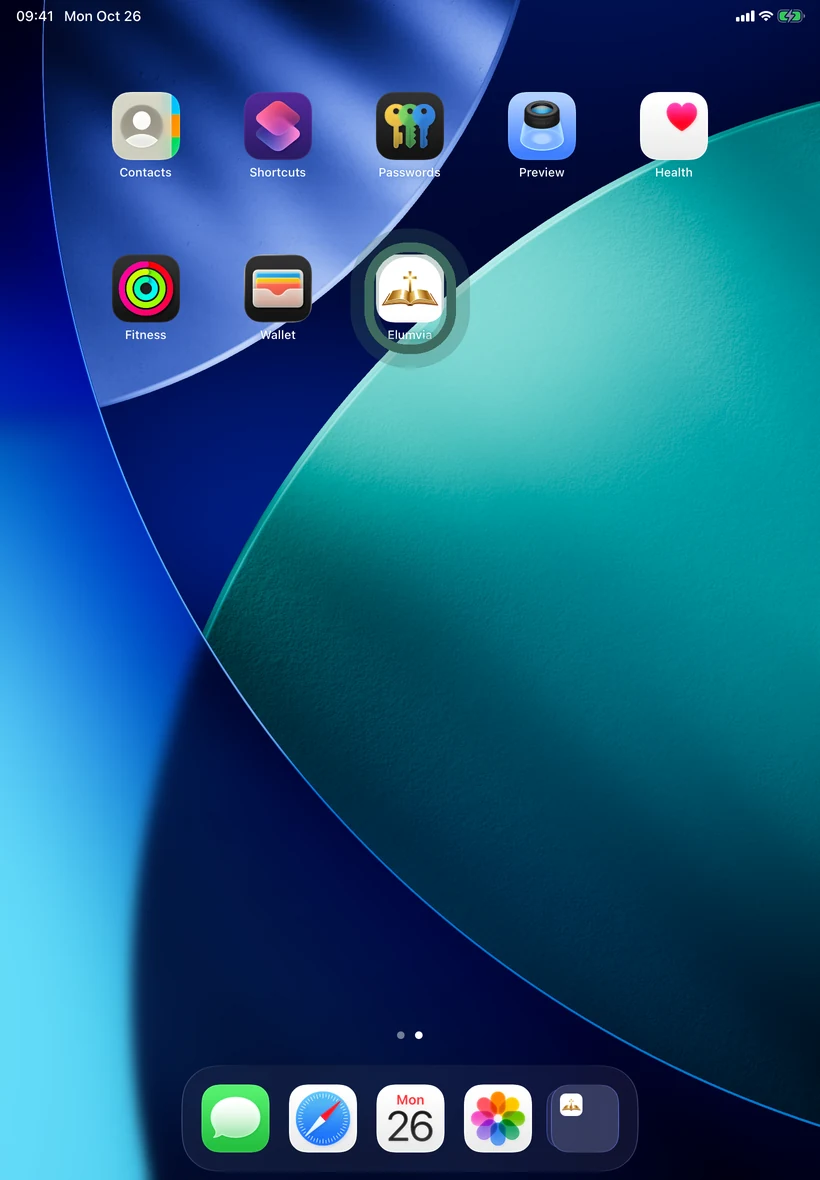
Open from Home Screen
The Elumvia icon is now on your Home Screen. Select it to open. The icon appears only on the iPad where you add it.
Good to know: If you don’t see the Open as Web App switch, select Add. Elumvia still works.
Screens may look a little different on your iPad.